
Starting with Windows 7, Microsoft added new "Shrink Volume" and "Extend Volume" functions in the native Disk Management to help resize partitions without losing data (in most cases). However, both functions only work under specific conditions. Windows 8/10 inherited the same functions without any improvement, so many people report that "Extend Volume" is disabled in Windows 10 and they cannot extend a partition. This article introduces the reasons why "Extend Volume" is greyed out in Windows 10/8/7 Disk Management and how to solve this problem easily.
Why Is Extend Volume Greyed Out in Windows 10 Disk Management
Reason 1: No Adjacent Unallocated Space on the Right
As the name suggests, "unallocated" space is a kind of disk space that is not allocated to any partition. In Windows XP Disk Management, unallocated space can only be used to create a new partition, but in Windows 10/8/7, it can be used to expand another drive.
Note: The size of a physical SSD/HDD is fixed; a 256GB disk cannot be decreased to 128GB or increased to 512GB. Before extending a partition, there must be unallocated space on the same disk. You can get unallocated space by deleting or shrinking another volume. It is better to shrink a partition, because you will not lose files in it. Many people successfully shrunk the D drive and got unallocated space, but "Extend Volume" is still grayed out.
Then why is "Extend Volume" greyed out for the C: drive in Windows 10 Disk Management after shrinking D? According to Microsoft's explanation, the "Extend Volume" function only works when there is adjacent unallocated space on the right. When you shrink the D drive with Disk Management, unallocated space can only be created on the right of the D: drive. Therefore, Disk Management cannot extend the C drive with this non-adjacent unallocated space.
As an example, see what happens after shrinking the D: drive with Disk Management in a Windows 10 laptop.
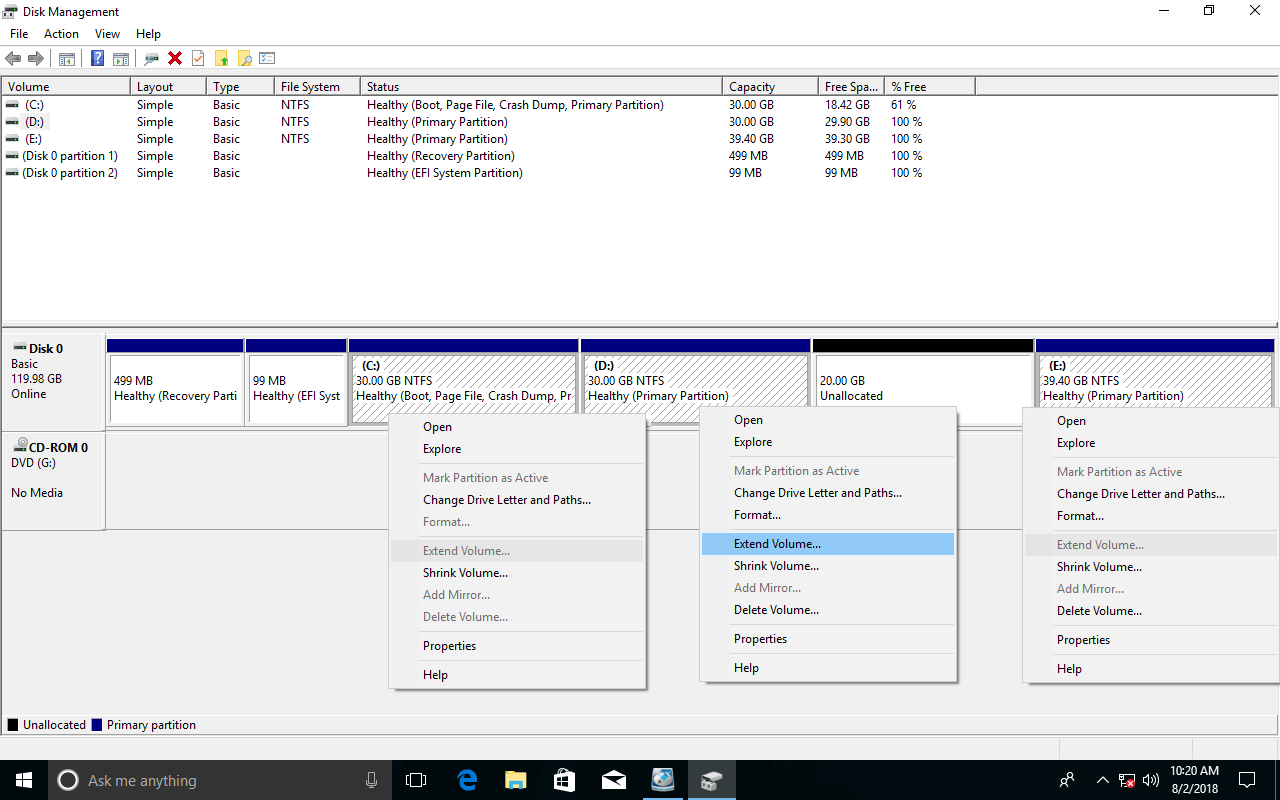
As you see in the screenshot:
- "Extend Volume" is greyed out for the C drive, because the unallocated space is non-adjacent to it.
- "Extend Volume" is also disabled for the E drive, because the unallocated space is on its left side.
- Only drive D meets the requirement, so "Extend Volume" is activated.
A lack of right adjacent unallocated space is the most common reason why "Extend Volume" is greyed out in Windows 10/8/7 Disk Management.
Reason 2: File System Is Not Supported
Another common reason why "Extend Volume" is greyed out in Windows 10/8/7 Disk Management is related to the file system.
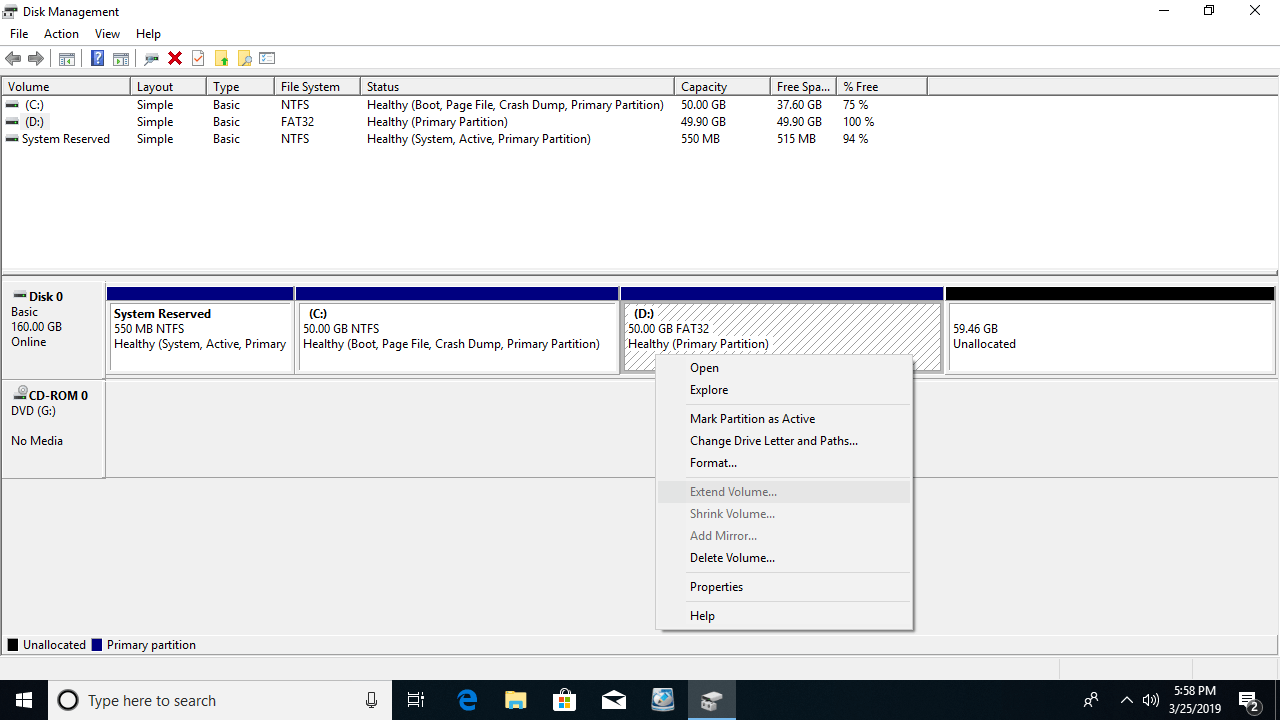
Both "Shrink Volume" and "Extend Volume" functions only support the NTFS file system; FAT32 and any other types of partitions cannot be resized via Disk Management. For example, if drive D is formatted from NTFS to FAT32, "Extend Volume" will be grayed out for the D drive.
In general, the system partition is formatted with NTFS by default when installing Windows, so this issue is only common for data partitions.
If you initialized your hard disk as MBR, there could be 2 additional reasons why Extend Volume is grayed out in Windows 10/8/7 Disk Management.
Reason 3: Different Partition Type
Because Disk Management cannot extend a volume after shrinking another one, some people wonder if it is possible to enable the "Extend Volume" option by deleting the adjacent D: drive. It works on a GPT disk, but on an MBR disk, it depends.
Do not delete the D drive if you installed programs or any services in it.
In some cases, "Extend Volume" is still disabled for the C drive even after deleting D.
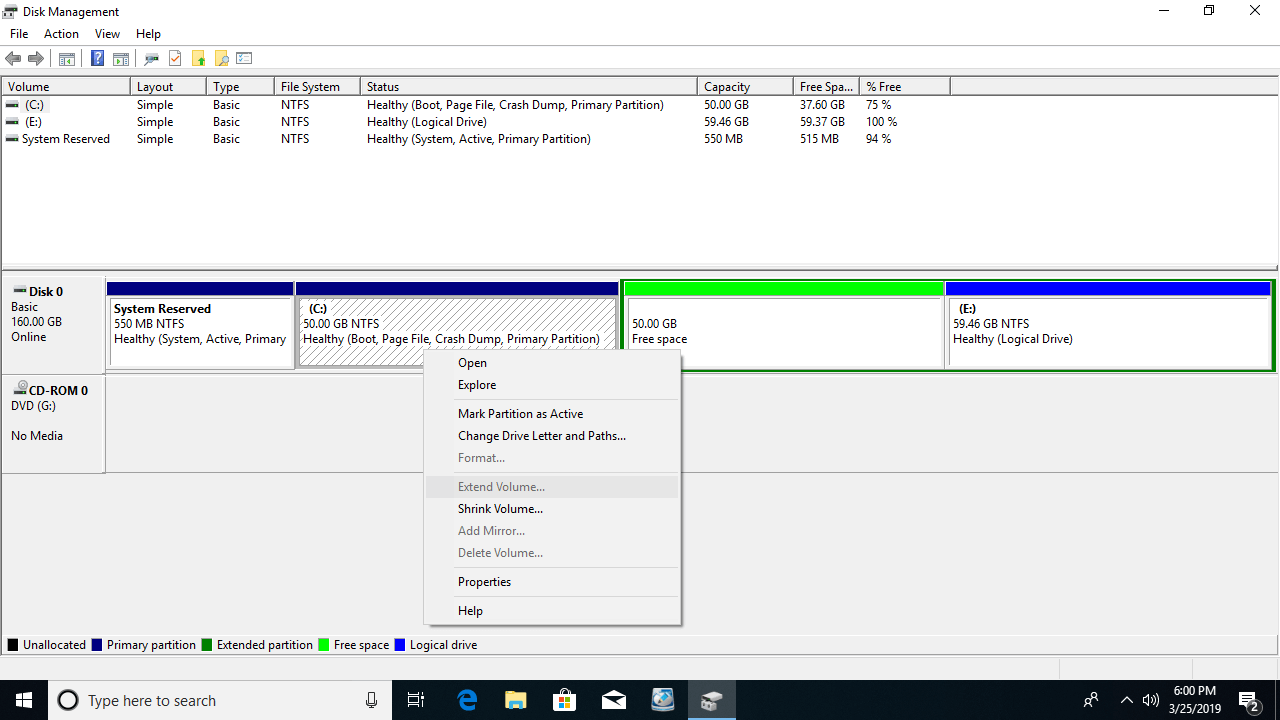
Why is "Extend Volume" greyed out in Windows 10/8/7 even after deleting the contiguous partition on the right?
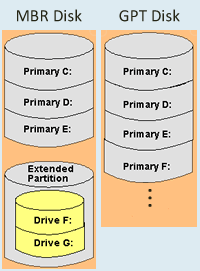
On a GPT disk, you can create many partitions and all are Primary, but on an MBR disk, you can only create a maximum of 4 partitions if they are all Primary. This is because there are only 4 entries in the Master Boot Record, from which the Operating System can locate the position of each partition.
To create more than 4 partitions, one of the entries must be assigned to an Extended partition. The Extended partition works like a container, and all Logical drives must be created inside of it.
Unlike a Primary partition whose disk space will be converted to unallocated after deleting, the disk space of a Logical partition will be converted to "Free" after deleting. Free space is still a part of the Extended Partition, so it cannot be merged into any Primary partitions.
Likewise, unallocated space that is created by deleting a Primary partition cannot be extended to any Logical drive via Windows Disk Management.
Reason 4: 2TB Restriction on MBR Disk
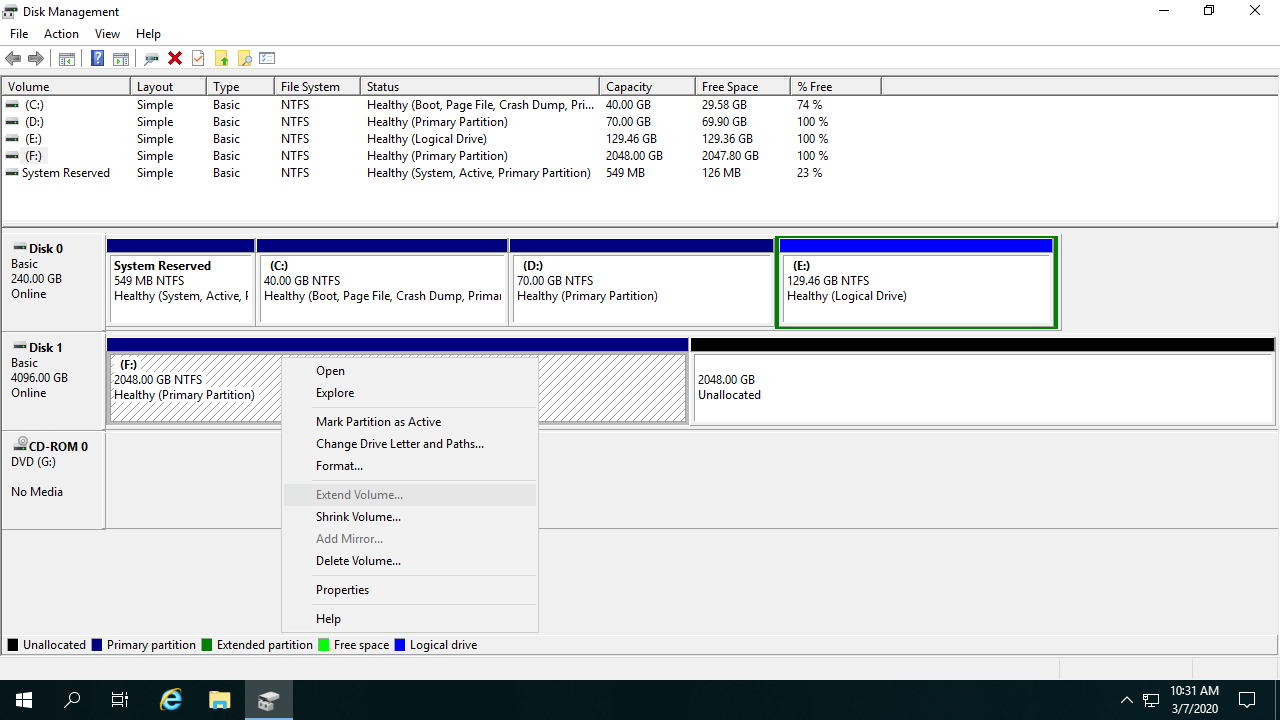
Another major limitation of an MBR style disk is that you can only create a maximum 2TB partition on it. If you initialize a 4TB hard disk as MBR, you can only use 2TB of space; the remaining space will be shown as unallocated. When you right-click this unallocated space in Disk Management, all options are grayed out.
For example, even if the F: drive is NTFS and there is contiguous unallocated space on the right, "Extend Volume" is still grayed out in Windows 10 Disk Management.
What to Do When Extend Volume Is Disabled in Windows 10/8/7
Method 1: Move Unallocated Space
When "Extend Volume" is greyed out for the C drive in Windows 10 after shrinking D or another volume, you must move the unallocated space next to the C drive in advance.
How to fix "Extend Volume" greyed out for the C drive in Windows 10/8/7:
- Download NIUBI Partition Editor, right-click the D: drive and select "Resize/Move Volume"; drag the middle of the D drive to the right in the pop-up window, then the unallocated space will be moved to the left side.
- Right-click the C: drive and select "Resize/Move Volume" again; drag the right border to the right in the pop-up window, then the unallocated space will be merged into the C: drive.
- Click Apply on the top left to confirm and execute.
Follow the steps in the video:
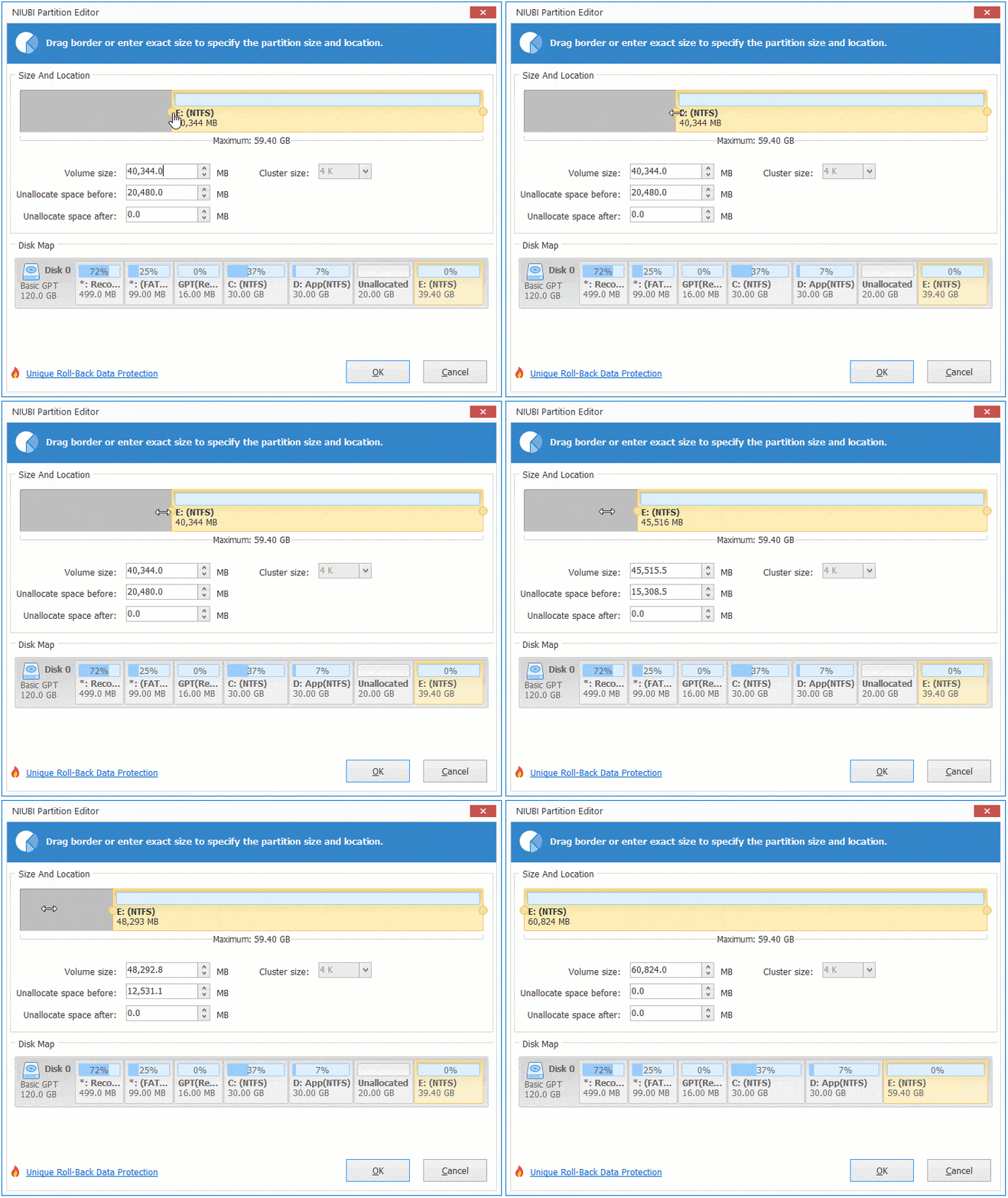
For another contiguous data volume E, you can merge the unallocated space into it directly without moving it. To do this, right-click E and select "Resize/Move Volume", then drag the left border to the left in the pop-up window.
Method 2: Resize Volume with NIUBI Partition Editor
If Windows 10 "Extend Volume" is greyed out because you are trying to extend a FAT32 partition or the type of partitions that you want to shrink and extend are different, resize with NIUBI Partition Editor. There is no difference while resizing an NTFS or FAT32 partition, or a Primary or Logical partition. Follow the steps in the video:
Method 3: Convert MBR to GPT Before Expanding
If you want to extend a partition past 2TB, follow the steps in the video to convert the MBR disk to GPT, and then you can extend the partition with the unallocated space.
In Summary:
Because Windows 10/8/7 Disk Management has many restrictions, you may encounter many problems while shrinking and extending a partition. This article introduces the common reasons why "Extend Volume" is greyed out in Windows 10/8/7 Disk Management and how to solve this problem with ease. Follow the corresponding solution according to your own disk partition configuration.
Besides shrinking, extending, and moving partitions, NIUBI Partition Editor helps you perform many other operations such as merging, converting, defragging, hiding, wiping partitions, and scanning for bad sectors. It offers a free edition for Windows 11/10/8/7/Vista/XP home computer users.
 © 2009 - NIUBI Technology All Rights Reserved. |