
This article introduces how to extend a disk partition with the Windows 10 Extend Volume functionality, as well as an alternative method if Extend Volume does not work.
How to Run the Windows 10 "Extend Volume" Function
Extend Volume is an advanced functionality in the native Disk Management console, which can extend a disk partition online and without losing data. However, there has been no difference or improvement in it since its release in Windows Vista.
It is very easy to run Extend Volume from Windows 10 Disk Management, but there must be contiguous unallocated space on the right side of the drive you want to extend. Otherwise, Extend Volume is grayed out.
Steps to extend a partition with Windows 10 Extend Volume function:
- Press Windows and X on the keyboard and then select Disk Management.
- Right-click this partition and select Extend Volume.
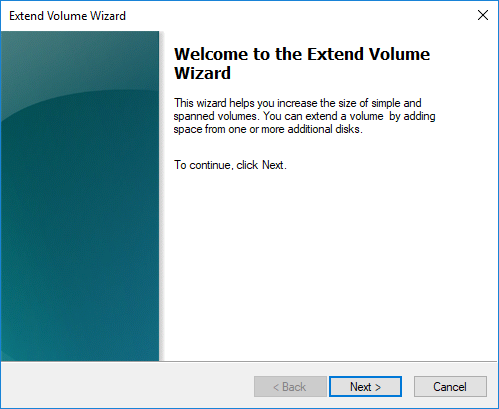
- Simply click Next until you reach Finish in the pop-up Extend Volume Wizard window.
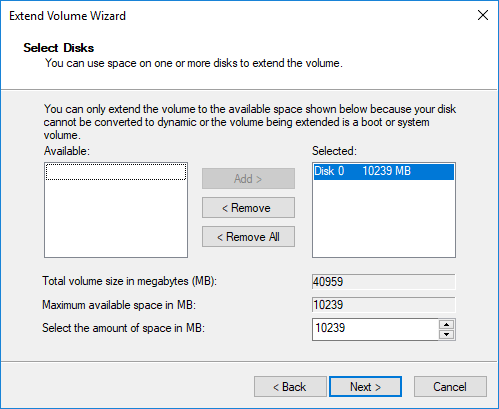
If there is a large amount of unallocated space, you can add a portion of the space to this partition by entering an amount manually.
Windows 10 Extend Volume Doesn't Work
As mentioned above, there must be adjacent unallocated space on the right side of the drive you want to expand. This is the key limitation of the Extend Volume functionality in Windows 10 Disk Management.
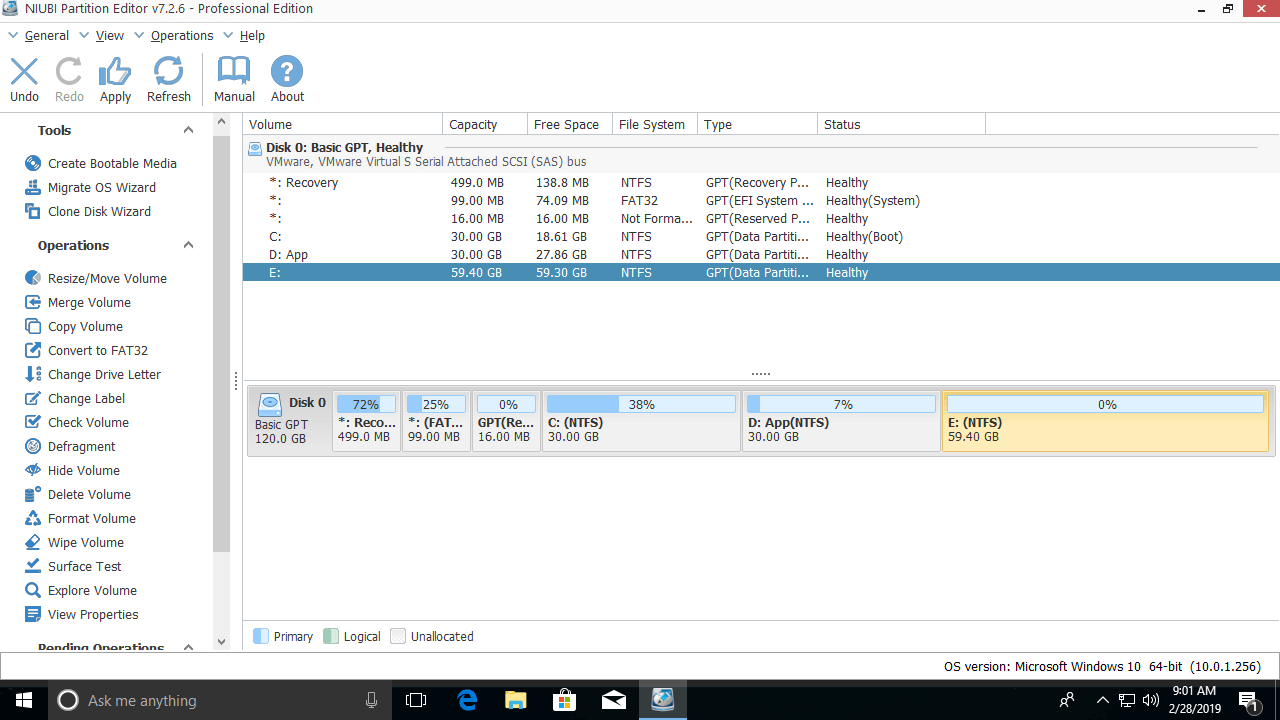
Along with Extend Volume, there is Shrink Volume to decrease partition size, but Shrink Volume can only shrink a partition toward the left and generate unallocated space on the right side. For example, after shrinking the D: drive:
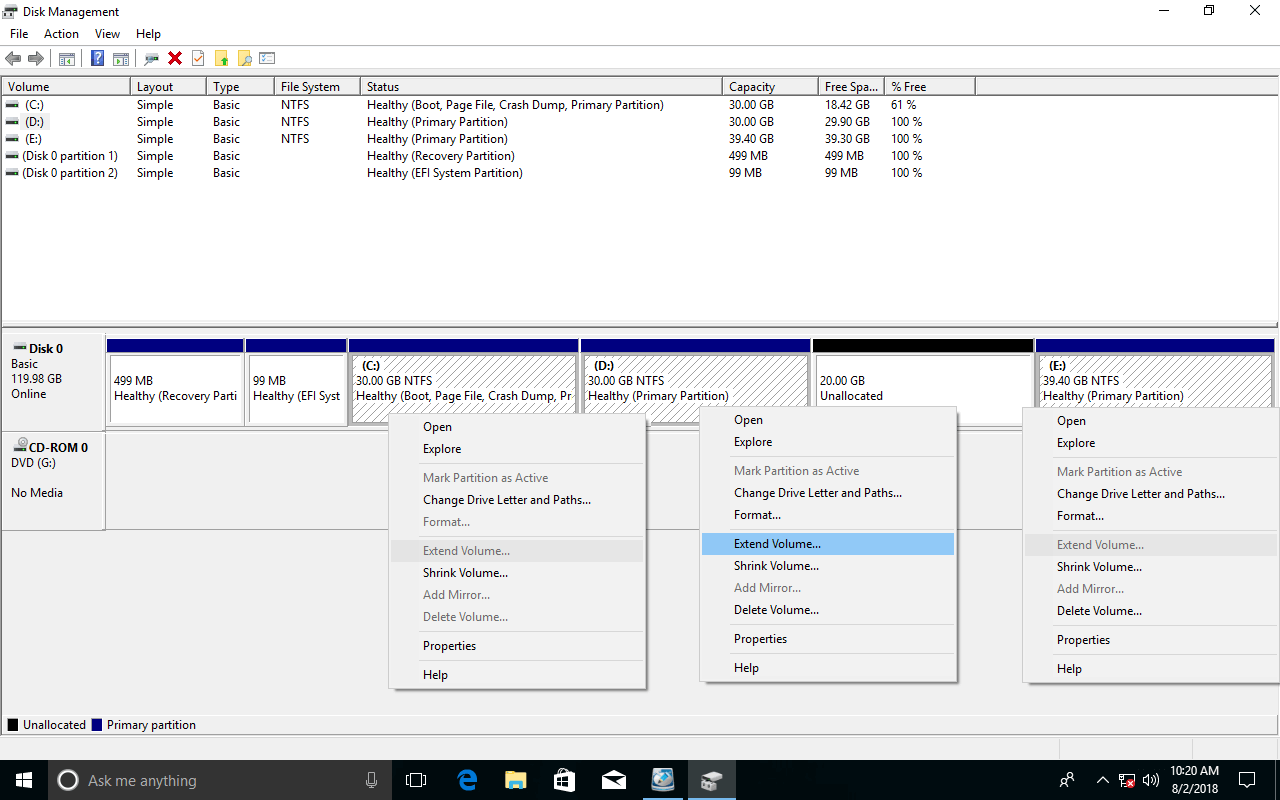
Extend Volume is disabled for the C and E drives because:
- The 20GB of unallocated space is non-adjacent to the C: drive.
- The unallocated space is on the left side of the E: drive.
This means it is impossible to shrink the D: drive and expand the C: drive. If you want to extend the C: drive with the Extend Volume function, the only option is by deleting the contiguous D: drive.
If you installed programs to the D: drive, do NOT delete it. Even if you transfer all files to another volume, all shortcuts and parts of the programs will stop working.
Besides this limitation, there are other reasons why the Windows 10 Extend Volume feature might not work even if there is adjacent unallocated space on the right side, including:
- Only NTFS and RAW partitions are supported; FAT32 and all other types of partitions cannot be extended.
- In an MBR style hard disk, unallocated space generated by deleting a Primary partition cannot be merged into a Logical partition, and vice versa.
The DiskPart command has the same limitations listed above. So, if you cannot extend a volume in Windows 10 Disk Management, you had better use third-party disk partition software.
Alternative Method to Expand a Partition
With professional partitioning software, you can easily extend a volume by shrinking another one on the same disk. Unallocated space can be generated on either side when shrinking, and it can also be added to any continuous partition by dragging and dropping. If you have shrunk a volume and got unallocated space, you can move the partition and merge the unallocated space into any non-adjacent volume.
Download NIUBI Partition Editor, and you will see all connected disk partitions and available operations in the main window.
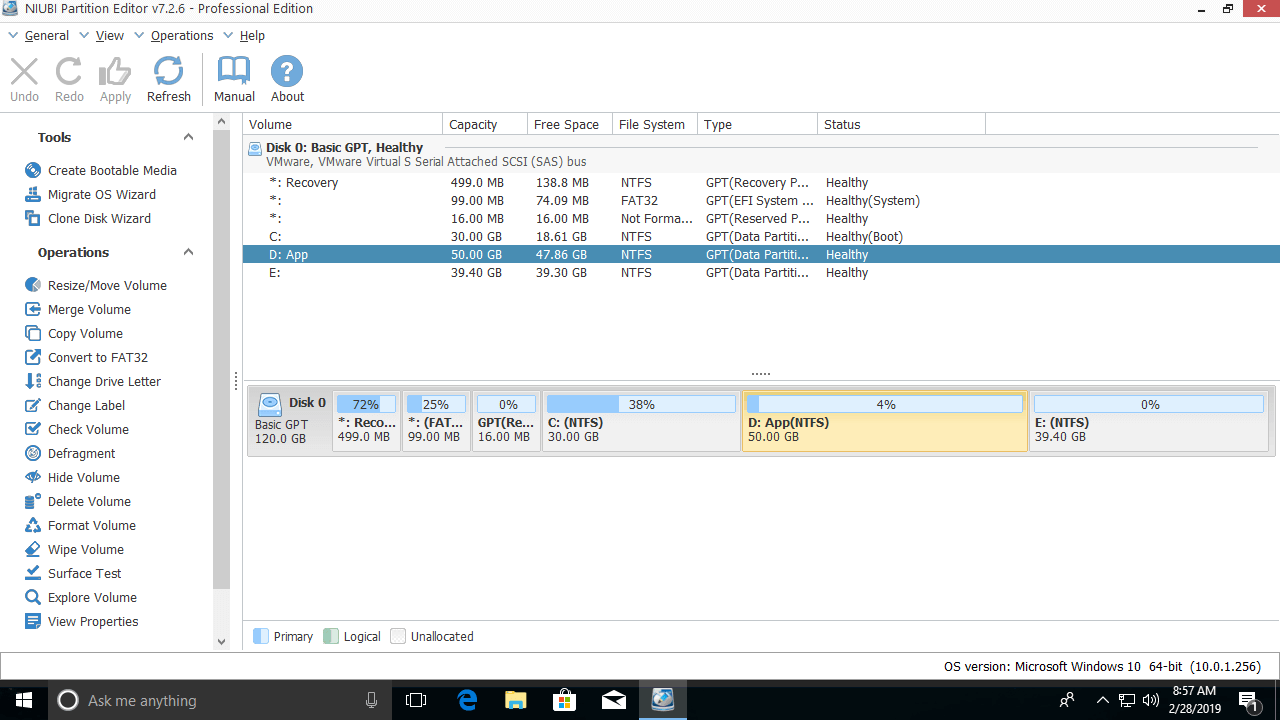
To shrink a volume (such as D:): Right-click it and select "Resize/Move Volume".
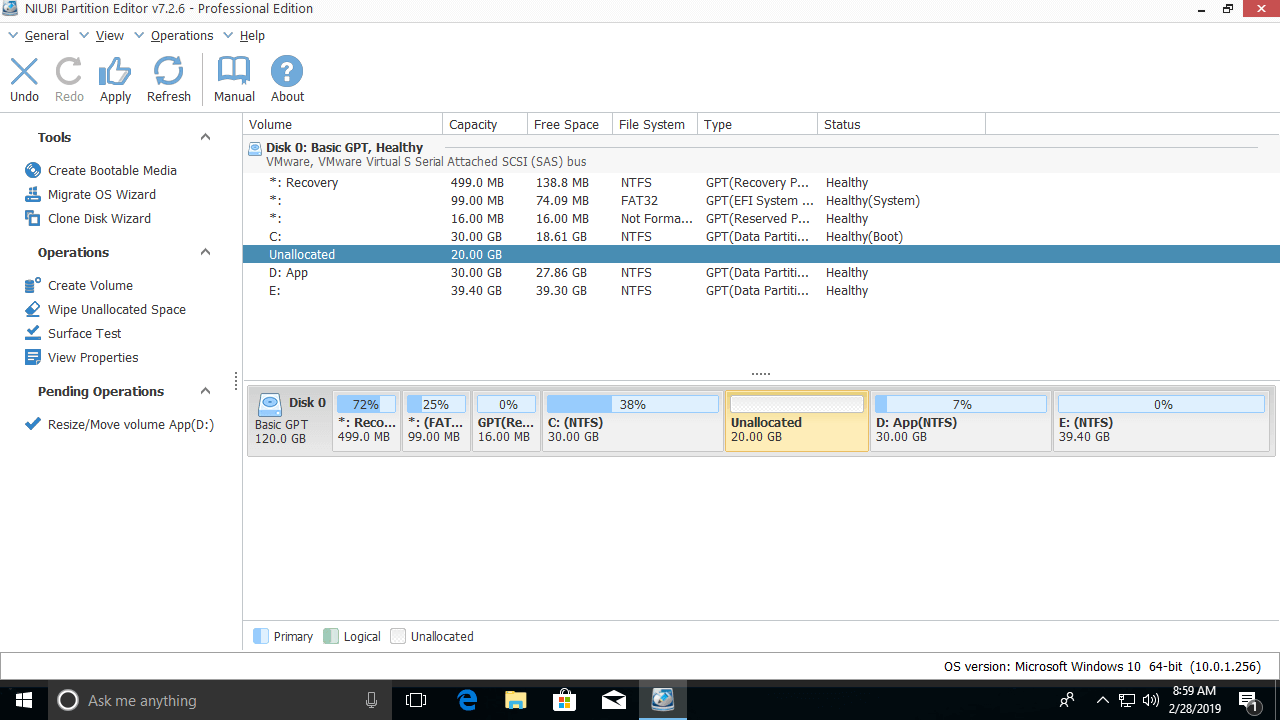
If you drag the left border to the right in the pop-up window:
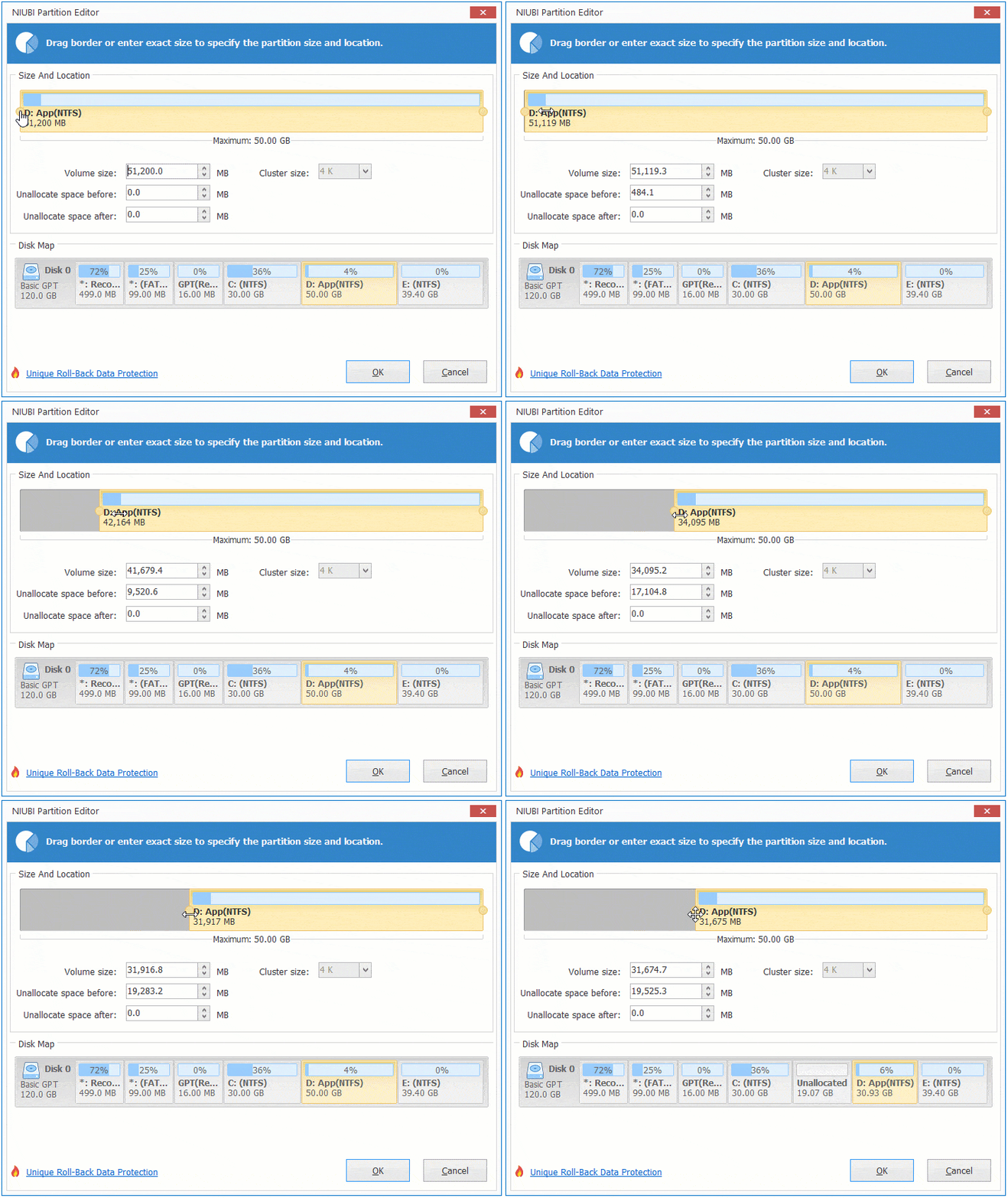
Unallocated space will be generated on the left side.
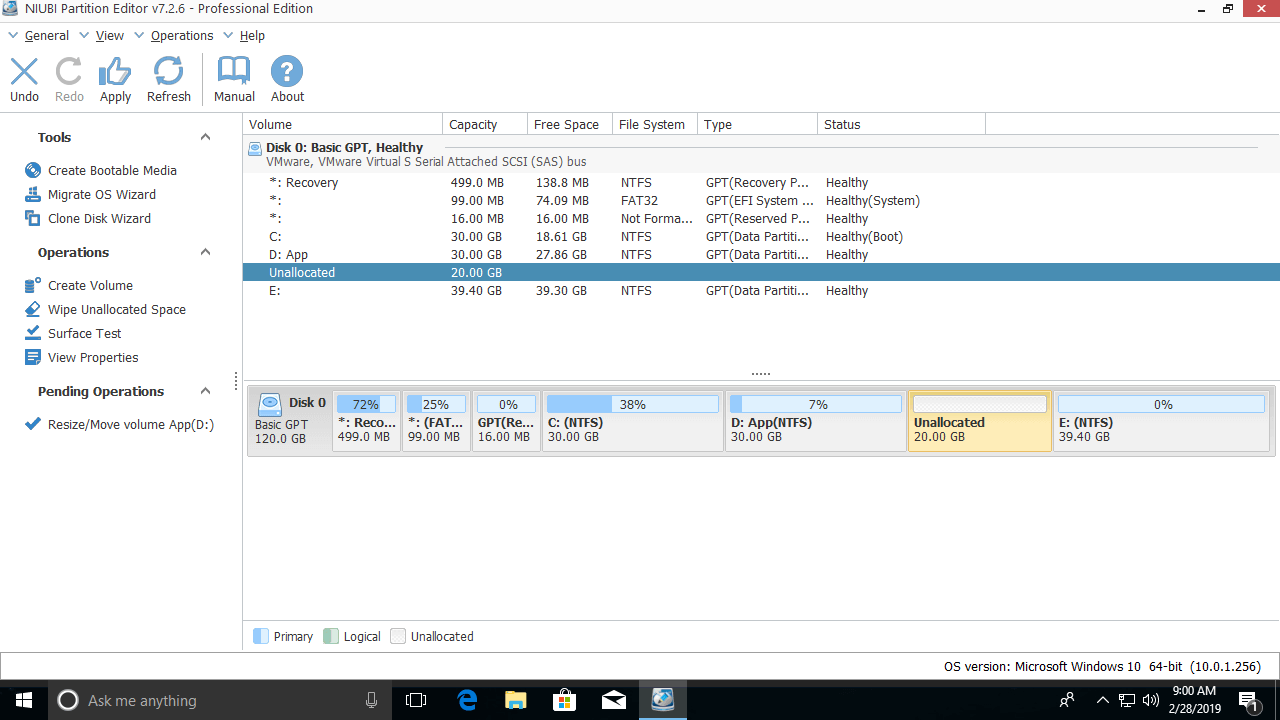
If you drag the right border to the left in the pop-up window:
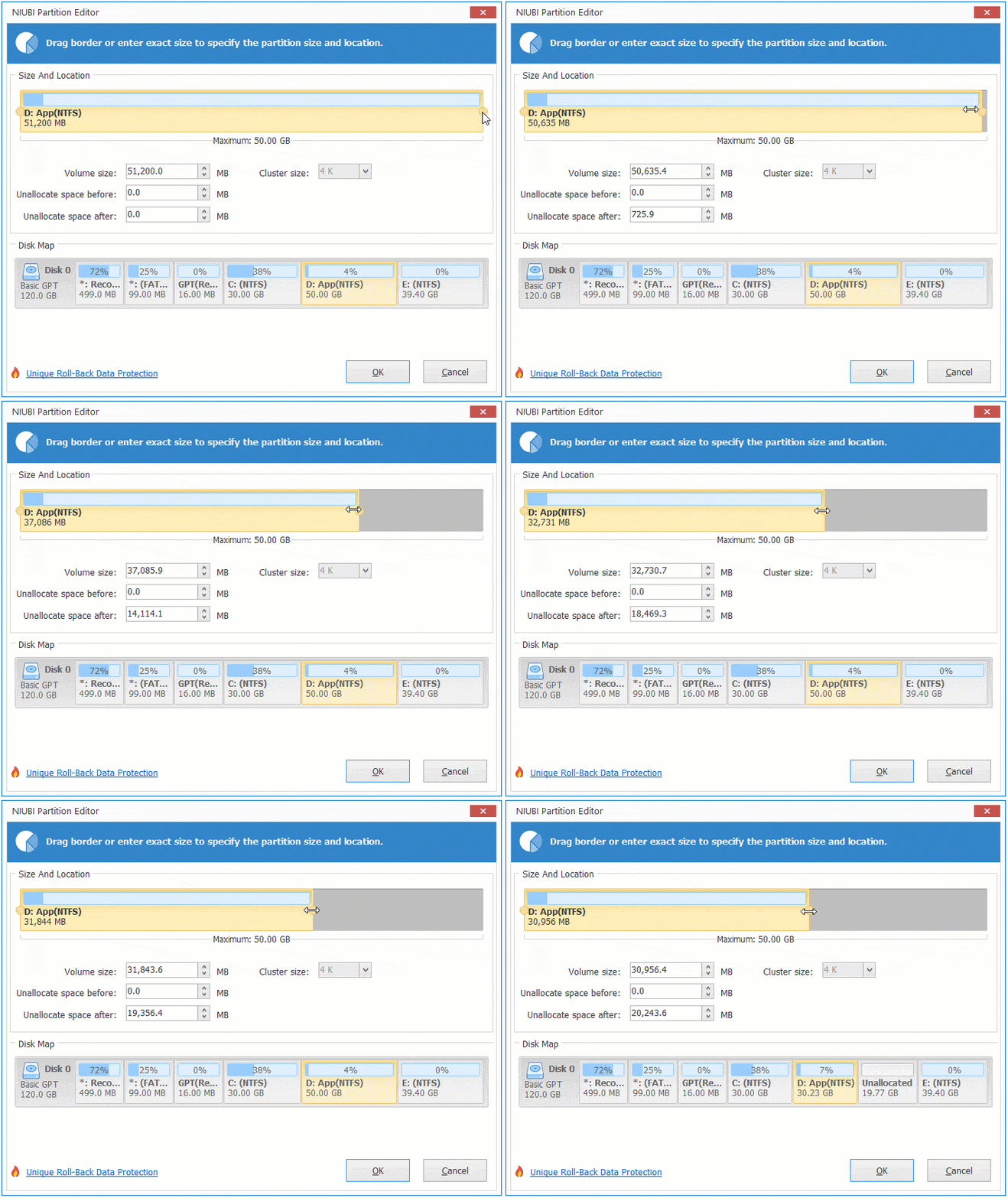
Unallocated space will be generated on the right side.
Steps to extend a volume in Windows 10:
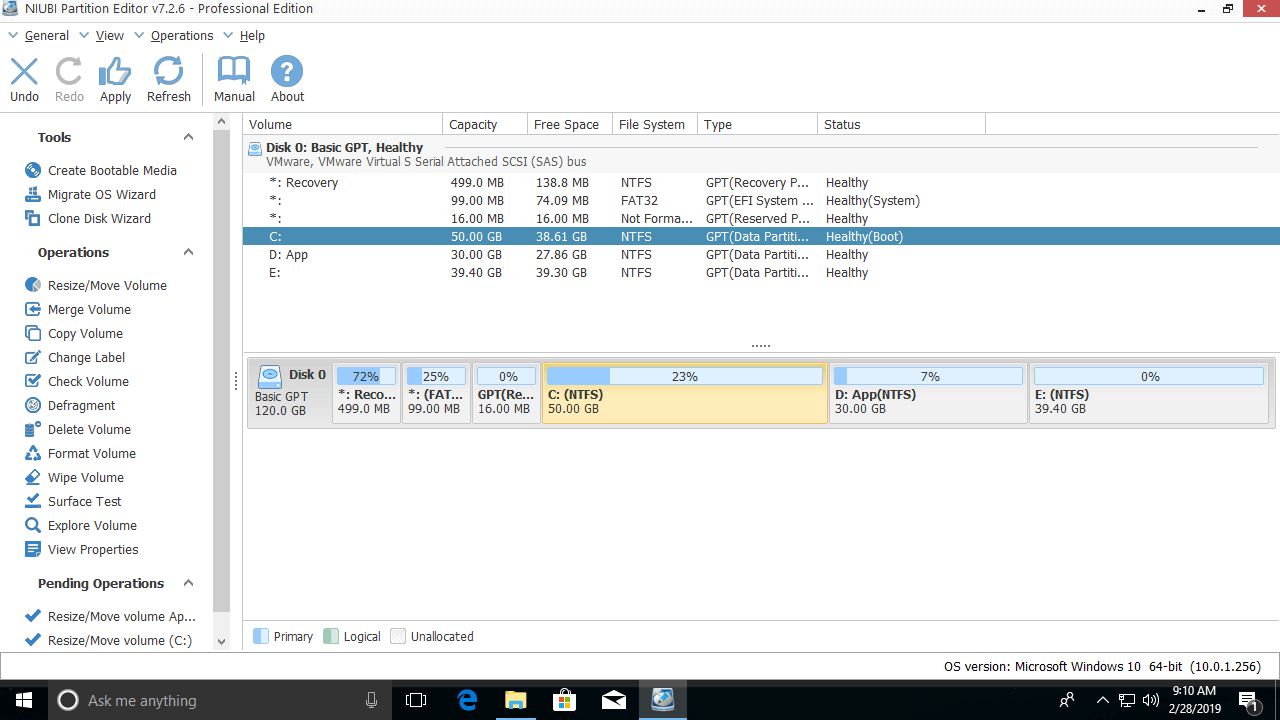
Right-click the C: drive and select "Resize/Move Volume" again, then drag the right border to the right in the pop-up window.
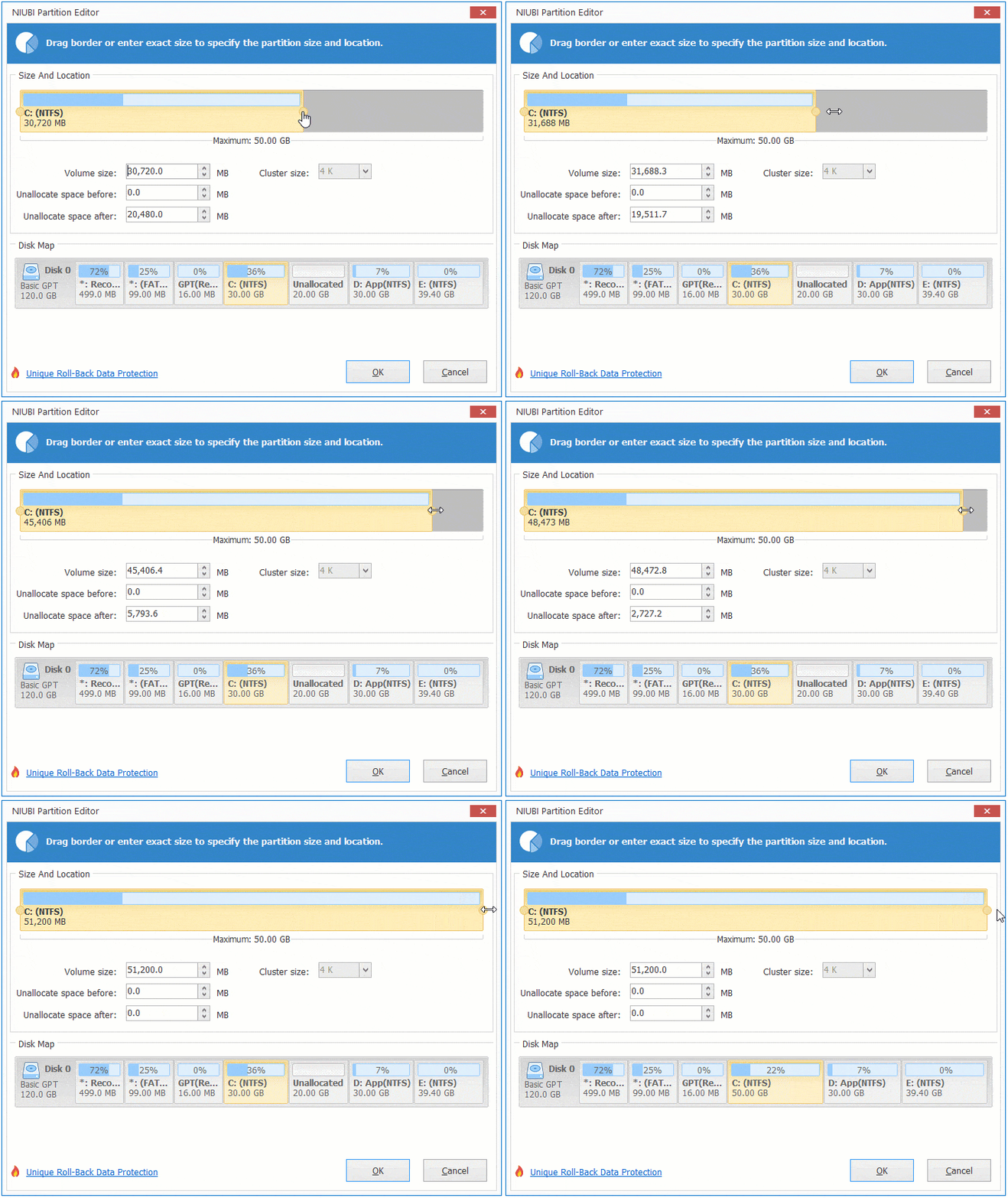
The C: drive is extended by merging the unallocated space on its right side.
Right-click the E: drive and select "Resize/Move Volume" again, then drag the left border to the left in the pop-up window.
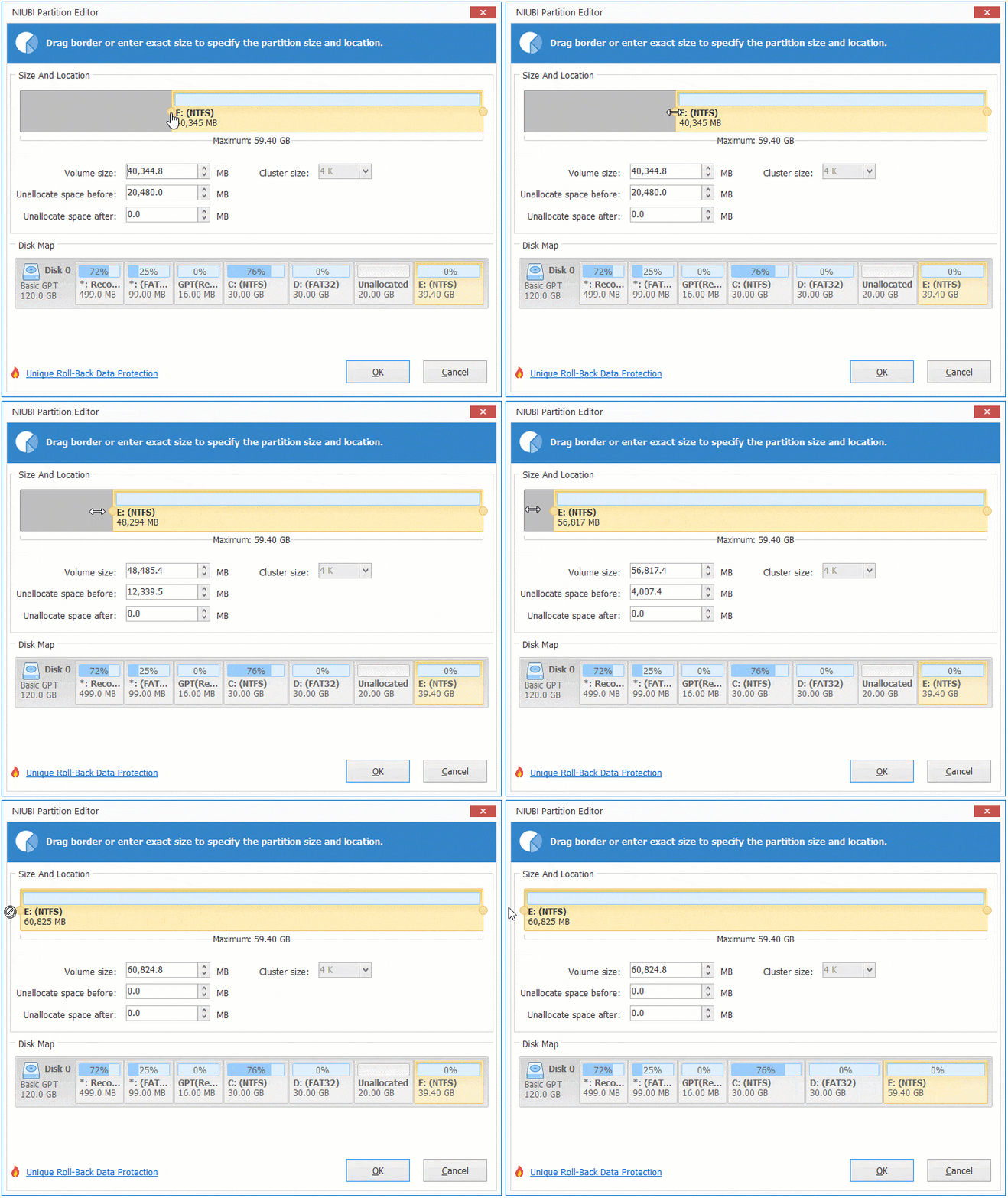
The E: drive is extended by merging the unallocated space on its left side.
If you have shrunk the D: drive and got unallocated space on the right side, you can move the unallocated space to the left side, and then you can easily extend the C: volume. To do this, right-click the D: drive and select "Resize/Move Volume", then drag the middle of the partition to the right in the pop-up window:
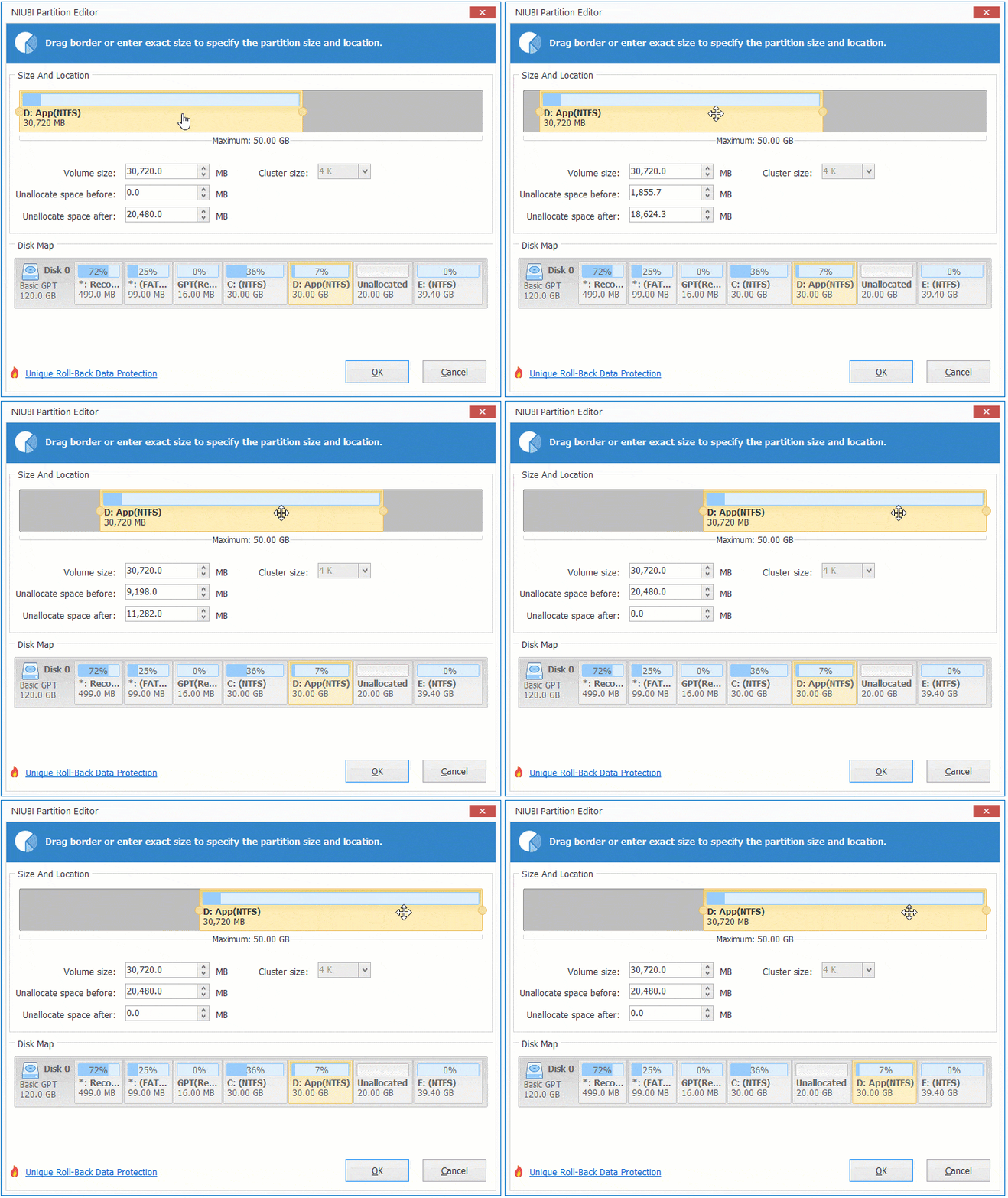
Besides extending volume in Windows 10/11, NIUBI Partition Editor helps you shrink, move, copy, convert, wipe, and hide partitions, as well as scan for bad sectors.
 © 2009 - NIUBI Technology All Rights Reserved. |