
This article introduces how to repartition hard drive on Windows 10 (32 & 64 bit). 3 ways to repartition Windows 10 disk without losing data.
Many people want to repartition hard drives after the operating system is installed, preferably without losing data or starting over. To do this, there are several choices using Windows native and third-party tools. Windows 10 provides Diskpart, which runs from the command prompt, and Disk Management, which has a graphical interface.
Both have the ability to shrink and extend partitions without data loss; however, they are not ideal because of some limitations.
Repartition Hard Drive with Diskpart Command Prompt
To start Diskpart: press Windows and R on the keyboard, type diskpart, and press Enter.
To shrink a volume with Diskpart:
- Type list volume and press Enter to execute, then you will see all partitions.
- Type select volume 1 and press Enter; 1 is the number of the partition that you want to shrink.
- Type shrink desired=20480 and press Enter.
To extend a volume with Diskpart:
- In the Diskpart command prompt window, type list volume and press Enter.
- Type select volume 1 and press Enter; 1 is the number of the partition that you want to extend.
- Type extend and press Enter.
There must be unallocated space next to the drive that you want to expand. (Learn more)
Repartition with Windows 10 Disk Management
Some professional users like to run the command prompt tool, but for most Windows 10 users, Disk Management is a better choice. It has a graphical interface, so you will see which volumes are on the same disk, along with the detailed parameters of each volume. Compared with Diskpart, which does not show unallocated space, Disk Management shows the size and position of this space. In fact, this is very important when extending a volume.
To start Disk Management: press Windows and X on the keyboard and then select it from the list.
To shrink a partition:
- Right-click the drive that you want to reduce and select Shrink Volume.
- Click Shrink to use the default maximum space or enter an amount first.
To extend a partition:
- Right-click the partition and select Extend Volume.
- Click Next until Finish in the Extend Volume Wizard window.
Disk Management and the Diskpart command run in different ways, but in fact, they have the same limitations while repartitioning a hard drive in Windows 10:
- Only NTFS partitions can be shrunk and extended; FAT32 and other types of partitions are not supported.
- They can only shrink a partition to the left and create unallocated space on the right side.
- They can only extend a partition when there is adjacent unallocated space on its right side.
- Unallocated space cannot be merged into the right partition or any non-adjacent partitions.
- They cannot merge or move hard drive partitions.
In other words: they can only shrink a volume to create a new one, and extend a volume by deleting the right adjacent one. If you want to shrink D to extend the C drive, it is impossible with either tool.
Resize Hard Drive with Partition Editor Software
Third-party partitioning software is much more powerful, but you had better select reliable software first; otherwise, there is a potential risk of system damage and data loss.
Compared with other software, NIUBI Partition Editor features unique 1-Second Rollback technology to ensure everything remains intact, Cancel-at-will and Virtual Mode technologies to avoid incorrect operations, and an advanced file-moving algorithm to help repartition hard drives much faster.
How to Shrink a Hard Drive Such as D:
Download NIUBI Partition Editor, right-click D, and select "Resize/Move Volume". You have two options in the pop-up window.
Option 1: drag the left border to the right in the pop-up window,
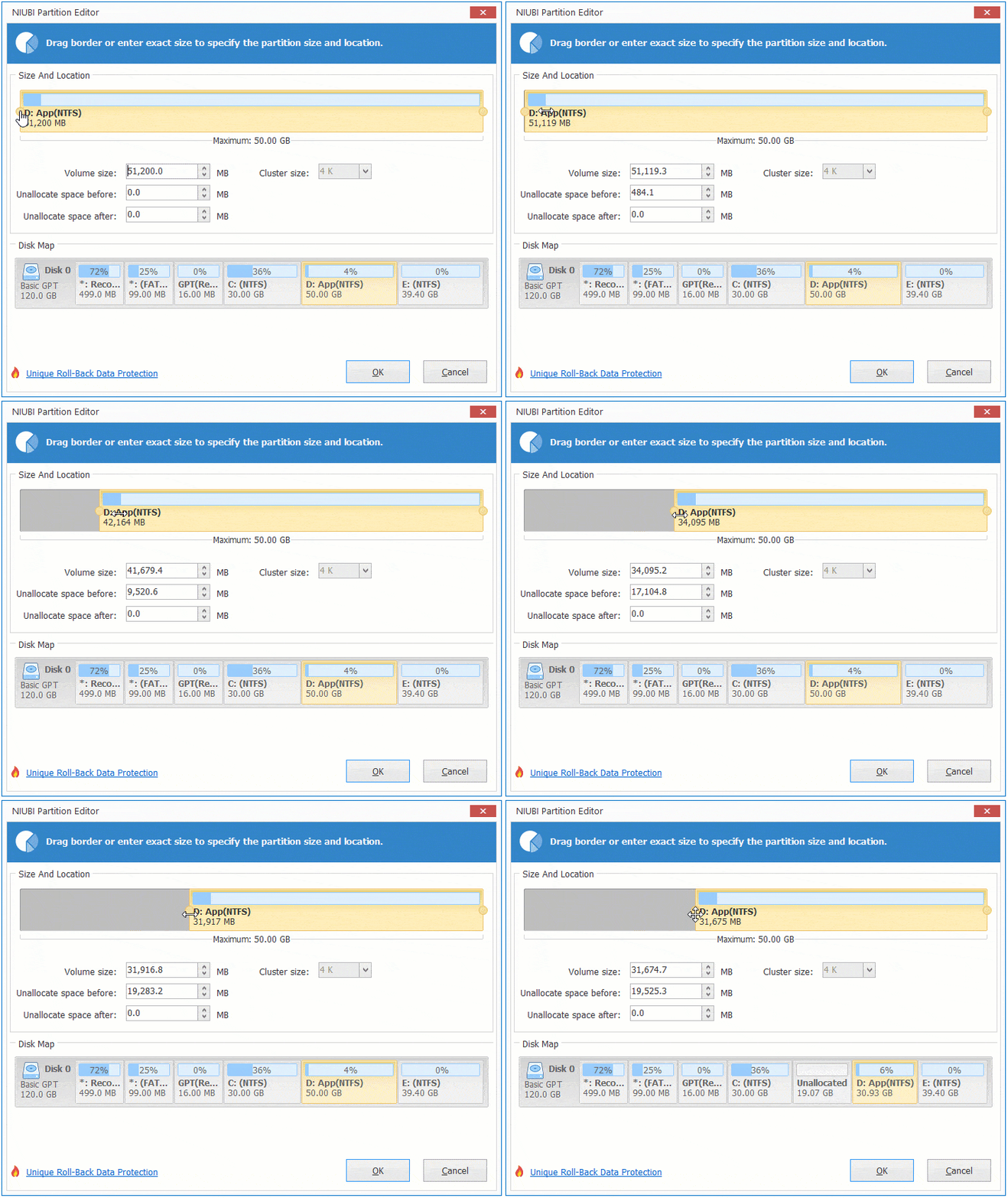
Then unallocated space will be created on the left side.
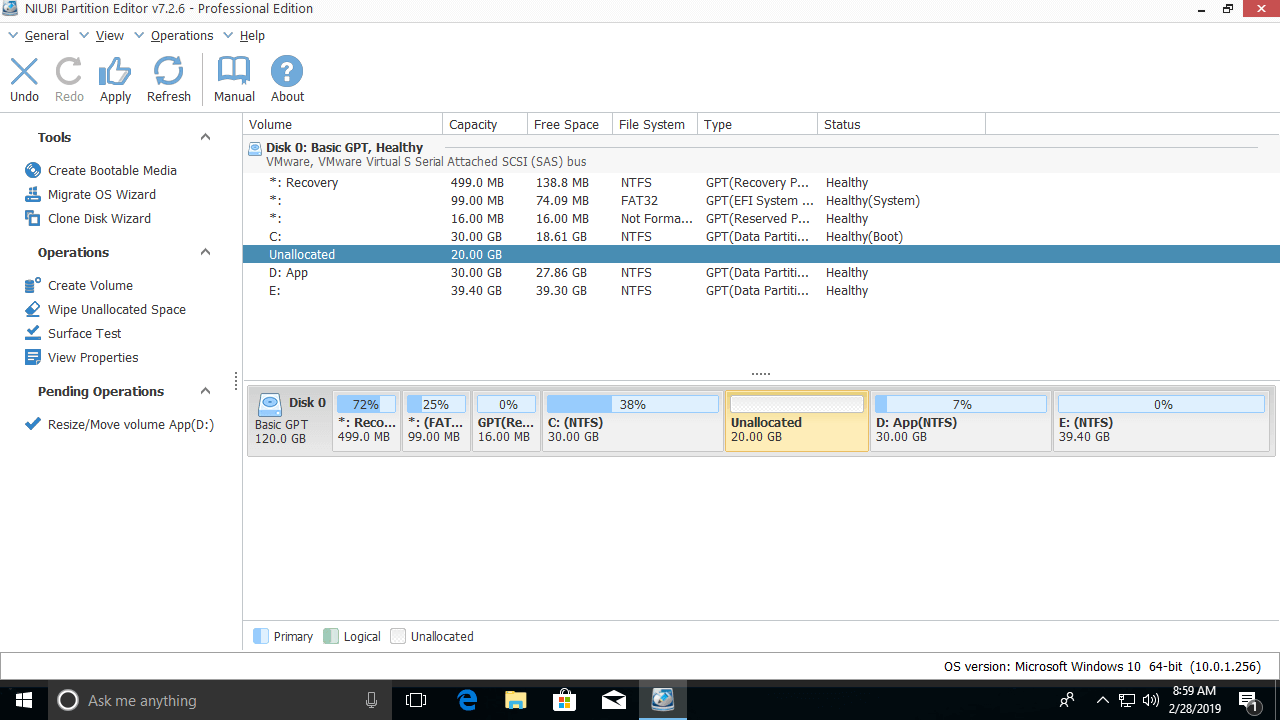
Option 2: drag the right border to the left in the pop-up window,
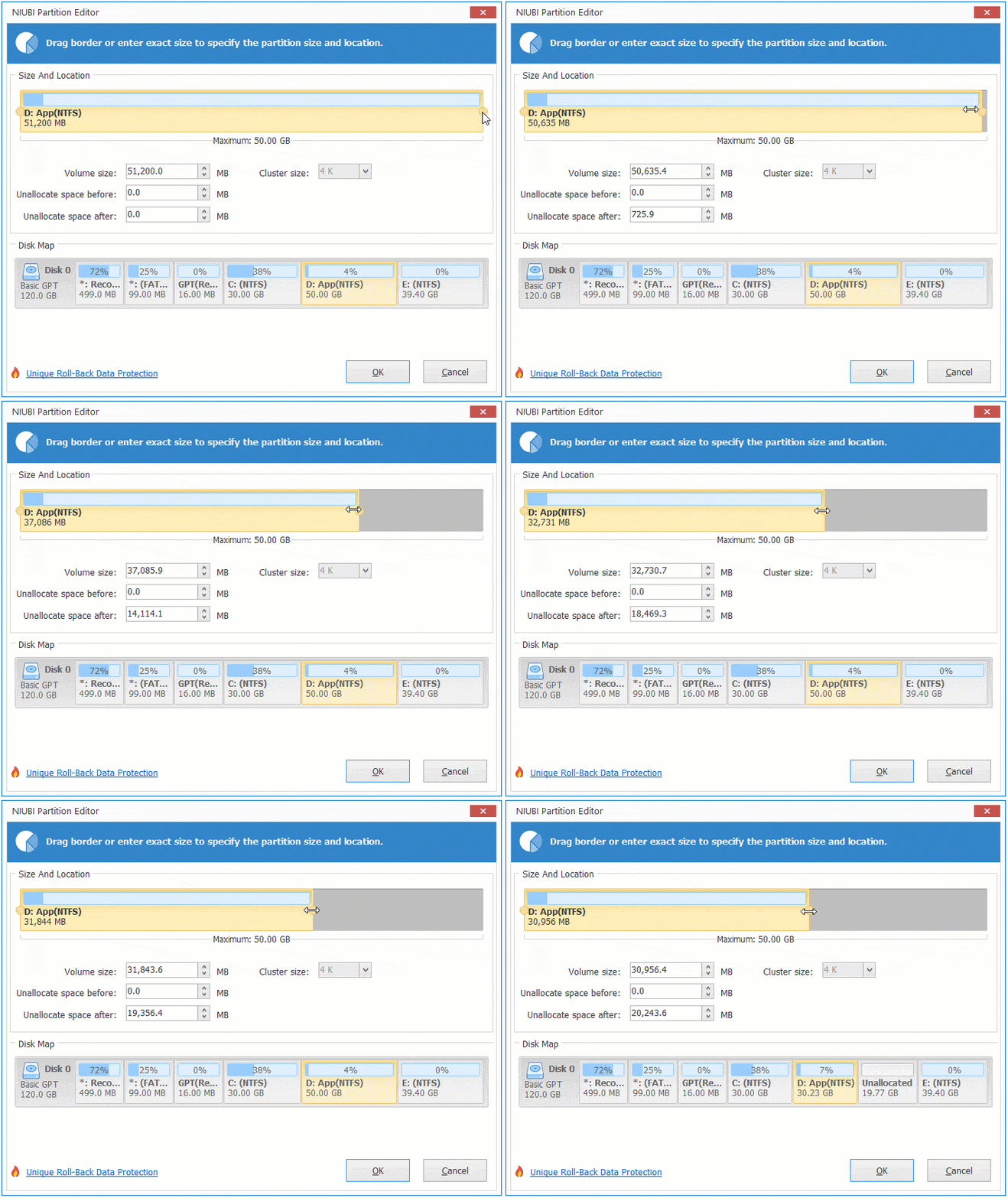
Then unallocated space will be created on the right side.
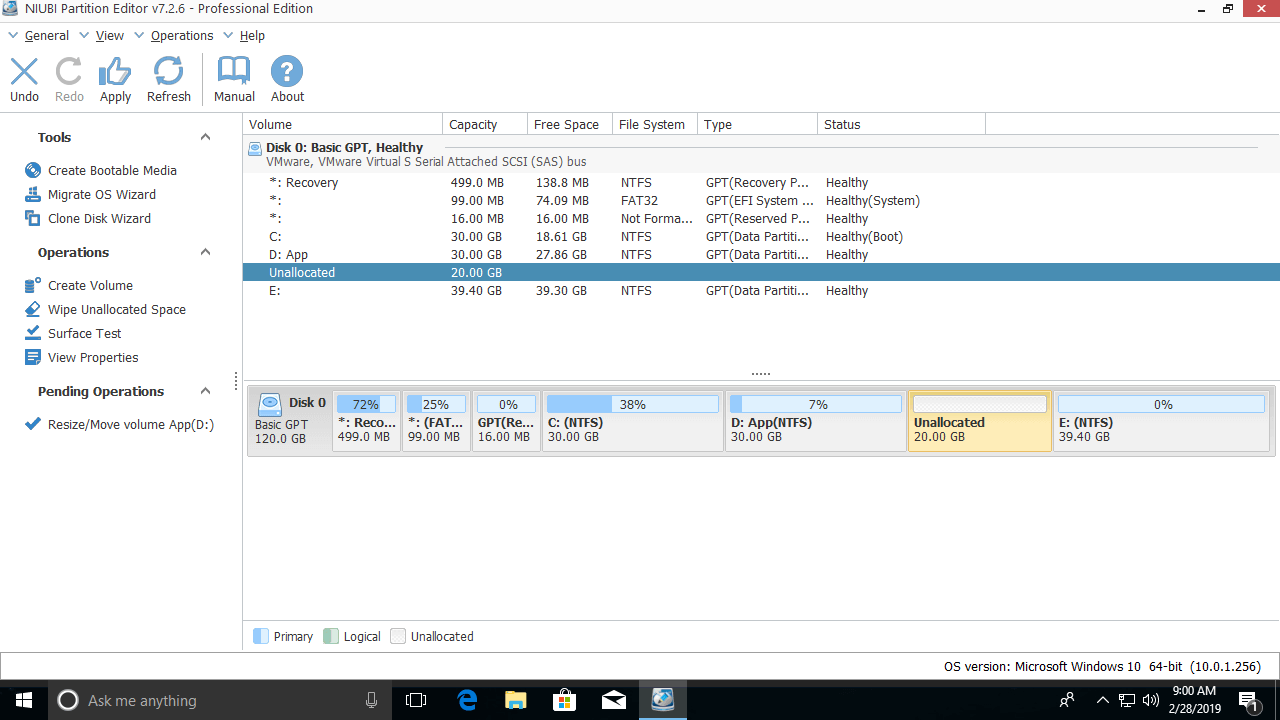
After getting unallocated space, you can merge it into other partitions.
To Extend Hard Drive C:
- Follow Option 1 to get unallocated space on the left side of D.
- Right-click C and select "Resize/Move Volume" again, then drag the right border to the right to merge the unallocated space.
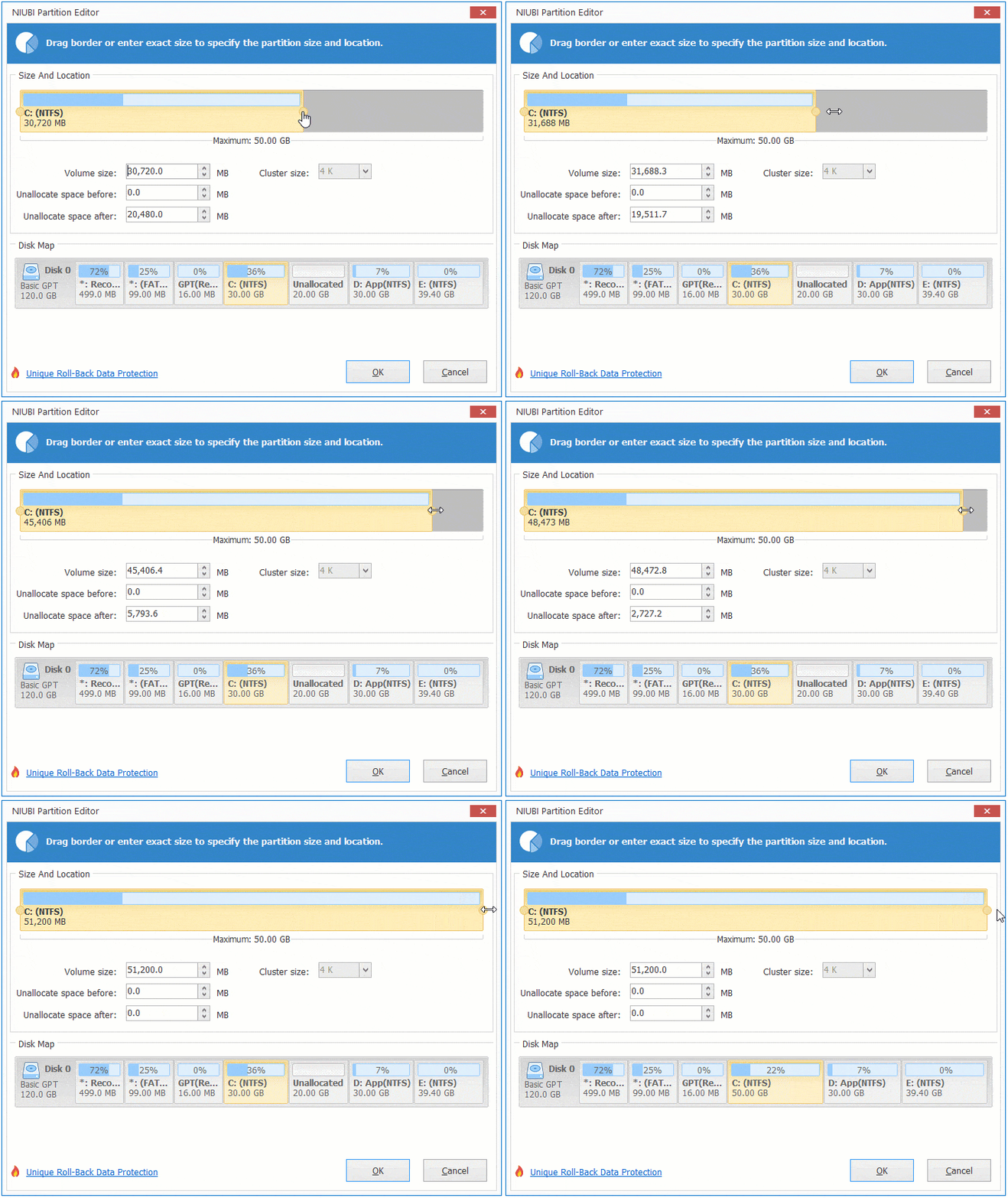
To Extend Hard Drive E:
- Follow Option 2 to get unallocated space on the right side of D.
- Right-click E and select "Resize/Move Volume" again, then drag the left border to the left to merge the unallocated space.
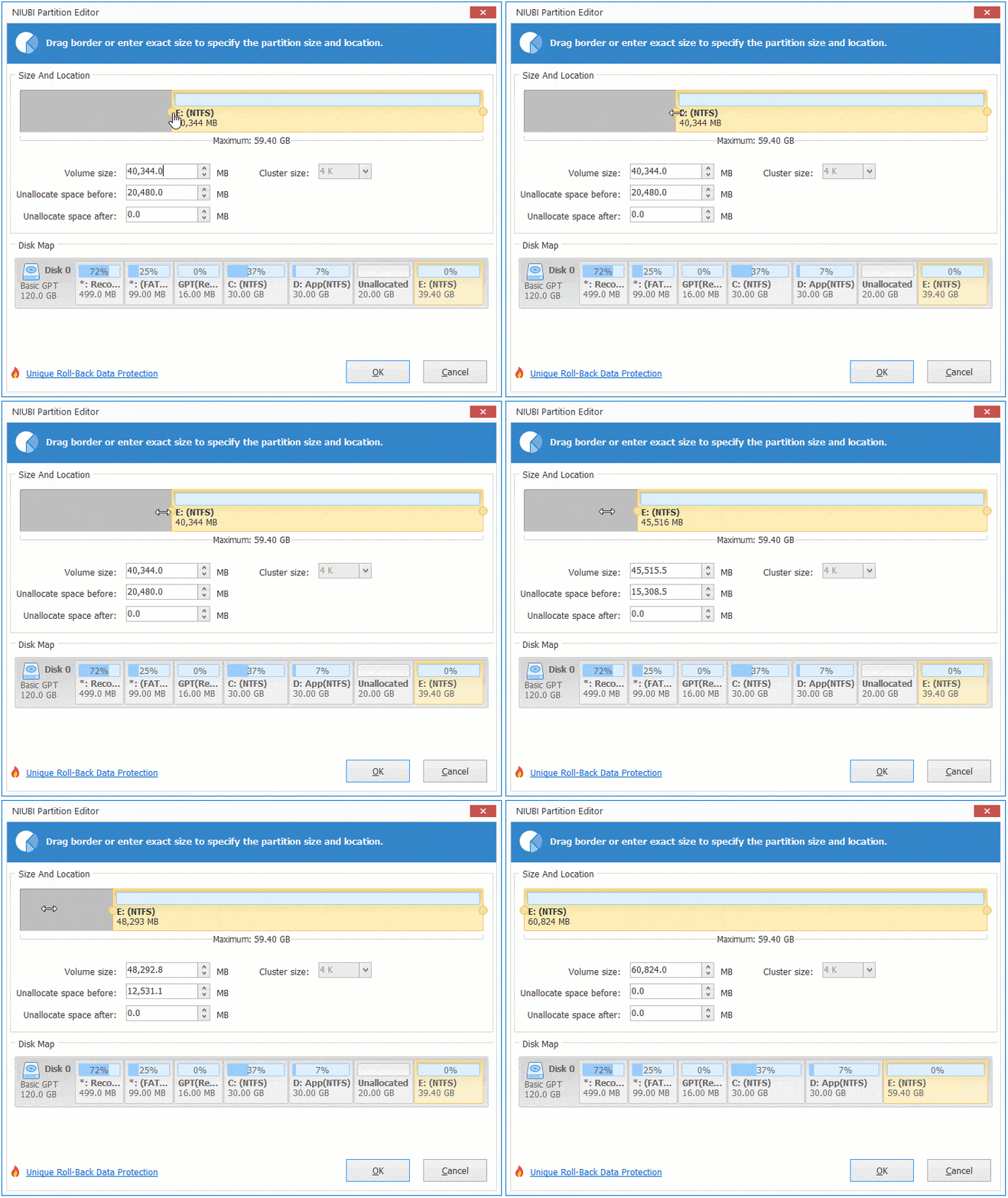
If you want to repartition hard drive E to expand the C drive: right-click E and follow Option 1 to create unallocated space on its left side. Before extending the C drive, you need an additional step to move the unallocated space to the other side.
Right-click drive D and select "Resize/Move Volume", then drag the middle of the partition to the right in the pop-up window.
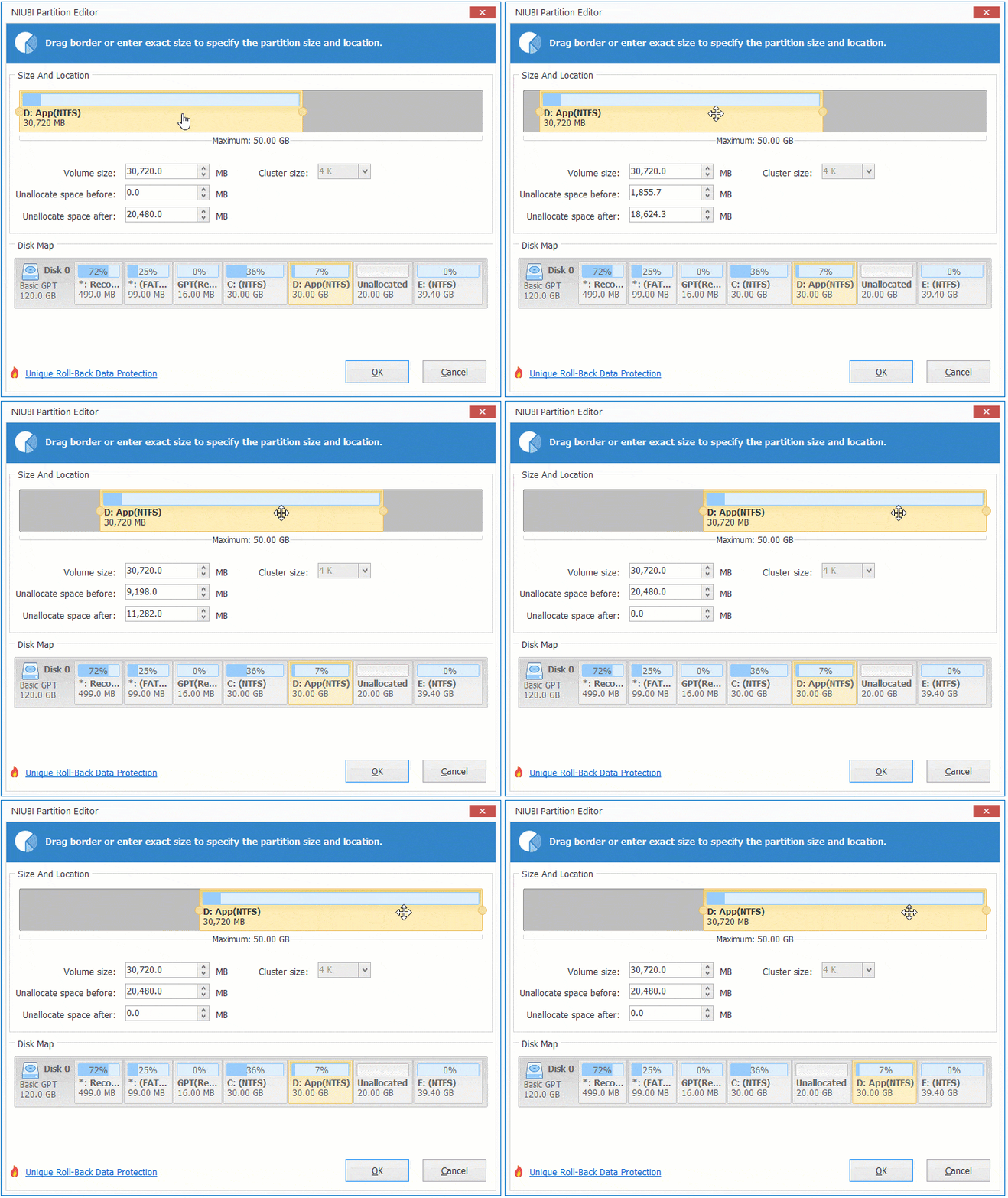
In Summary
The Windows built-in Diskpart command and Disk Management cannot help you extend a volume by shrinking another one. To repartition a hard drive in Windows 10, you had better use professional and safe partition software. Besides shrinking, moving, and extending hard drive partitions, NIUBI Partition Editor helps you copy, convert, defrag, wipe, and scan partitions, etc.
 © 2009 - NIUBI Technology All Rights Reserved. |