
As with previous versions, the system C drive frequently runs out of space in Windows Server 2019 and 2022. When this happens, you should expand the C drive before it fills up completely to avoid system crashes or unexpected reboots. To extend partitions, Windows provides a native command-line tool called DiskPart. Unlike the Disk Management graphical interface, DiskPart works via the command prompt. This article introduces how to run the DiskPart extend volume command in Windows Server 2019/2022 and explains its limitations.
How to Extend C Drive with DiskPart in Windows Server 2019/2022
To extend a partition with DiskPart in Windows Server 2019/2022, your disk partition structure must meet the following requirements:
- The partition you want to extend must be formatted with the NTFS file system.
- There must be an adjacent partition (such as drive D:) on the right side of the C drive.
- You must delete this right contiguous partition before extending the C drive. (Do not do this if programs or Windows services are installed on this drive).
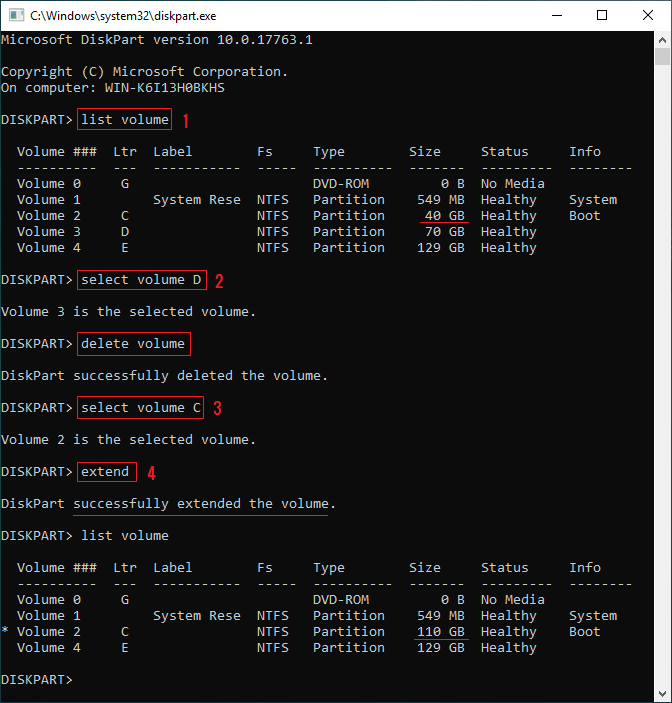
Steps to extend C drive with DiskPart in Windows Server 2019/2022:
- Press Windows and R together on your keyboard, type diskpart, and press Enter to open the command prompt.
- Type list volume and press Enter.
- Type select volume D and press Enter. (Replace D with the drive letter or number of your adjacent data volume.)
- Type delete volume and press Enter to delete this partition.
- Type select volume C and press Enter to select the system partition.
- Type extend and press Enter to extend the partition.
DiskPart will report that it successfully extended the volume. If you run the list volume command again, you will see that the C drive has been extended.
- Step 2 is optional, but it provides a detailed view of all disk partitions for reference.
- Before executing any commands to shrink, delete, or extend, you must select the partition first.
- To add only a specific portion of the available Unallocated space, type extend size=XX (where XX is the amount in megabytes) in Step 6.
Limitations of the DiskPart Extend Command
1. Unallocated Space Must Be Adjacent and on the Right Side
If you type help extend in DiskPart, you will see the constraints of the extend command.
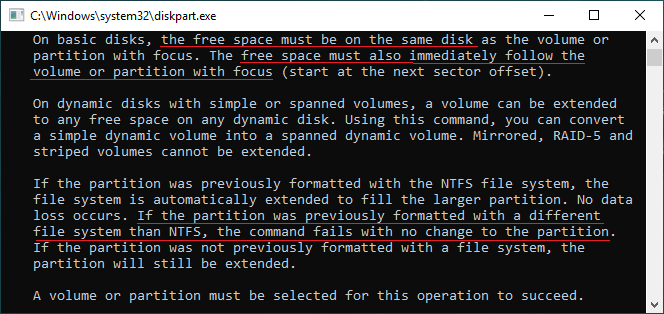
The Unallocated space must be on the same disk and immediately follow the partition you want to extend. If you shrink drive D and attempt to extend the C drive with DiskPart, you will receive an error: The size of the extent is less than the minimum. This error actually means there is no adjacent Unallocated space on the right side of the C drive.
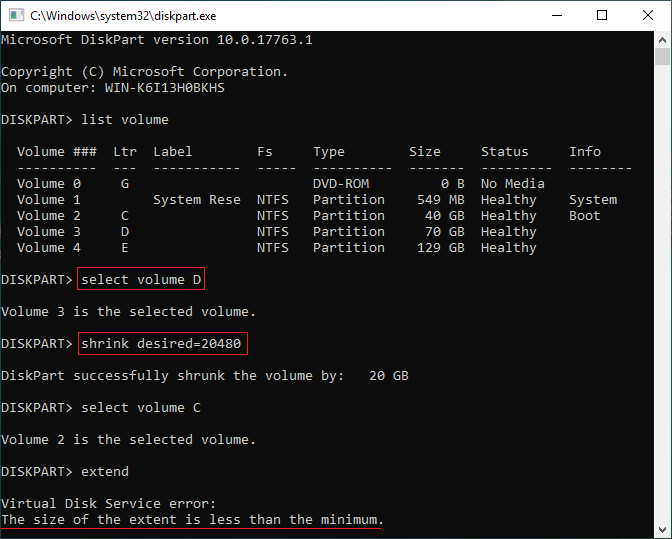
When you shrink drive D with either Disk Management or DiskPart, Unallocated space is always created on the right side of D. Because this Unallocated space is non-adjacent to the C drive, the extend command fails. Therefore, to extend the C drive with native tools, you have to delete the adjacent D drive to get contiguous Unallocated space.
2. Only NTFS Partitions Can Be Extended
As shown in the screenshot above, DiskPart only supports the NTFS file system. FAT32 and other types of partitions cannot be extended.
3. No Graphical Disk Layout
DiskPart only lists partitions in a text format. Unlike Disk Management, it does not display Unallocated space. Furthermore, all DiskPart commands are executed immediately, meaning any incorrect operations cannot be canceled or undone, which highly increases the risk of losing data.
Better Way to Extend Partitions in Windows Server 2019/2022
Compared to native command lines and graphical Disk Management, professional server partition software such as NIUBI Partition Editor provides far greater flexibility. It can shrink partitions to make Unallocated space on either the left or right side. It also allows you to move and merge Unallocated space to any non-adjacent partitions on the same disk.
Download NIUBI Partition Editor and follow the actions demonstrated in the video guides to resize partitions safely.
How to extend system partition:
How to extend a data partition:
Compared to other tools, NIUBI Partition Editor provides advanced data protection technologies to safeguard your server:
- Virtual Mode - all operations are listed as pending for preview, and real disk partitions won't be modified until you click "Apply" to confirm.
- Hot Clone - clone disk partitions without server interruption. You can clone the system disk regularly as a backup. Whenever the system disk is down, you can boot from the cloned disk directly without wasting time to restore.
- 1-Second Rollback - if it detects any known error while resizing partitions, it automatically reverts the server to its original status instantly.
- Cancel-at-will - if you applied wrong operations, you can cancel the ongoing tasks at any progress before they finish.
- Advanced file-moving algorithm - shrink, move, and copy partitions 30% to 300% faster.
Besides extending partitions in Windows Server 2025/2022/2019, as well as 2016/2012/2008/2003, this reliable server partition software provides a comprehensive toolkit to merge partitions, convert partition types, scan bad sectors, erase data, and much more.
 © 2009 - NIUBI Technology All Rights Reserved. |