
As with previous versions, the C: drive is getting full in Windows Server 2022. When this happens, it takes a long time to back up everything, recreate partitions, restore, and verify data. To solve this problem more quickly and easily, you can shrink another partition to extend the C: drive. To accomplish this task, you may try Windows built-in Disk Management if you can delete a partition. The best approach is to use safe partitioning software to resize partitions while keeping everything intact. This article introduces how to extend the C: drive in Windows Server 2022 using both the native tool and safe partitioning software.
Expand C drive in Windows Server 2022 without software
Since Windows Server 2008, an "Extend Volume" function has been included in the Disk Management tool. Windows Server 2022 has the same function without any improvements. To extend the C: drive in Server 2022 using Disk Management, there must be adjacent unallocated space on the right side.
If you shrink the D: drive or another NTFS partition using the "Shrink Volume" function, you will get unallocated space. However, this unallocated space is not adjacent to the C: drive; therefore, "Extend Volume" is grayed out. If you do not want to use third-party software, the only method is to delete the D: drive to obtain contiguous unallocated space on the right side of the C: drive. Furthermore, the D: drive must be the same primary partition type. If it is a logical drive, "Extend Volume" will still be grayed out after deletion.
How to extend C drive in Windows Server 2022 without software:
- Press Windows + X keys together, then click Disk Management from the list.
- Right-click the D: drive and select "Delete Volume" from the menu; its space will then be converted to "Unallocated".
- Right-click the C: drive and select "Extend Volume". You just need to click Next until Finish.
If there is no file system error or other issue, you can extend the C: drive in a short time. If you do not want to delete the D: drive, or if it is a logical drive, run server partitioning software instead. However, because there is a potential risk of system or partition damage, you should use the safest software available.
Compared with other tools, NIUBI Partition Editor provides advanced technology to protect system and data on the server:
- Virtual Mode - Operations are listed as pending, and disk partitions will not be changed until you click "Apply" to confirm.
- Cancel-at-Will - You can cancel ongoing operations without affecting the partitions.
- 1-Second Rollback - If the program detects any known error while changing disk partitions, it will automatically revert the server to its original state in a flash.
- Hot Clone – Clone a disk or partition without server interruption. You can clone the system disk regularly and boot from the cloned disk immediately if the system disk fails.
Three ways to extend C drive in Server 2022 without data loss
There are three ways to extend the C: drive in Windows Server 2022 with NIUBI Partition Editor. Select the appropriate method according to your disk partition configuration.
1. Increase C drive with free space in adjacent D drive
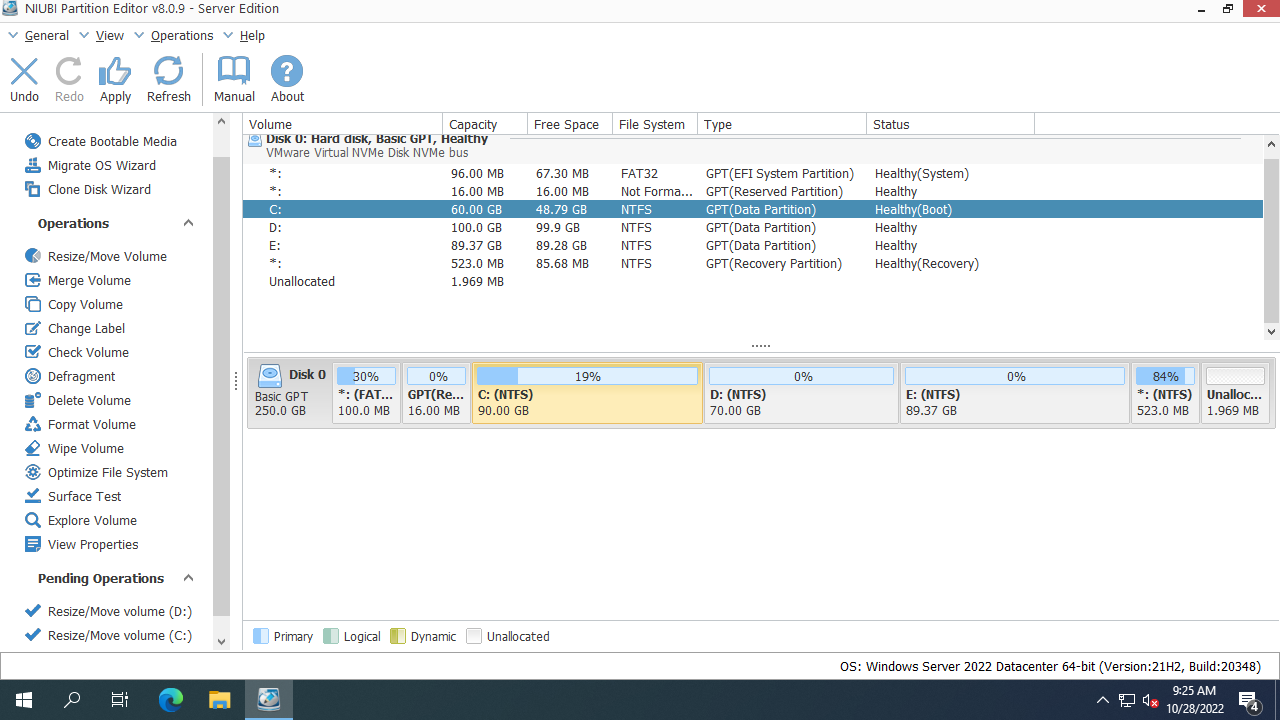
Download the program, and you will see all storage devices with their partition layout and other information in the main window. In my test server, apart from the small reserved partitions, there are drives C:, D:, and E: on Disk 0.
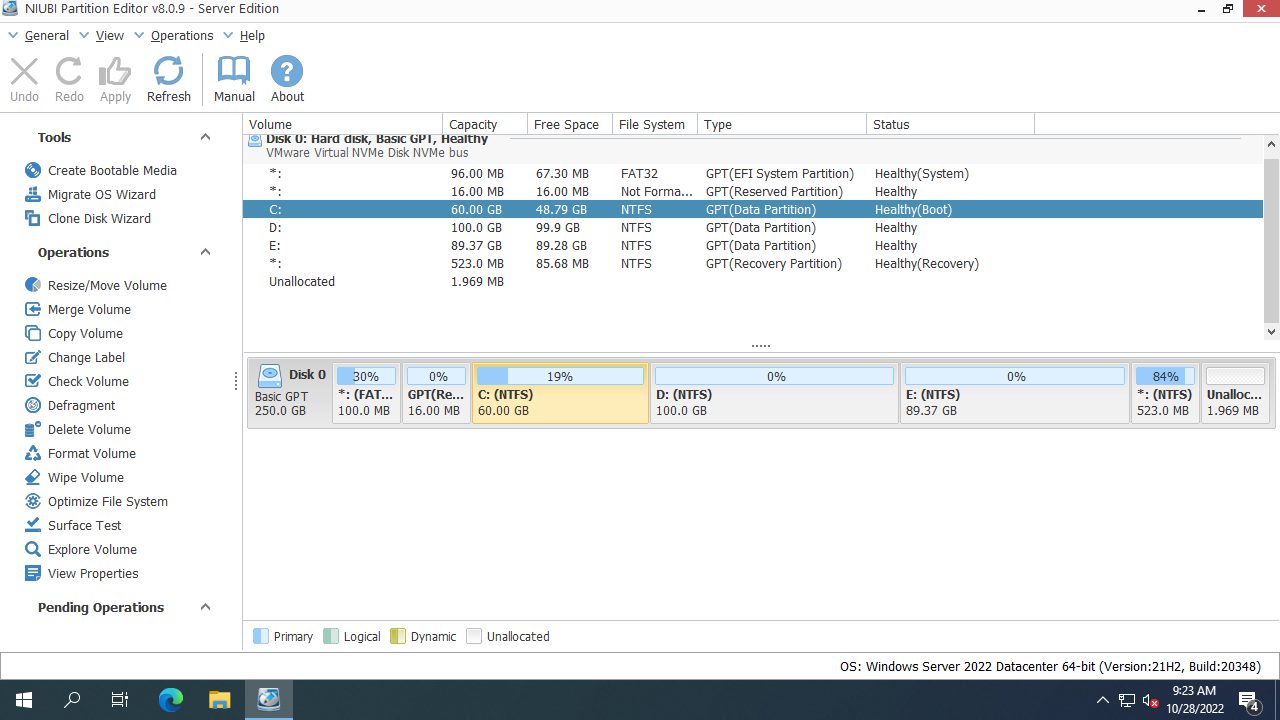
There is plenty of free space on the adjacent D: drive. We can shrink this partition to obtain unallocated space on the left side, and then add the unallocated space to the C: drive.
To extend C drive in Windows Server 2022 without losing data:
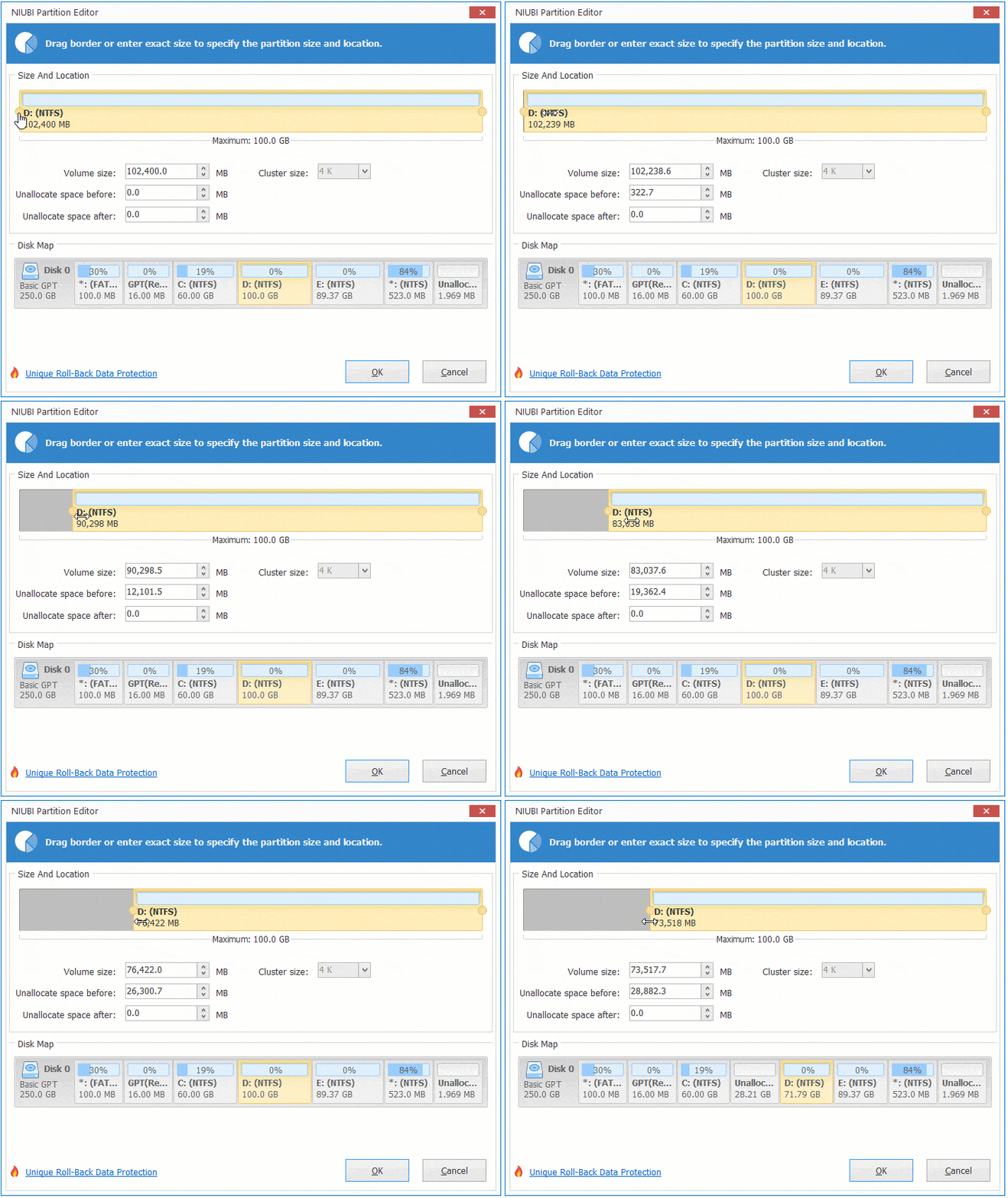
- Right-click the D: drive and select "Resize/Move Volume". In the pop-up window, drag the left border to the right, or enter a value in the "Unallocated space before" field.
![Shrink D drive]()
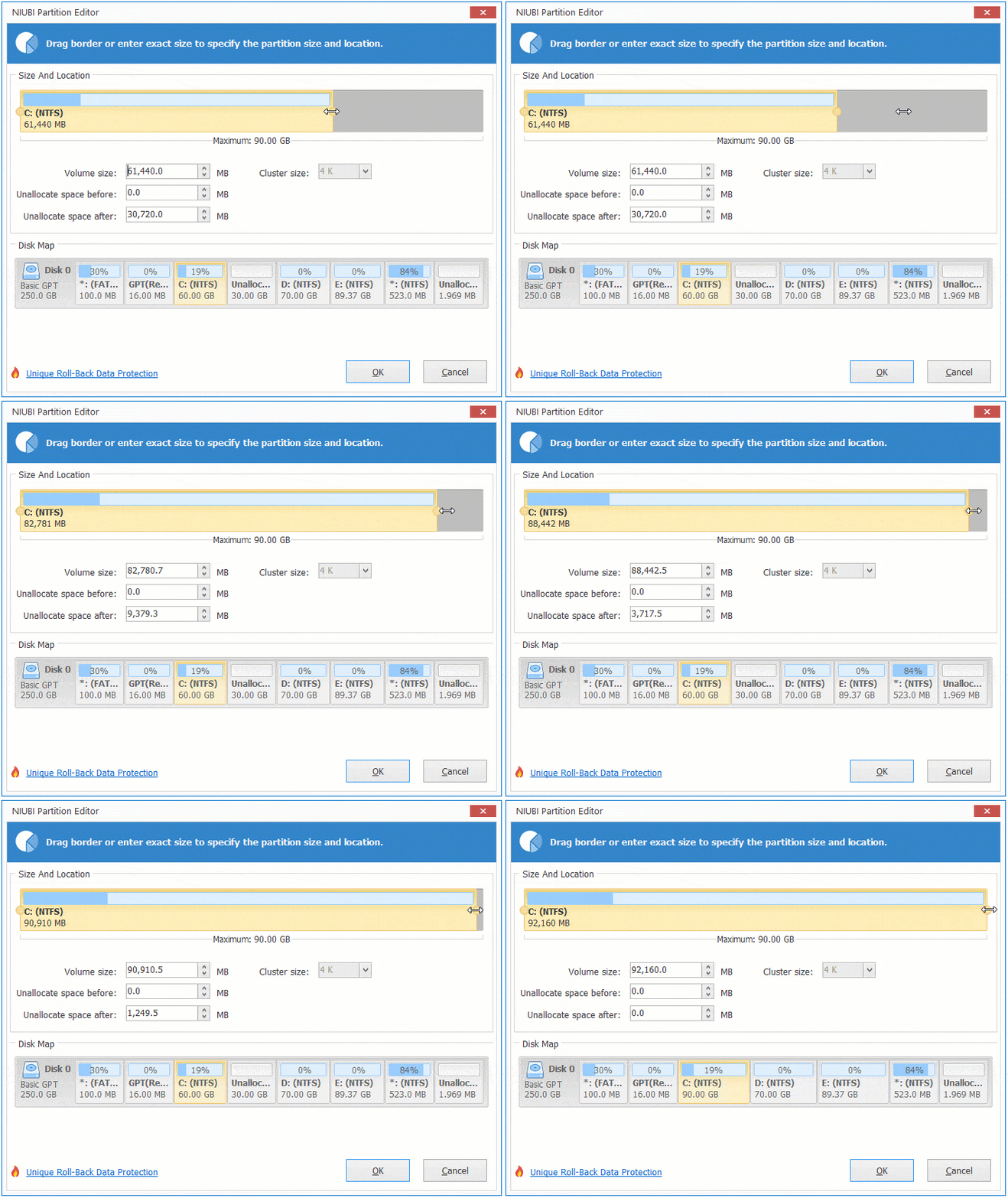
- Right-click the C: drive and select "Resize/Move Volume", drag the right border to the right to combine this unallocated space.
![Extend C drive]()
- Click "Apply" in the top-left corner to apply the changes.
![C drive extended]()
2. Enlarge C drive with nonadjacent partition E
If there is not enough free space in the adjacent partition on your server, you can shrink a non-adjacent volume on the same disk. The method is similar, but there is an additional step to move the D: drive to the right.
To extend C drive in Windows Server 2022 with non-adjacent E drive:
- Right-click the E: drive and select "Resize/Move Volume". Drag the left border to the right, or enter a value to shrink it and create unallocated space on the left side.
- Right-click the D: drive and select "Resize/Move Volume". Drag the middle of the partition to the right in the pop-up window. The D: drive will be moved to the right, and the unallocated space will be moved to the left at the same time.
- Right-click the C: drive and select "Resize/Move Volume". Drag the right border to the right to merge the unallocated space.
Remember to click "Apply" for the changes to take effect. Watch the video to learn how to extend the C: drive in Windows Server 2022 without losing data.
If you use any types of hardware RAID array, follow the same steps. Do not break array or do any operations to the RAID controller.
3. Extend C drive in Server 2022 with a larger disk
In some servers, there is no other partition or there is not enough free space on the same disk. In that case, no software can extend the C: drive by moving free space from a different disk, because the size of an SSD/HDD is fixed. A 500 GB physical disk cannot be reduced to 400 GB or increased to 600 GB. Follow the steps below to extend the partition using additional disk space.
To extend the C: drive in Server 2022 using a larger disk:
- Connect a larger disk to this server.
- Right-click the front of Disk 0 (in most cases) and select "Clone Disk".
- Select the larger disk and click Next.
- Edit the partition size and location. Drag the middle of the partition to move it. If you drag either border, you can shrink or extend the partition. Remember to start from the last partition.
If there is another partition on the same disk, another option is to copy it to a different disk and delete it to create unallocated space. With this method, you do not need to clone the entire disk.
If you want to extend the C: drive in a Windows Server 2022 VM running on VMware or Hyper-V, there is no difference as long as there is available free space on the system disk. If there is no available free space, you can expand the virtual disk using the built-in tools in VMware or Hyper-V. After expanding the disk, the extra space will appear as "Unallocated" at the end of the disk. You can then add this extra space to the C: drive or other partitions.
Besides shrinking, moving and extending partitions in Windows Server 2022/2025 and previous Server 2019/2016/2012/2008/2003, NIUBI Partition Editor helps you do many other disk partition management operations.
 © 2009 - NIUBI Technology All Rights Reserved. |