
Many people ask whether it is possible to resize partitions in Server 2022 without losing data, especially when the C: drive is getting full. The answer is yes. Ideally, you can adjust partition sizes directly, avoiding the need to recreate partitions and restore everything from a backup — a time-consuming and tedious process. To resize partitions in Windows Server 2022, you can use either the built-in Windows tools or third-party software. However, due to certain limitations, the native Windows tools can only help under specific conditions. The best way to resize partitions in Server 2022/2025 is to use reliable disk partition software.
How to Resize Server Partitions Without Third-Party Software
There are two native tools available to help change partition sizes in Windows Server 2022/2025. DiskPart is a command-line tool, while Disk Management provides similar functionality through a graphical interface. Although these two tools work differently, they have the same limitations when resizing partitions.
Limitations of resizing partitions in Windows Server 2022/2025 with native tools:
- They can only shrink an NTFS partition to the left, creating unallocated space on its right.
- They cannot move partitions or files; therefore, they can only shrink a partition by a limited amount if "unmovable" files are present.
- They can only extend an NTFS or ReFS partition when there is adjacent unallocated space on its right.
Unlike the diskpart command, Disk Management displays the disk partition layout and provides more detailed information. Therefore, this guide will focus only on how to resize partitions using Disk Management.
How to shrink a partition:
- Press Windows + X on your keyboard and select Disk Management from the list.
- Right-click an NTFS partition and select "Shrink Volume...".
- Enter the amount of space to shrink and click Shrink button. If you do not enter an amount, the maximum available space will be used by default.
How to extend a partition:
- Right-click the adjacent partition on the right and select "Delete Volume...".
- Right-click the NTFS partition on the left and select "Extend Volume...".
- Follow the Extend Volume Wizard, clicking "Next" until you click "Finish".
If you want to shrink one partition to extend another, Windows native tools cannot achieve this. Furthermore, if you plan to delete the contiguous partition on the right to extend the one on the left, both partitions must be of the same type (either Primary or Logical). If you need to delete a partition to extend the contiguous one on its right, or extend a non-adjacent partition, third-party software is your only option.
How to Resize Partitions in Windows Server 2022/2025 With the Safest Tool
There is always a potential risk of system and partition damage when resizing partitions with either native or third-party tools. Although some believe that Windows native tools offer the best compatibility, this is not always true — especially when resizing server partitions. In fact, Disk Management can potentially damage partitions during resizing, with a significantly higher risk on MBR disks that contain a mix of both primary and logical partitions.
The reason is simple: when you resize a Windows Server partition, its parameters are modified, and files within the partition may need to be moved in certain situations. Any minor error during this process could lead to data loss or partition damage. Therefore, it is highly recommended to back up your data in advance and use the safest tool available. Outperforming other software, NIUBI Partition Editor features advanced technologies such as Virtual Mode, Cancel-at-will, 1-Second Rollback, and Hot-Clone to comprehensively protect your server system and data.
Download this program to your server. Upon opening it, you will see the main window displaying the disk partition layout and other detailed information. Available operations for the selected disk or partition are listed on the left sidebar and can also be accessed by right-clicking.
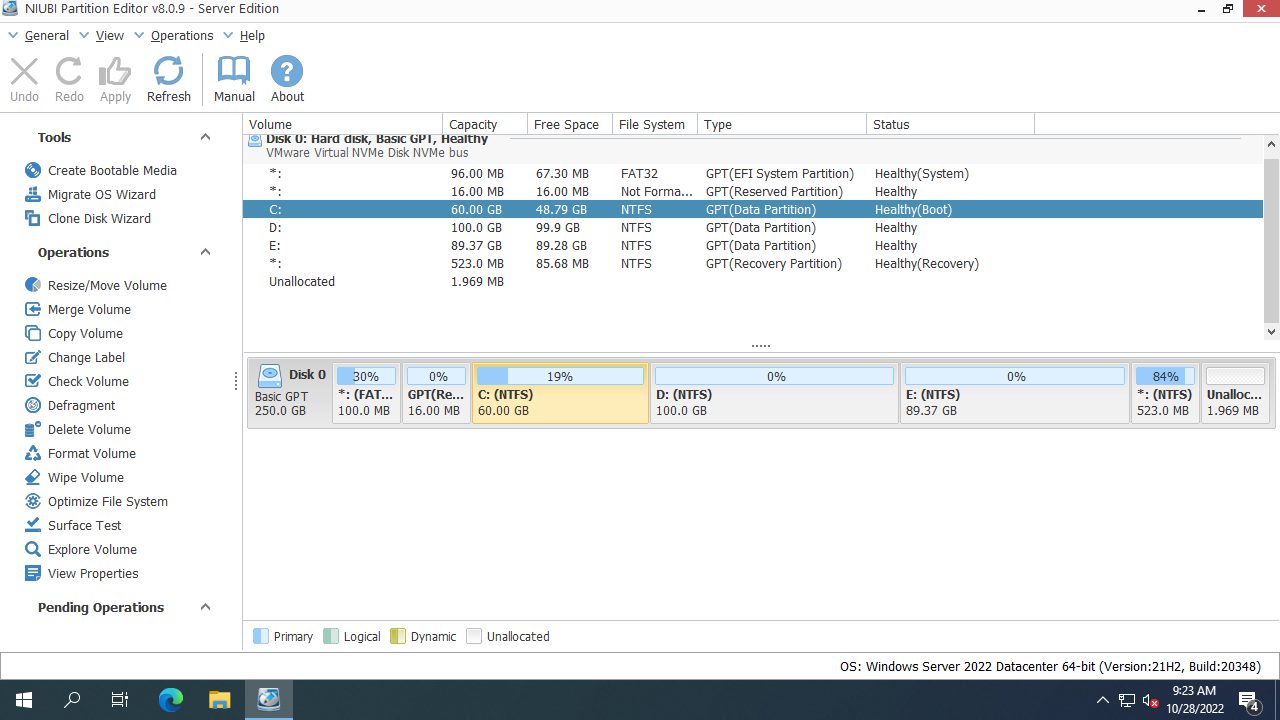
How to resize a partition in Windows Server 2022/2025 without losing data:
- Right-click a FAT32 or NTFS partition and select "Resize/Move Volume". In the pop-up window, drag either border towards the center to shrink the partition.
- To create a new volume, right-click the unallocated space you just created and select "Create Volume".
- To extend a partition, right-click it and select "Resize/Move Volume". In the pop-up window, drag the border into the adjacent unallocated space to merge them.
These operations will initially be listed as pending. To apply the changes to the physical disk, click "Apply" in the top-left corner to execute the operation. If you need to resize partitions in Windows Server 2022/2025 running on a VMware or Hyper-V virtual machine, the steps are exactly the same. Watch the video below to see how to resize a Windows Server 2022 disk partition and extend the C drive:
Besides resizing partitions in Windows Server 2022/2025 and earlier versions, NIUBI Partition Editor helps you perform many other disk partition management operations.
 © 2009 - NIUBI Technology All Rights Reserved. |