
Many people encounter the low disk space issue on Windows 10 computers. Windows Updates, system logs, temp files, programs, and many other types of files are written to the C drive continuously, so the C drive gets full sooner or later. If you replace the disk with a new one, hard disk manufacturers will be very glad. This article introduces how to clean up the C: drive in Windows 10 to reclaim disk space. You may run Disk Cleanup in Windows 10 via a command or GUI wizard. If you cannot get enough free space, try the additional effective methods.
About the Windows 10 Disk Cleanup Utility
"Disk Cleanup" is a native maintenance utility included in Microsoft Windows computers that is used to free up disk space on hard disk drives. This utility is easy to use and runs fast. It analyzes the hard drive, searches for files that are no longer of any use, and then removes the unnecessary files safely. These unnecessary and junk files include Windows Updates, Temporary files, Logs, Cache, files in the Recycle Bin, etc.
You can run Disk Cleanup in all Windows versions starting from XP; however, in some Windows versions such as Server 2008 and 2012, Disk Cleanup is not enabled by default, so you need to manually install this component. Starting with Windows 10 version 1803, Disk Cleanup is incorporated into Windows 10's Settings app; however, the standalone Disk Cleanup utility is still available.
How to Open Disk Cleanup in Windows 10
There are 3 common ways to open Disk Cleanup on a Windows 10 laptop/desktop/tablet computer:
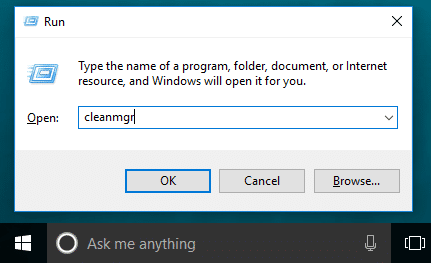
① Press the Windows + R keys on the keyboard, type cleanmgr, and then click OK.
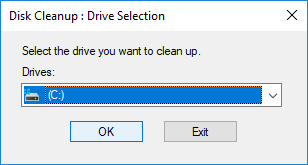
Select the C: drive or another one that you want to clean up.
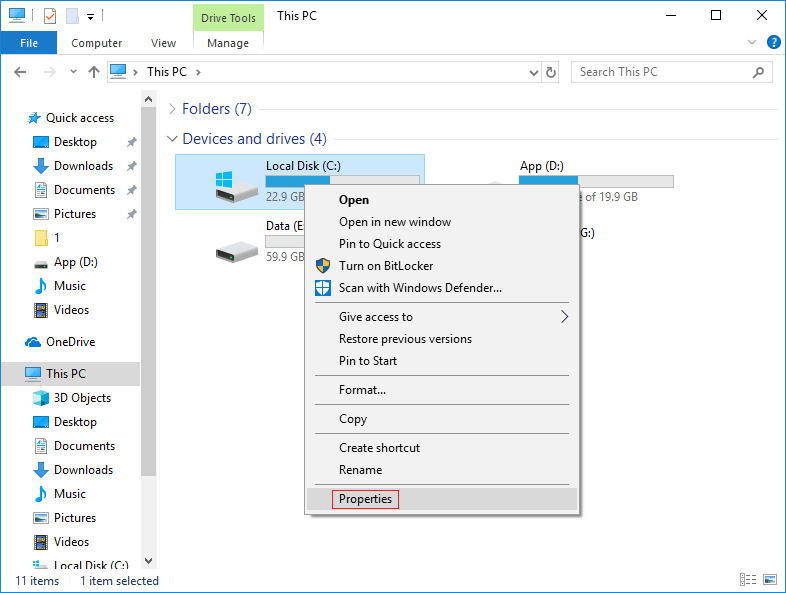
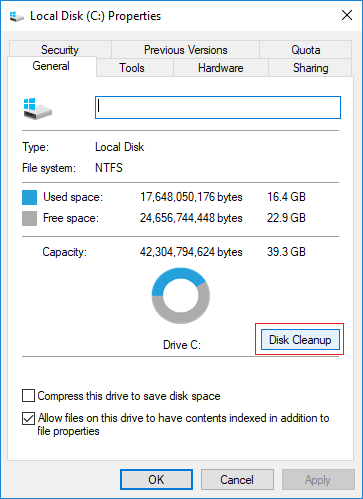
② Open Windows File Explorer, right-click the C: drive, and select Properties.
Click Disk Cleanup in the pop-up window.
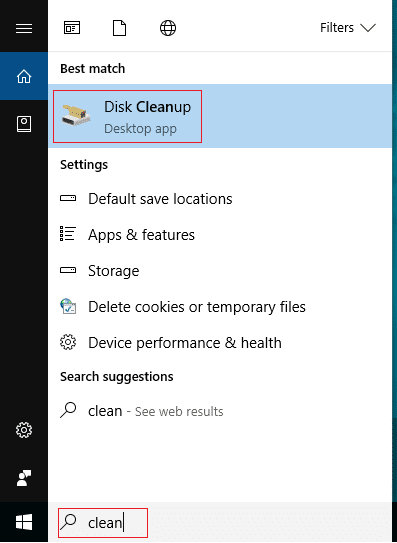
③ Search from the taskbar at the bottom left. Type clean, and then Disk Cleanup will be shown at the top.
How to Clean Up C Drive in Windows 10 with the Wizard
When the Disk Cleanup window is opened, it is very easy to complete the next steps; only several clicks are needed.
Steps to run Disk Cleanup in Windows 10 to clean up the C drive:
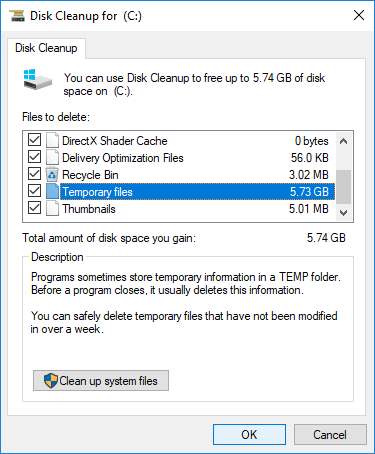
1. Click the check-boxes to select the files that you want to remove and click OK to begin. If you are not sure about the meaning of these files, click on them and you will see the corresponding description at the bottom.
2. Confirm this operation by clicking Delete Files.
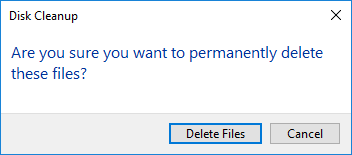
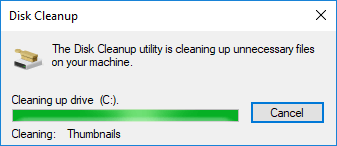
After that, Disk Cleanup will begin deleting the unnecessary and junk files.
3. Repeat to Clean up system files.
How to Clean Up a Disk in Windows 10 with a Command
There are 3 ways to run Disk Cleanup in Windows 10 via the command line; select the one that fits your needs.
① Command with All Files Selected
- Press the Windows and R keys together on the keyboard.
- Input cleanmgr /LOWDISK and press Enter.
- The Disk Cleanup dialog box will pop up with all types of files selected by default, so you just need to click OK to confirm.
② Clean Up All Junk Files Automatically
- Press the Windows and R keys together on the keyboard.
- Input cleanmgr /VERYLOWDISK and press Enter.
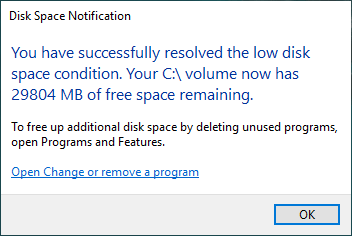
Then Disk Cleanup will delete all junk files automatically and then show you a dialog box with result.
③ Clean Up Specified Junk Files Automatically
- Press the Windows and R keys together on the keyboard to open Run.
- Input cleanmgr /sageset:1 and press Enter. (You can specify any value from 0 to 65535).
- The Disk Cleanup dialog box will pop up; select the files to delete and click OK.
- In the future, you just need to run cleanmgr /sagerun:1 and press Enter; the preselected junk files will be deleted automatically. If you want to delete different types of files, input cleanmgr /sageset:2 in step 2 and run cleanmgr /sagerun:2 in step 4.
5. Additional Options After Cleaning Up the Disk
If you did not get plenty of free space after running Disk Cleanup in Windows 10, the 3 methods below are very useful.
① Move Installed Apps and Games
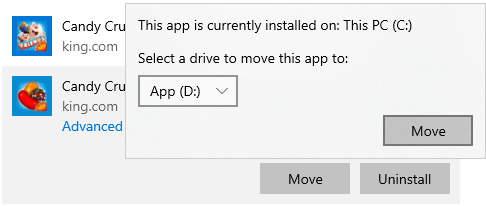
When installing programs, many people use the default settings to the C: drive. The more you install, the less space is left. It is better to install programs to a separate partition. Unlike previous versions, Windows 10 can move applications installed from the Windows Store to another partition without reinstalling them.
How to clean C drive in Windows 10 by moving applications:
- Press Windows and X on keyboard, then click Settings > Apps > Apps & features
- Click an app or game.
- Click the Move bottom.
- Select the new location from the drop-down list.
- Click the Move button.
- Repeat the steps to move more items.
② Save Files to New Location
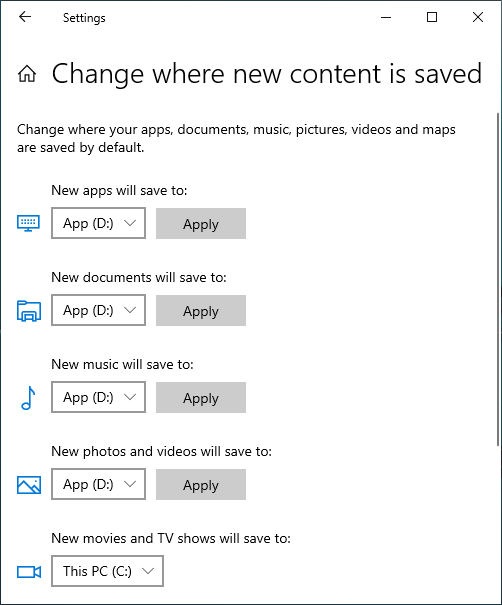
Windows 10 has another new option to save new files of apps, documents, music, pictures, and videos to other place, steps:
- Press Windows and X on keyboard, then click Settings
- Click System> Storage.
- Click Change where new content is saved under More storage settings.
- Click the drop-down list to select new location and click Apply.
③ Move More Free Space to the C: Drive
If you cannot reclaim a large amount of disk space (at least 20GB), the C drive will be full again in the near future, so you had better allocate more space to the C drive. In most computers, there is free space in another partition on the same disk; NIUBI Partition Editor can move this free space to the C drive without losing data. The Operating System, programs, and associated settings will remain exactly the same as before. It offers a free edition for Windows 11/10/8/7/Vista/XP home computer users.
Download this tool and follow the steps in the video to increase C drive space:
Besides shrinking, moving, and extending partitions, this free tool helps you perform operations such as copying, converting, defragging, hiding, wiping partitions, scanning for bad sectors, optimizing file systems, and much more.
 © 2009 - NIUBI Technology All Rights Reserved. |