
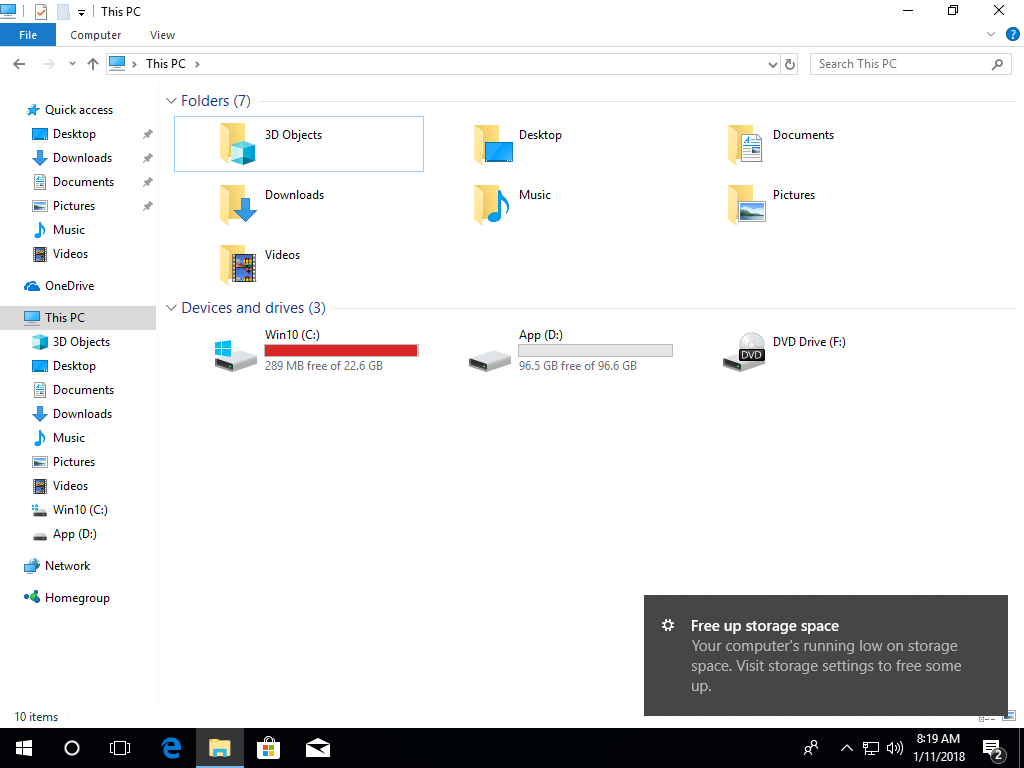
Similar to all previous versions, the C drive will get full in Windows 10 at some point, because many kinds of files are saved to it continuously. When the C: drive is almost full, Windows 10 pops up a warning message in the bottom right corner and asks you to turn on Storage Sense - "Your PC's low on storage. Turn on storage sense and Windows can help free up space." In addition, to alert computer users, Windows marks the C drive as red in File Explorer. When the C drive is full on a Windows 10 laptop/desktop/tablet, you had better fix this issue as fast as possible. Otherwise, your computer will run much slower, get stuck, reboot unexpectedly, or even crash. This article introduces how to fix the Windows 10 C drive full issue quickly and easily.
What Is Taking Up Space in the C Drive in Windows 10?
The Windows 10 C drive full issue could be caused by both Windows and third-party applications.
Windows
1. Windows Updates
Due to technical bugs, security threats, and other reasons, Windows automatically downloads and installs updates continuously. There will be a large amount of update files accumulating in the C drive if you do not clean up the disk.
2. Windows services
Windows services such as the Paging File, Hibernation, Backup, and Recycle Bin could take up several gigabytes of space for each file.
3. Other Windows files
Other files such as temporary files, caches, and logs are small but can accumulate in large amounts.
Applications
1. Installation
The default installation path is in the C drive; the more applications you install, the less free space is left. Some applications such as games, projects, graphics, and video editors consume a large amount of free space.
2. Default output path
Many people like to use default settings when installing programs; therefore, these programs output many files to the C drive. Some people report that "the C drive is suddenly full on the Windows 10 computer" because the C drive is not big and they throw everything into it. You had better install programs and change the associated output path to a separate partition; otherwise, your C drive will be full in a short time even if your computer is new.
How to Fix C Drive Full in Windows 10 Effectively?
To completely fix the C drive full issue on a Windows 10 laptop/desktop/tablet, there are many methods, but the following 3 steps are the most important and efficient:
- Free up disk space
Remove unnecessary and junk files in the C drive; then you can reclaim disk space to keep the computer running properly. In addition, there will be available space to install other programs to help fix this issue. This step is very useful for computers that have never had their disks cleaned up. - Add more free space to C drive
With partition editor software, you can increase C drive space by taking unused space from other partitions on the same disk. This step is very important, especially for computers where the C drive was created small. - Use computer in the right way
Running the computer correctly is not only helpful in fixing the C drive full issue but also helpful in improving computer performance.
Step 1 - Clean Up C Drive to Reclaim Disk Space
Windows 10 has built-in Disk Cleanup utility to help free up disk space, which can delete most of unnecessary and junk files safely and easily.
How to clean up disk when C drive is full in Windows 10:
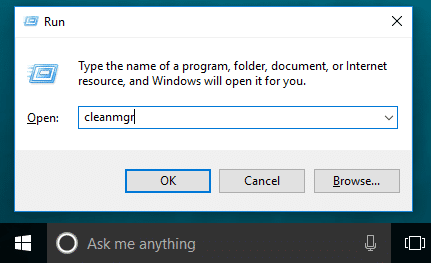
① Press Windows + R keys, type cleanmgr, and then click OK.
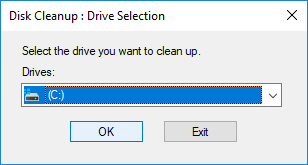
② Select C: drive in the drop-down list and click OK.
③ Click the check-box in front of the files that you want to remove and click OK.
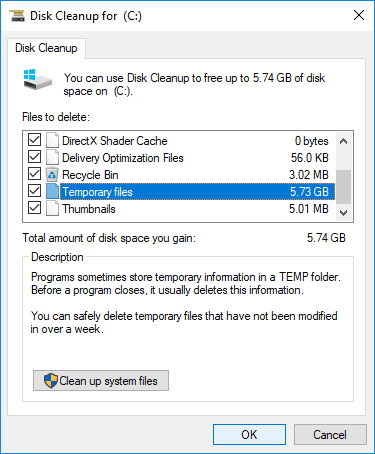
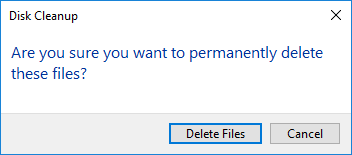
④ Confirm this operation by clicking Delete Files.
⑤ Repeat step 1, 2 and click Clean up system files on the bottom.
If you cannot reclaim more than 20GB of free space in the C drive, you had better add more from another partition. Otherwise, this free space will be eaten up quickly by newly generated junk files. That means the C drive will be full on the Windows 10 computer again in a short time.
Step 2 - Add Free Space to C Drive from Another Partition
To fix the C drive full issue on a Windows 10 computer, this step is the most important. With safe partition software, you can shrink another volume to release free space, and then add the space to the C drive. In this way, your Operating System, programs, and everything else will remain exactly the same as before. To accomplish this, NIUBI Partition Editor offers a free edition to help you.
Download this tool and follow the steps below to allocate more space to the C drive.
Besides extending the C drive in Windows 11/10/8/7/Vista/XP, this free partition manager helps you perform many other operations such as copying, merging, converting, defragging, hiding, wiping partitions, scanning for bad sectors, etc.
Step 3 - Use the Computer in the Right Way
Whether you use Windows 11/10 or the older Windows 8/7/Vista/XP, when the system C drive is getting full, you had better complete these additional steps:
- Run Windows Cleanup as monthly maintenance utility.
- Install new applications to other volume instead of C drive.
- Change the output path of the applications to other large volumes.
Better than all previous versions, Windows 10/11 has new features to help fix low disk space issue on C drive.
① Clean Up Disk Automatically
Firstly, you need to enable this service:
- Press Windows and X on keyboard, then Settings
- Go to System > Storage
- Switch Off to On under Storage Sense on the right side.
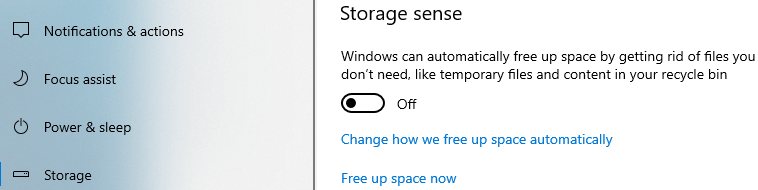
Then click Change how we free up space automatically below it.
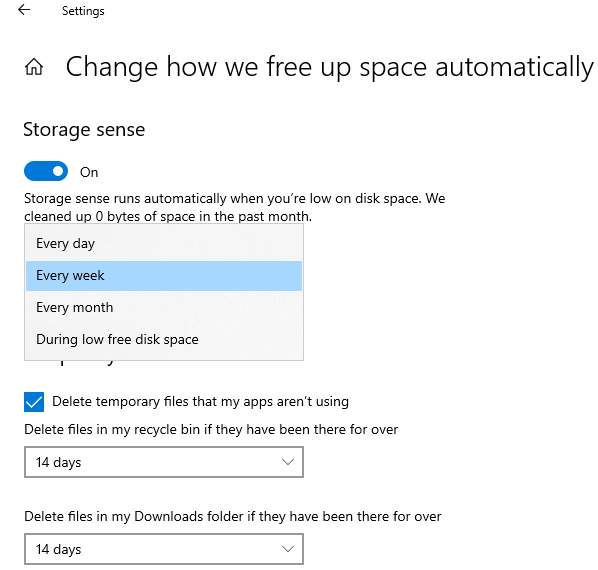
- Select the frequency in the drop-down list.
- Select whether to delete temporary files automatically.
- Select from the drop-down list to delete files in Recycle Bin and Downloads folder if they have been there for over 1/14/30/60 days.
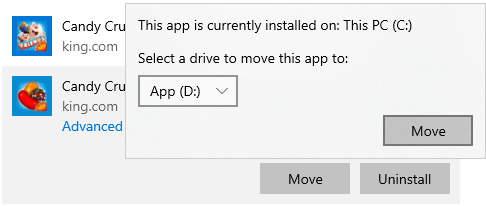
② Move Installed Apps and Games
In all previous versions, you had to reinstall all programs if you wanted to change their locations, but in Windows 10, you can move them to another partition directly.
Follow the steps:
- Press Windows and X on keyboard, then click Settings > Apps > Apps & features
- Click an app or game.
- Click the Move button.
- Select the new location in the drop-down list.
- Click the Move button.
- Repeat the steps to move more items.
③ Save Files to a New Location
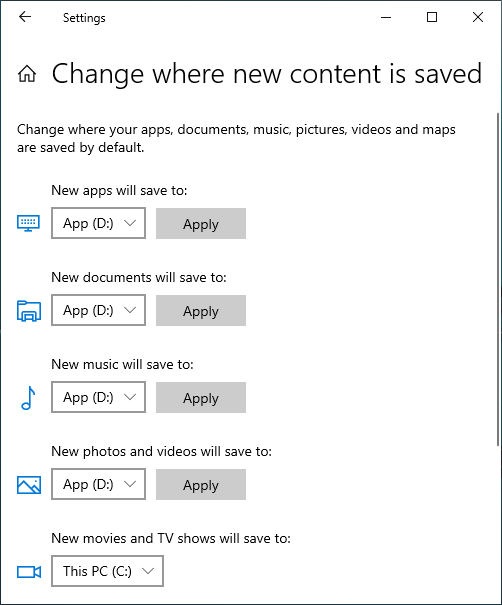
Windows 10 has a new option to change where new content is saved for apps, documents, music, pictures, and videos to another location. Steps:
- Press Windows and X on keyboard, then click Settings
- Click System> Storage.
- Click Change where new content is saved under More storage settings.
- Click the drop-down list to select new location and click Apply.
By following the methods above, you can fix the Windows 10 C drive full issue completely.
 © 2009 - NIUBI Technology All Rights Reserved. |