
Partition sizes are allocated by laptop/desktop OEM manufacturers or by yourself when installing Windows. Many types of files are written to the system C drive continuously, so it will become full someday, especially on an SSD. When it happens, you can add more space to the C drive without reinstalling the Operating System and programs. To increase C drive space on a Windows 10 laptop/desktop, there are two choices: Windows native Disk Management and free partition software. This article introduces how to increase C: drive space on a Windows 10 computer with both kinds of tools.
Increase C Drive Space in Windows 10 Using Disk Management
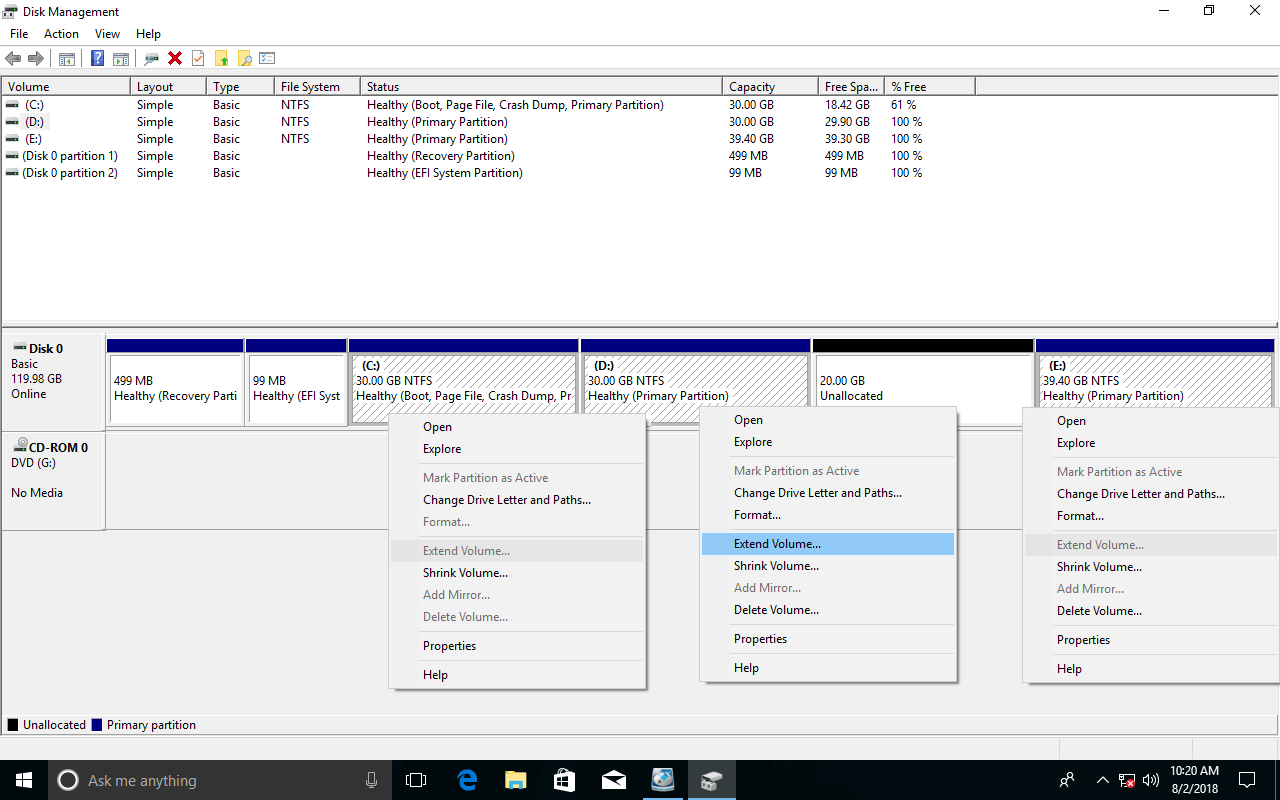
Starting with Windows 7, there is an "Extend Volume" function built into the Disk Management tool, which is able to increase partition size without losing data (in most cases). However, your disk partition configuration must meet some requirements; otherwise, "Extend Volume" is grayed out. Windows 10 inherited the same function without improvement, so check your disk partition layout before extending the C drive in Windows 10 with the Disk Management tool.
- The partition that you want to extend must be formatted with the NTFS file system; FAT32 and other types of partitions are not supported.
- There must be adjacent unallocated space on the right of the system C: drive. If there is no such space, you must delete the contiguous partition (D:) on the right.
- If your system disk is initialized as MBR, the contiguous partition D (or E:) must be a Primary partition.
Do not delete the D drive if you installed programs in it. If you can delete this partition, remember to transfer files to another location in advance. If D is a Logical drive, Disk Management cannot extend the C drive even after deleting D.
How to increase C drive space in Windows 10 via Disk Management:
- Press the Windows + X keys and click Disk Management in the list.
- Right-click the D: drive and select "Delete Volume", then its disk space will be converted to unallocated if D is a Primary partition.
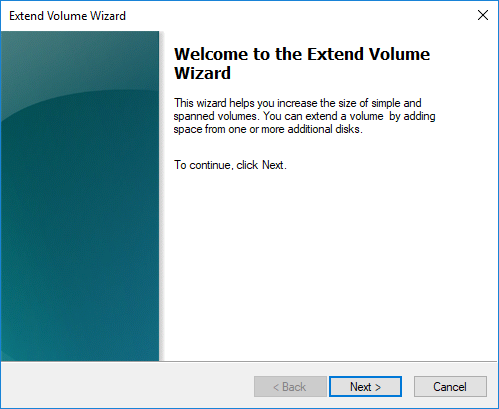
- Right-click the C: drive and select "Extend Volume". (The Extend Volume Wizard will open.)
- Simply click Next until Finish to execute.
Besides "Extend Volume", there is another "Shrink Volume" function. Why not extend the C drive by shrinking another partition? This is because "Shrink Volume" cannot create unallocated space on the left when shrinking the D drive. "Extend Volume" is grayed out for the C drive when the unallocated space is not right behind it.
Increase C Drive Space in Windows 10 with Free Partition Software
Compared with Disk Management, NIUBI Partition Editor can create unallocated space on either the left or the right when shrinking a partition. Therefore, you can increase the size of the C: drive without deleting any partition. Other advantages include:
- It is able to shrink and extend both NTFS and FAT32 partitions.
- It can move unallocated space and extend it to any non-adjacent partition on the same disk.
- It can move a partition or copy the entire disk to a larger one when there is no available free space on a disk.
NIUBI Partition Editor offers a free edition for Windows 11/10/8/7/Vista/XP home users. Compared with other tools, it has Virtual Mode and Cancel-at-Will technologies to avoid mistakes, and an advanced file-moving algorithm to help resize and move partitions much faster. Professional and higher editions have unique 1-Second Rollback technology to protect your system and data. If it detects any error, it can revert the disk partitions to their previous state in a flash automatically.
Download this program, and you will see all disk partitions with their layout and other information. Available operations for a selected disk or partition are listed on the left and by right-clicking. Unavailable operations are hidden to keep the interface clean.
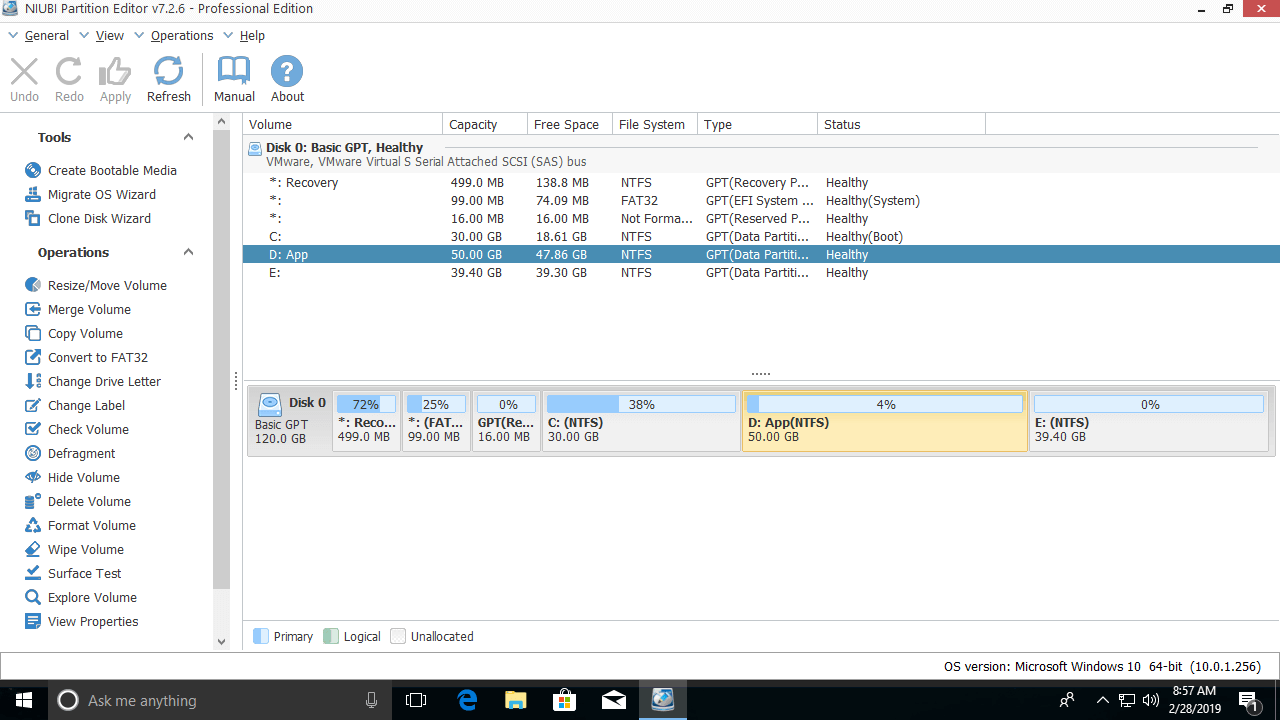
There are several ways to increase C drive space in Windows 10 without losing data; select the corresponding method according to your own disk partition configuration.
1. Increase C Drive Space in Windows 10 from D/E
In most Windows laptops and desktops, there are other partitions on the same disk. You can shrink any of them to get unallocated space and then add it to the C drive. The Operating System, programs, associated settings, and everything else will remain exactly the same as before. No other operations are needed even if you use any type of hardware RAID array.
The partition that you want to shrink may be contiguous or non-adjacent to the C drive, so there are 2 options.
① Increase C Drive Space from D: Drive (Contiguous)
Compared with Windows Disk Management, NIUBI Partition Editor can create unallocated space on the left when shrinking the D drive, whether this contiguous partition is an NTFS or FAT32, Primary or Logical partition.
How to increase C drive space in Windows 10 from the D drive:
- Right-click the D: drive and select "Resize/Move Volume"; drag the left border to the right in the pop-up window, or enter an amount in the box of "Unallocated space before". Then D is shrunk and unallocated space is created on its left.
![Shrink D]()
- Right-click the C: drive and select "Resize/Move Volume" again; drag the right border to the right to merge this unallocated space.
![Extend C drive]()
- Click Apply on the top left to execute. Then the C drive is increased to 50GB by taking 20GB of free space from the D drive.
![Extend volume C]()
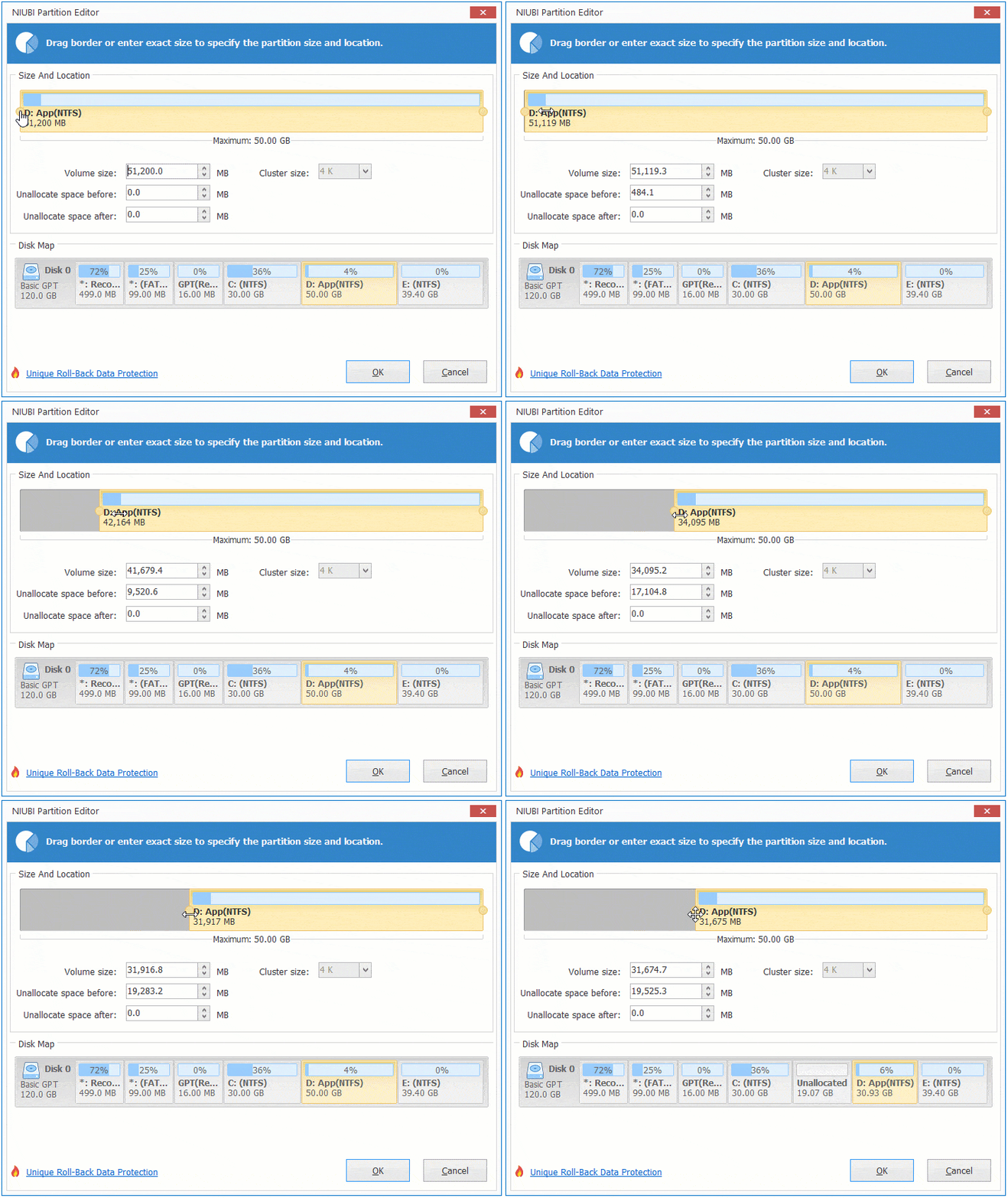
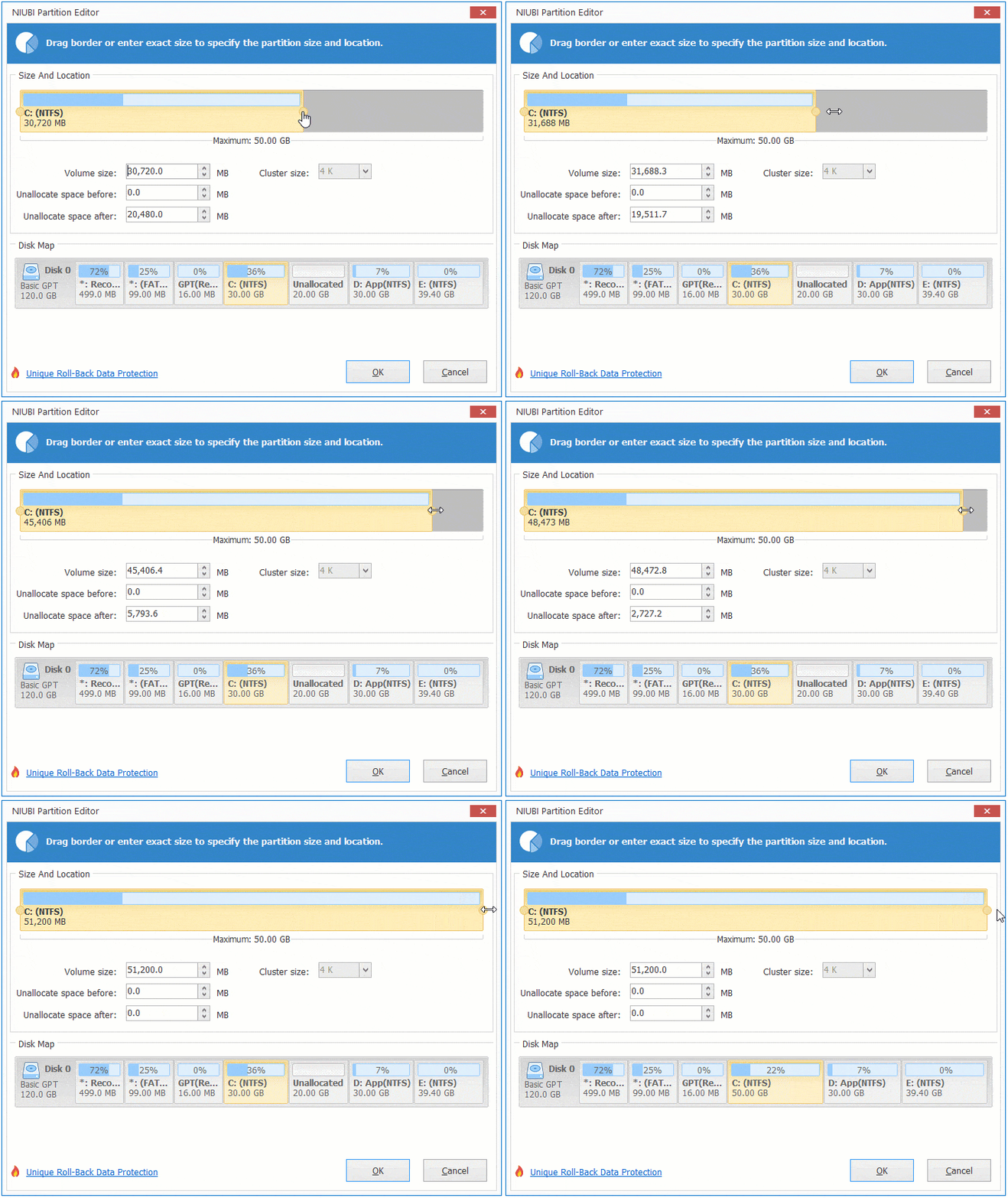
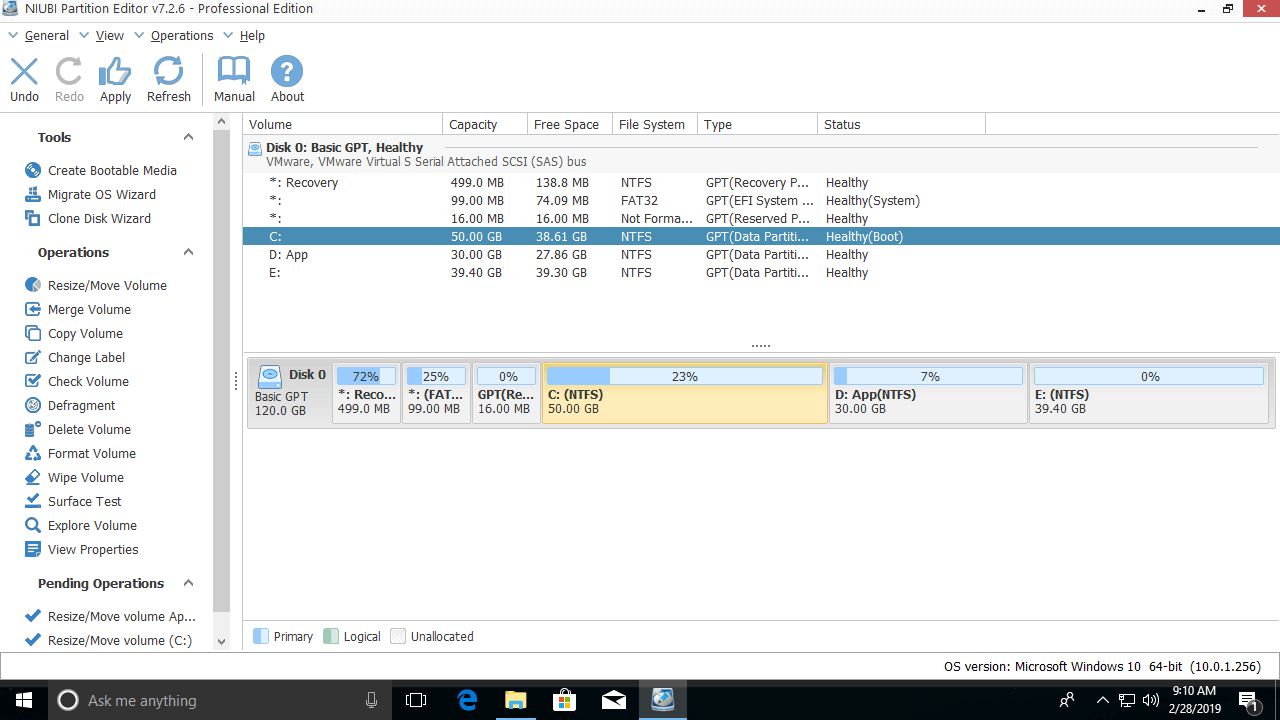
To avoid mistakes, this software is designed to work in virtual mode; the operations you perform will be listed as pending on the bottom left. Real disk partitions will not be modified until you click "Apply" to confirm and execute.
② Increase C Drive Space from E: Drive (Non-adjacent)
If there is not enough free space in the adjacent partition D, you can get free space from a non-adjacent volume. It is similar, but there is an additional step to move partition D.
How to increase C: drive space in Windows 10/11 from the non-adjacent E drive:
- Right-click the E: drive and follow Step 1 to create unallocated space on the left side.
- Right-click the D: drive and select "Resize/Move Volume", then drag the middle of the partition to the right in the pop-up window. Then the unallocated space is moved next to the C drive.
- Follow Step 2 above to merge the unallocated space into the C drive.
Video guide on how to increase the size of the C drive with other volumes on the same disk:
2. Extend C Drive in Windows 10 with a Larger Disk
In some Windows 10 computers, the system disk is small, especially when it is an SSD, so there may not be enough free space on this disk. In that case, no software can add space to the C drive from another separate disk. To solve this problem, you still have 2 options with NIUBI:
- Move a data volume to another disk, delete it, and add its space to the C drive.
- Copy the entire disk to a larger one and increase the C drive with the extra disk space.
In Summary
This article introduces a full solution to increase C drive space in Windows 10 without losing data/programs. Select the corresponding method according to your own disk partition configuration. Besides shrinking and extending partitions, NIUBI Partition Editor helps you perform many other disk partition management operations such as merging, copying, converting, defragging, wiping, hiding, scanning for bad sectors, etc.
 © 2009 - NIUBI Technology All Rights Reserved. |