
Unlike a Mac computer, you need to perform many disk management operations on a Windows computer. For example: deleting, formatting, shrinking, extending, converting, copying, merging, and moving partitions. Windows 10/8/7 has a native Disk Management tool to help perform some of these operations. However, it cannot move a partition, because it cannot change the start position of a volume. To move a partition on a Windows 10 desktop/laptop/tablet computer, you need to run safe partition software. This article introduces how to move a partition in Windows 10 to the right/left, to the front/end of the disk, or how to move a Windows 10 partition to another disk with a free tool.
Typical Example of Why You Need to Move Partitions in a Windows 10 Computer
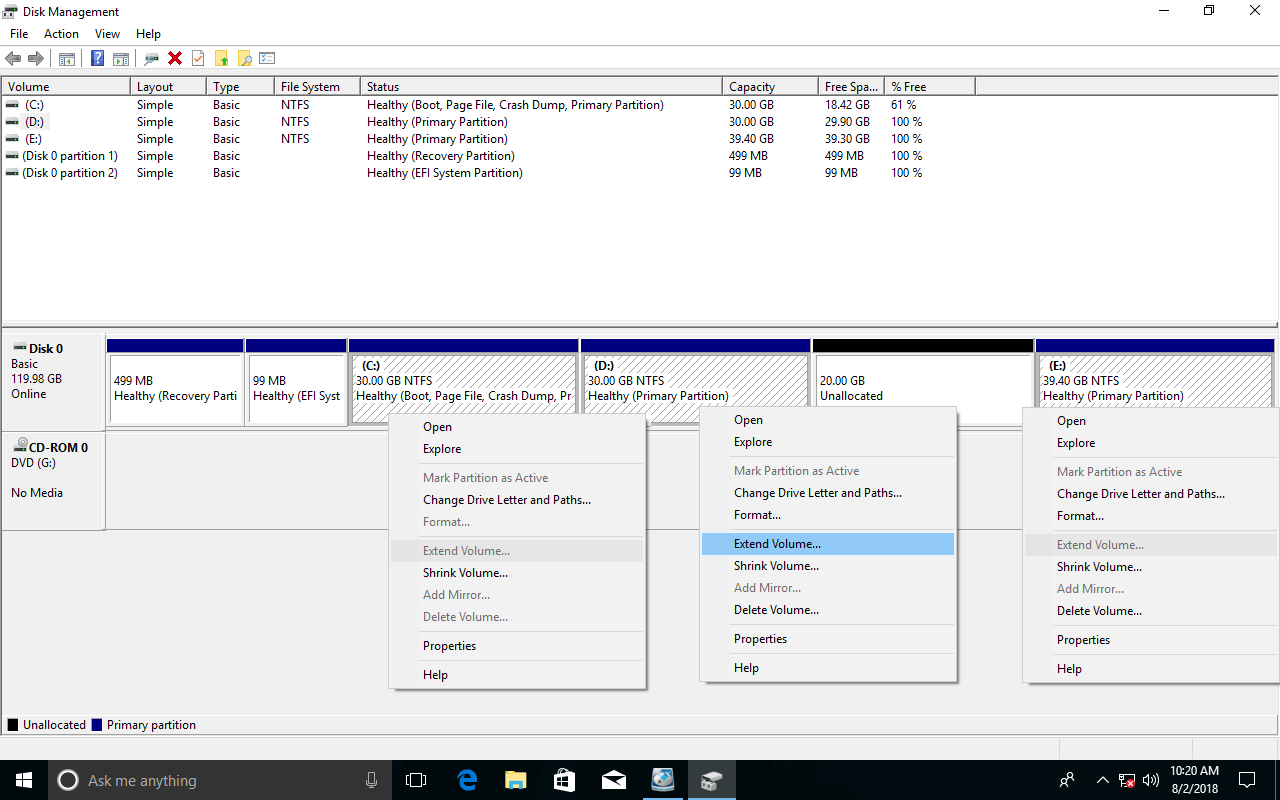
Windows 10/8 inherited the same "Shrink Volume" and "Extend Volume" functions in Disk Management from previous Windows 7. With this native tool, you can decrease and increase partition size without losing data in most cases. However, Disk Management cannot extend the C drive by shrinking D or other partitions, because:
- The "Shrink Volume" function can only create unallocated space on the right when shrinking a partition.
- The "Extend Volume" function can only merge unallocated space into the left contiguous NTFS partition.
As shown in the screenshot, after shrinking the D drive in Disk Management, the unallocated space is non-adjacent to the C drive and is on the left of the E drive, so "Extend Volume" is greyed out for both partitions.
To solve this problem, you need to move partition D to the right. The unallocated space will be moved to the left at the same time. Then "Extend Volume" will be enabled for the C drive. With a reliable partition tool, you can move Windows 10 partitions to the right/left, or to the front or end of the disk without losing data.
Which Tool to Use to Move a Partition in a Windows 10/8/7 Computer
Windows native tools cannot move a partition in Windows 10/8/7. To accomplish this task, you need to run third-party software. There are many kinds of software, including free and commercial, installable and portable, and Windows and Linux kernel-based.
As mentioned above, you had better run a reliable and safe tool, because there is a potential risk of system damage and data loss when changing disk partitions.
When you move a partition, the start and end positions will be changed, and all files in this partition will be moved to new locations. Some unreliable software may modify the parameters incorrectly or fail to move files successfully. If this happens, the partition will be damaged, and files will be lost.
Compared with other software, NIUBI Partition Editor features powerful 1-Second Rollback, Virtual Mode, Cancel-at-Will, and Hot-Clone technologies to protect your system and data. In addition, it has an advanced file-moving algorithm to help move partitions much faster. It offers a free edition for Windows 11/10/8/7/Vista/XP home computer users.
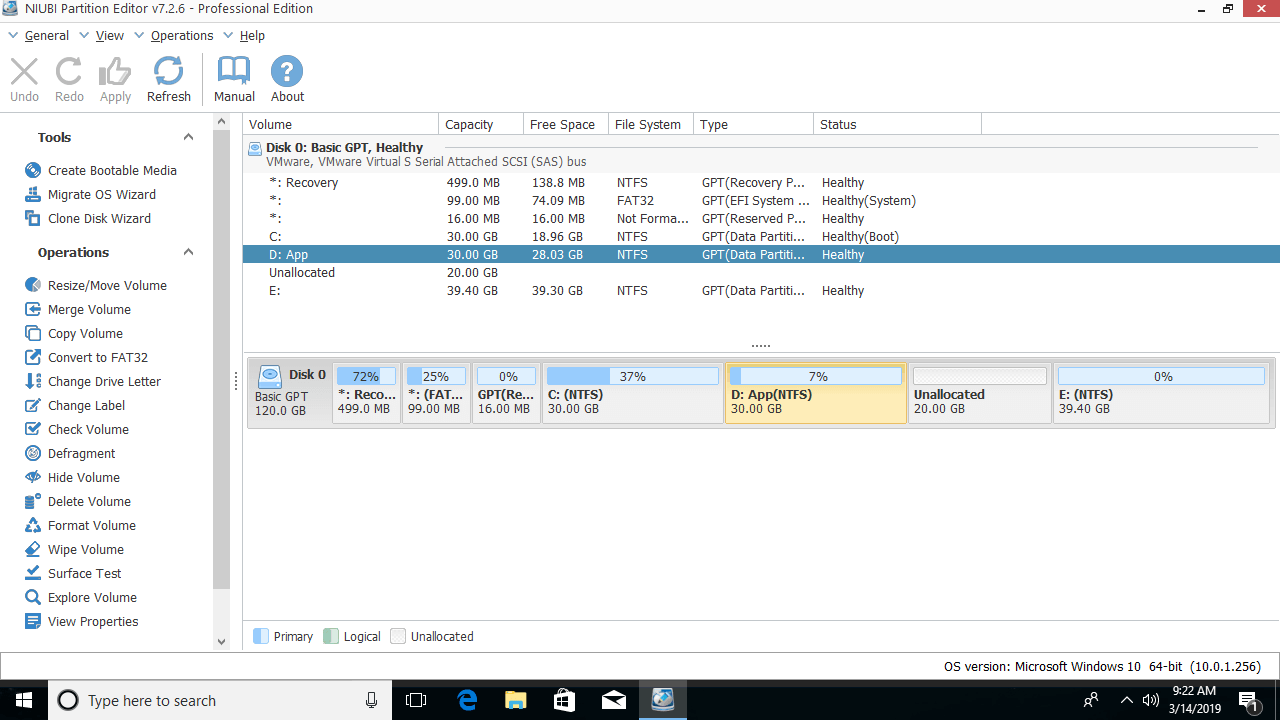
Download this tool, and you will see all storage devices with their partition structure and other information. In the example below, there is 20GB of unallocated space which was shrunk from the D drive.
1. Move Windows 10 Partition to the Left or Right
When there's contiguous unallocated space, it is very easy to move partition in Windows 10/8/7 computer, just drag and drop on the disk map and only 1 step is needed. If you use hardware RAID arrays such as RAID 0/1/5/10, do not break RAID array, follow the same step below.
How to Move a Partition to the Right in Windows 10/8/7 with NIUBI:
① Right-click the D: drive and select "Resize/Move Volume"; drag the middle of the D drive to the right in the pop-up window.
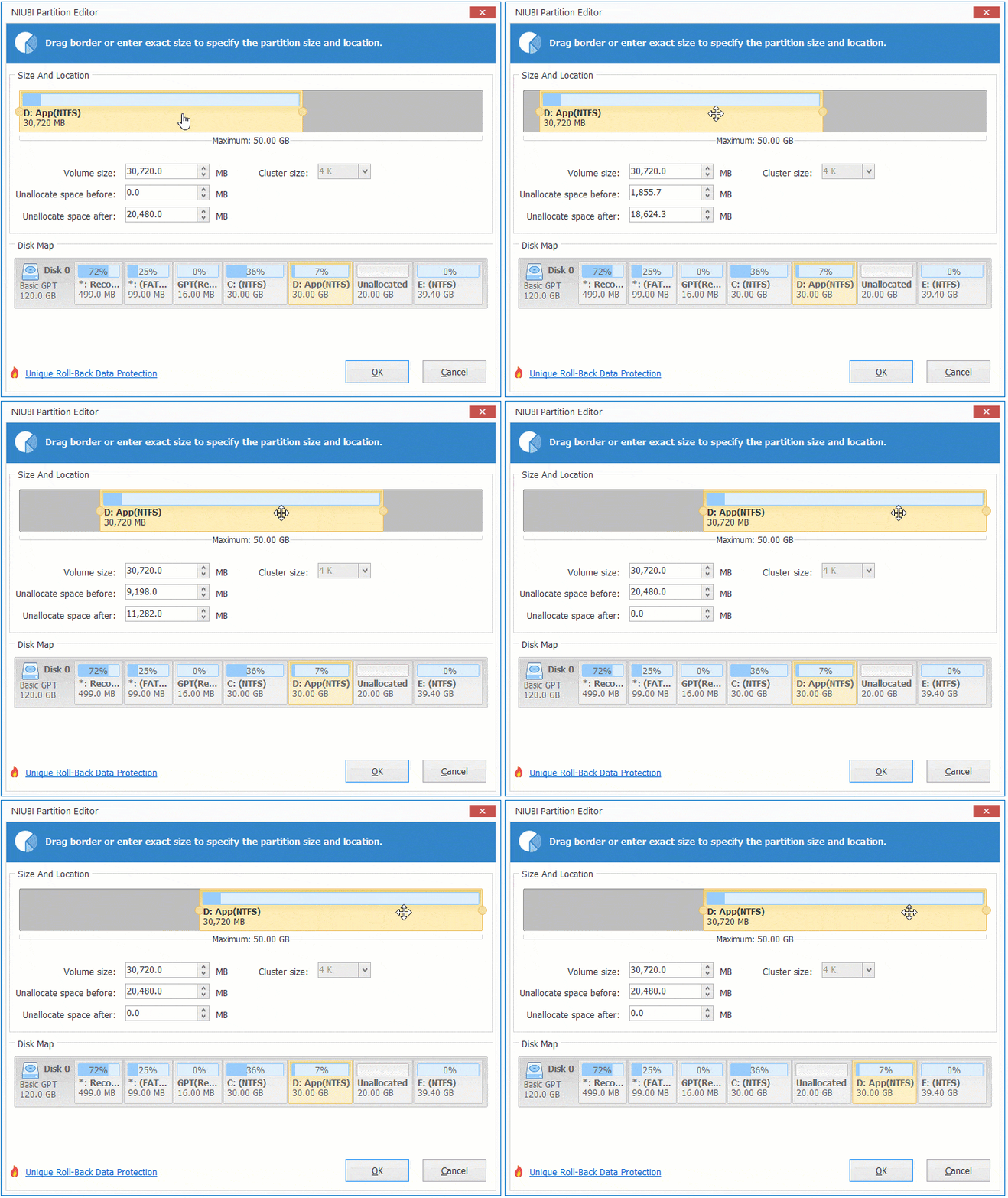
Then D drive will be moved to the right and unallocated space will be moved to the left.
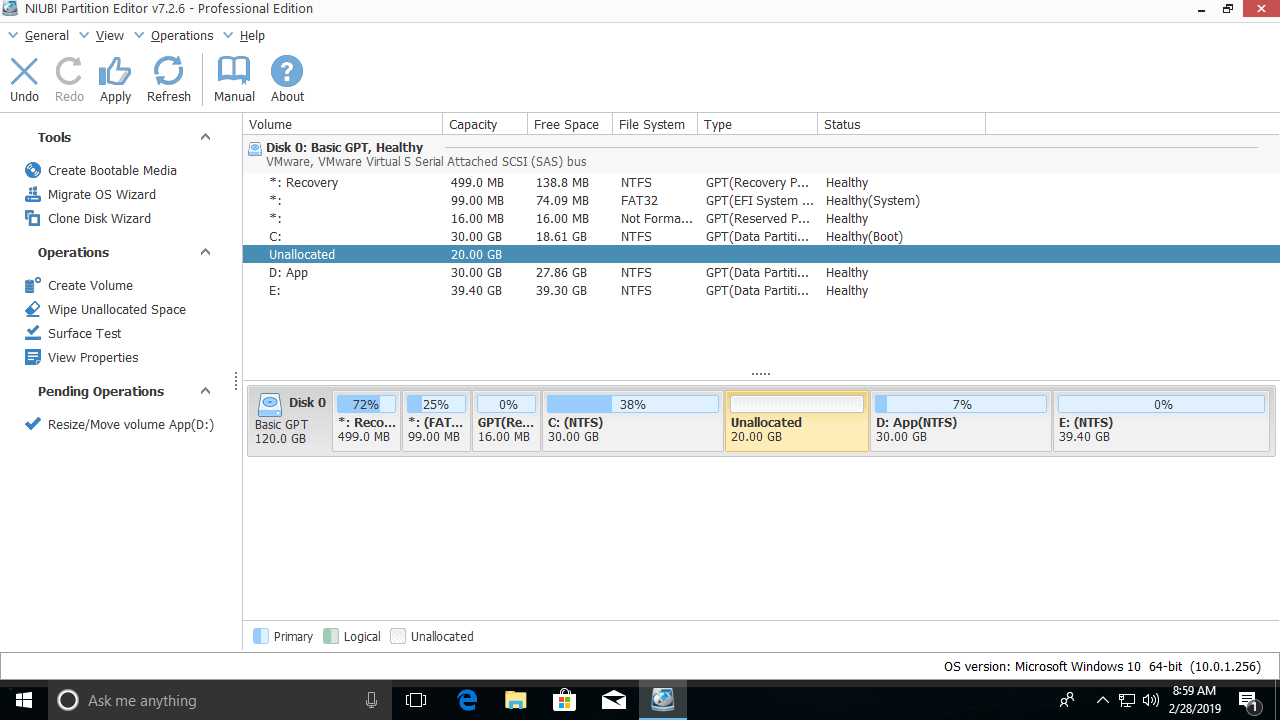
② Click the "Apply" button on the top left to execute. (Real disk partitions will not be changed until you click "Apply" to confirm.)
After moving the unallocated space to the left, you can easily add it into the C drive. To do this, right-click the C: drive in NIUBI Partition Editor and select "Resize/Move Volume" again, then drag the right border to the right in the pop-up window.
How to Move a Partition to the Left in Windows 10/8/7:
If you want to extend the E: drive with this adjacent unallocated space, you can achieve this without moving the partition. To do this, right-click the E: drive in NIUBI and select "Resize/Move Volume", then drag the left border to the left in the pop-up window.
If there is another partition F on the right and you want to extend it with the unallocated space behind the D drive, you need to move partition E to the left. To do that, right-click the E: drive in NIUBI Partition Editor and run the "Resize/Move Volume" option. In the pop-up window, drag the middle of the E drive to the left.
Video guide on how to move a partition to the right/left in a Windows 10 computer:
2. Move a Windows 10 Volume to the Front or End of the Disk
If the partitions are not in sequence, for example: C, E, and D, you can simply change the drive letters without moving the partitions.
Some computers or software require a specific partition to be at the front (or end) of the disk. In that case, you just need to follow the steps above to move the partitions one by one, or refer to this article.
3. How to Move a Partition to Another Disk
If you want to move all partitions to another disk, follow the steps in the video. Here we will show you how to move a single partition to another disk.
Steps to move a partition to another disk in Windows 10/8/7/Vista/XP:
Step 1: Shrink a partition on another disk (here it is F:) and create unallocated space with "Resize/Move Volume". Ignore this step if there is existing unallocated space on this disk.
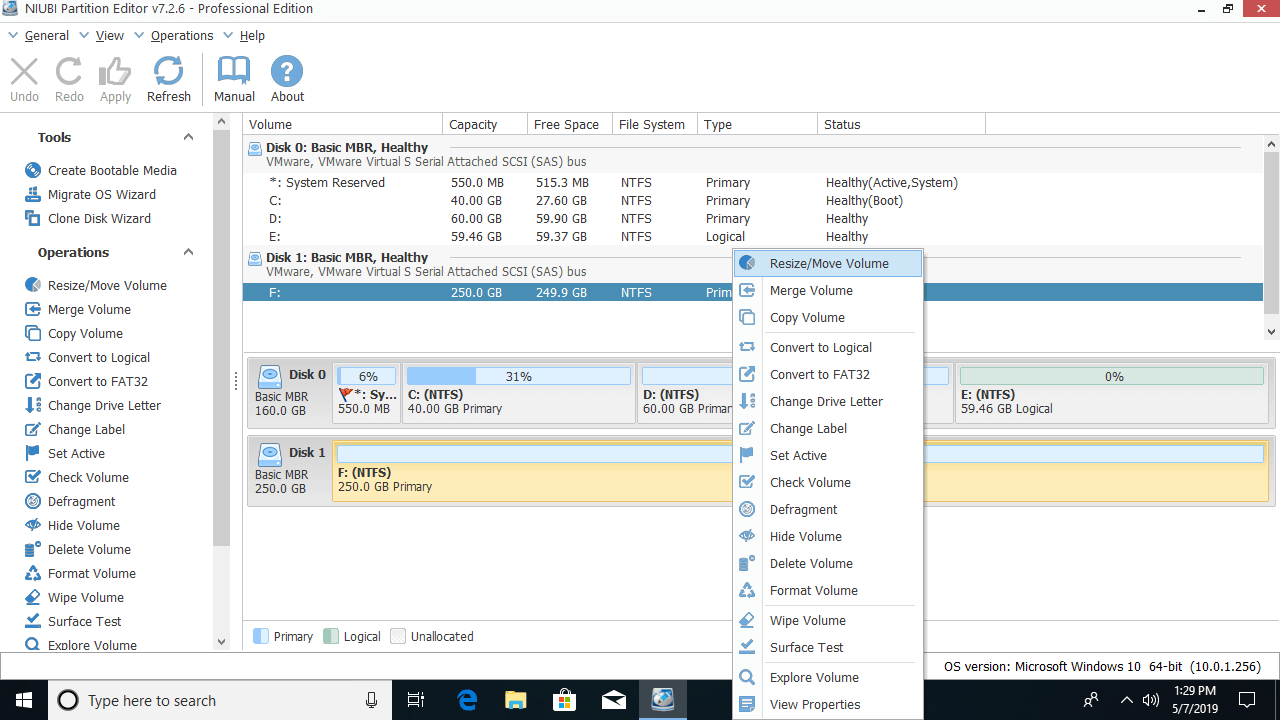
Step 2: Right click the partition that you want to move (here is D:) and select "Copy Volume".
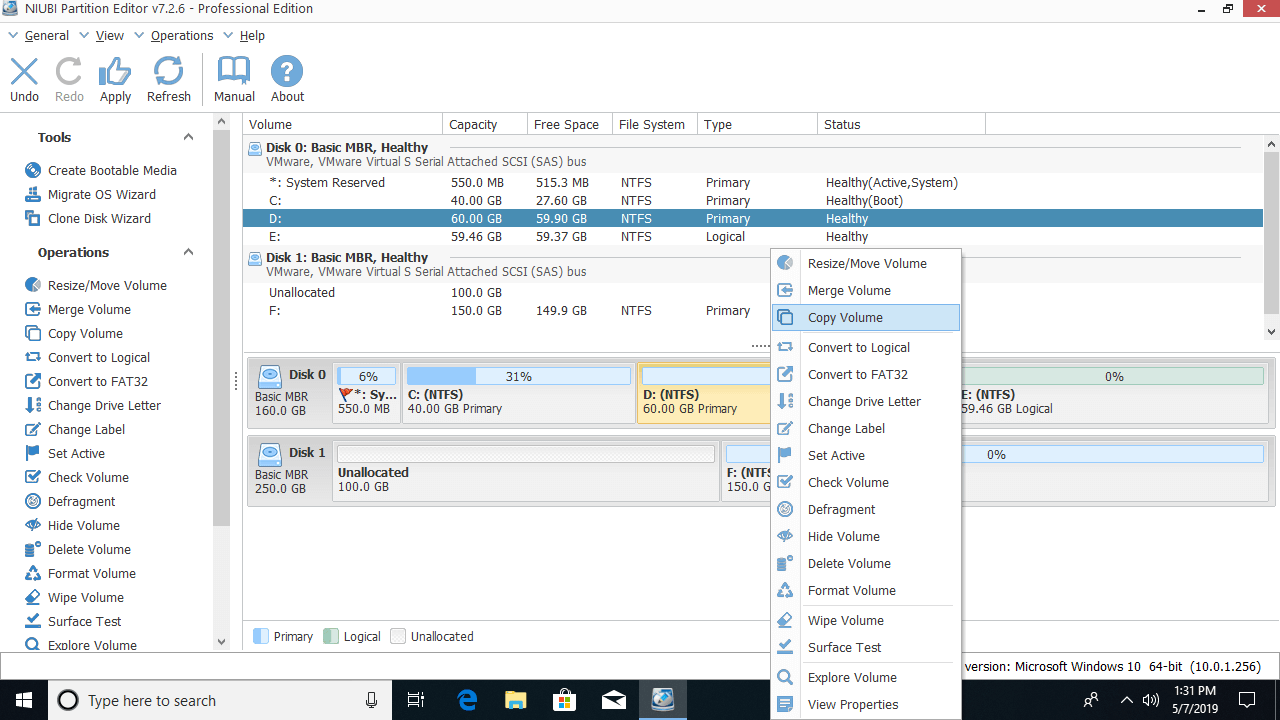
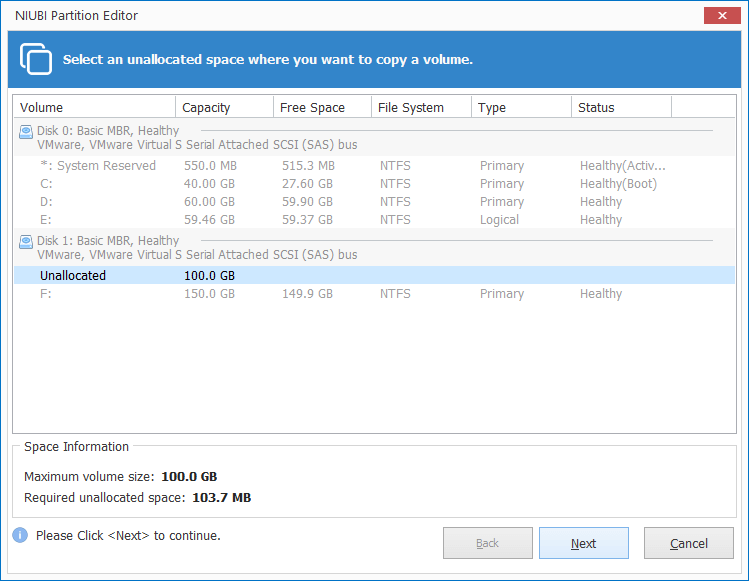
Step 3: Select the unallocated space on the target disk and click Next.
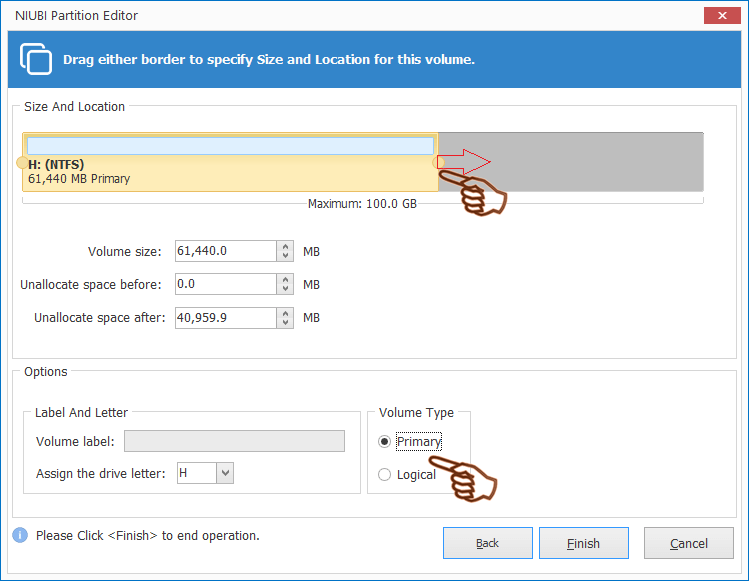
Drag the right border to the right to merge any extra unallocated space.
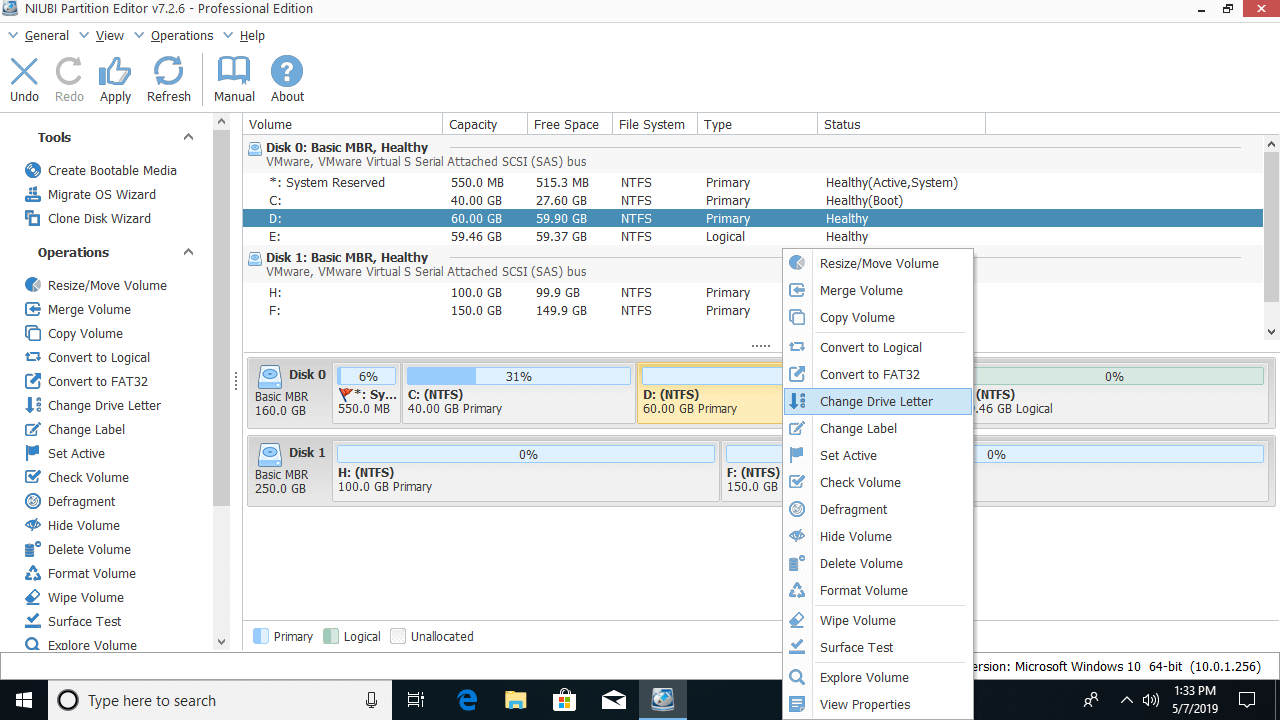
Step 4: Right-click the original drive (D:) and select "Change Drive Letter".
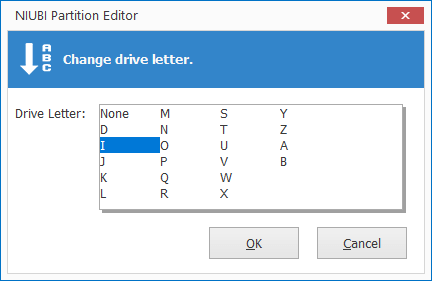
In the pop-up window, select any other drive letter.
Step 5: Right-click the target drive (F:) and select "Change Drive Letter" again, then select D in the pop-up window.
- If you installed programs in the D drive or want to keep everything exactly the same, Steps 4 and 5 are required. If you just want to move files to another partition, ignore these 2 steps.
- If you want to move the Operating System to another disk, copying a single C partition cannot ensure that Windows remains bootable. Instead, you need to clone the entire disk.
Besides moving partitions in Windows 11/10/8/7/Vista/XP, NIUBI Partition Editor helps you perform many other disk partition management operations. For example: shrinking, extending, merging, converting, defragging, wiping, hiding, copying partitions, optimizing file systems, and scanning for bad sectors.
 © 2009 - NIUBI Technology All Rights Reserved. |