
Low disk space on the C drive is a common issue on Windows 10/8/7 laptops and desktops. To solve this problem, many people want to extend the C drive without reinstalling the operating system and all programs. Starting with Windows 7, new "Shrink Volume" and "Extend Volume" functions were added to Disk Management to help change partition size without losing data. However, both functions have shortages. Windows 8/10 inherited the same functions without any improvement. Many people report that they are unable to extend the C drive in Windows 10 using Disk Management. This article introduces why Disk Management is unable to extend the C drive in Windows 10/8/7 and how to solve this problem easily.
Why Disk Management Is Unable to Extend the C Drive in Windows 10/8/7
Reason 1: No adjacent Unallocated Space on the Right
Firstly, you should know that the size of a physical hard disk is fixed. You can resize a partition, but you cannot shrink or expand a physical disk (except for a virtual disk). Before extending a volume, there must be unallocated space on the same disk.
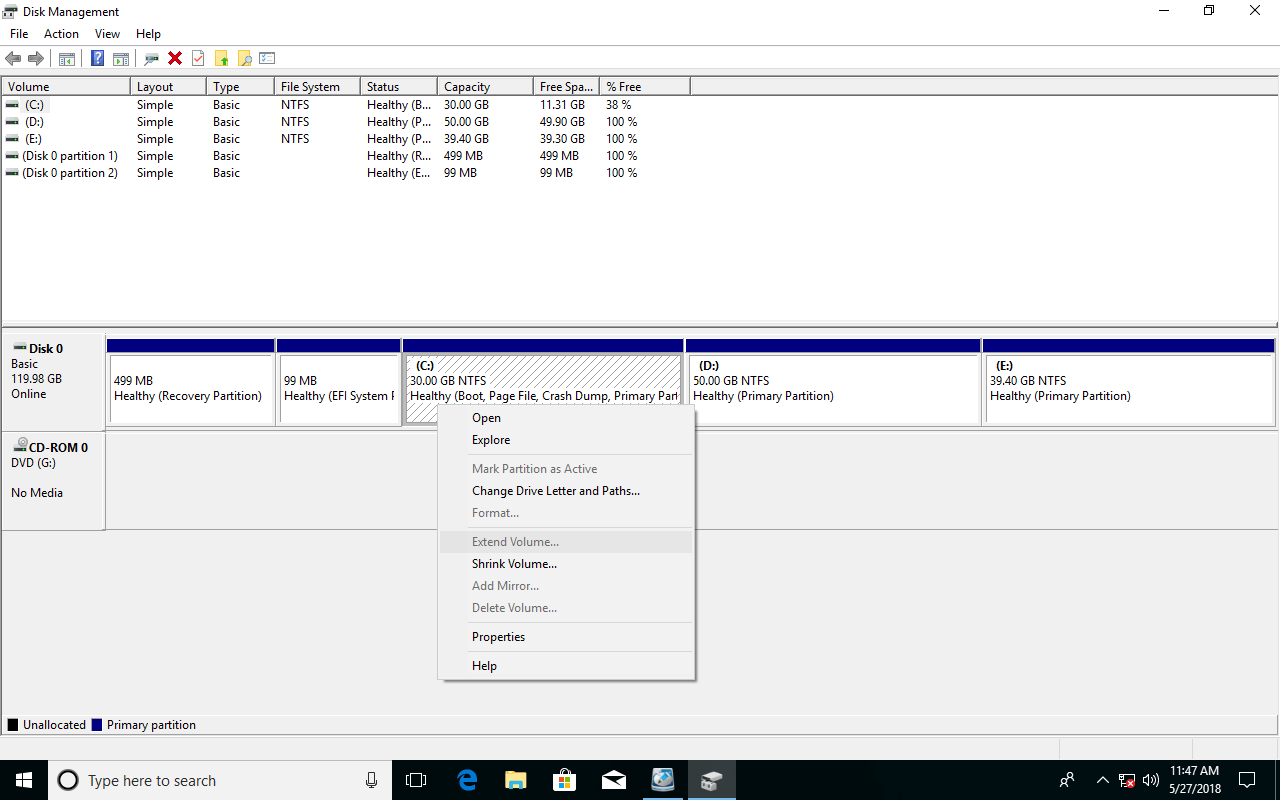
To get this kind of space, you may either delete or shrink another volume on the same disk. "Extend Volume" is greyed out for every drive if there is no unallocated space on this disk.
Compared with deleting a volume, you will not lose files by shrinking; so many people shrink the D (or E) drive but find that they are still unable to extend the C: drive in Windows 10 Disk Management.
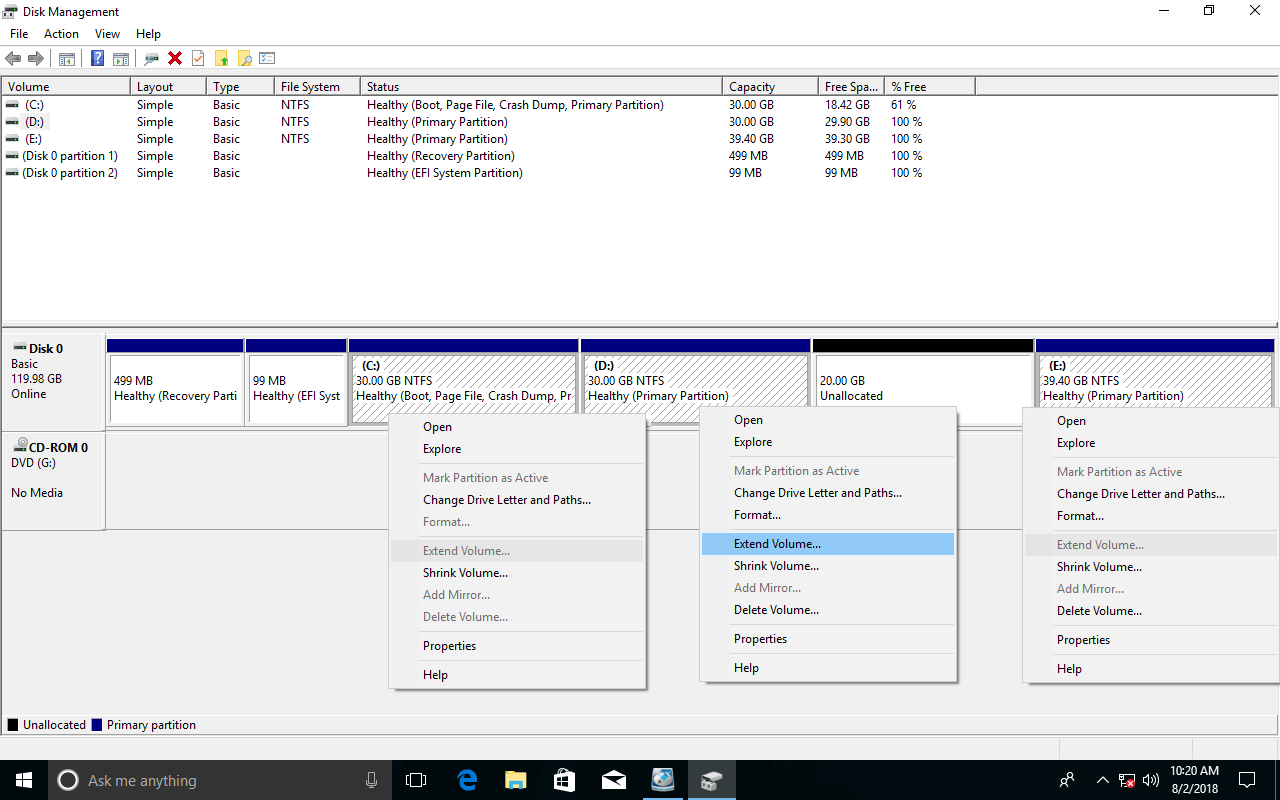
If you have tried to shrink the D drive, you will know that the "Shrink Volume" function only gives you an option to enter an amount of space, and then unallocated space is created on the right. You cannot specify the location to create the unallocated space. It is not a problem if you want to create a new volume, but it is a big issue if you want to extend another partition with this unallocated space.
Disk Management can only merge unallocated space into the contiguous partition on the left. As seen in the screenshot, after shrinking the D drive, unallocated space is created on the right of D. It is non-adjacent to the C drive. Therefore, "Extend Volume" is disabled.
This is the most common reason why Disk Management is unable to extend the C drive in Windows 10/8/7 after shrinking D or another partition.
Reason 2: The Contiguous Partition Is Logical
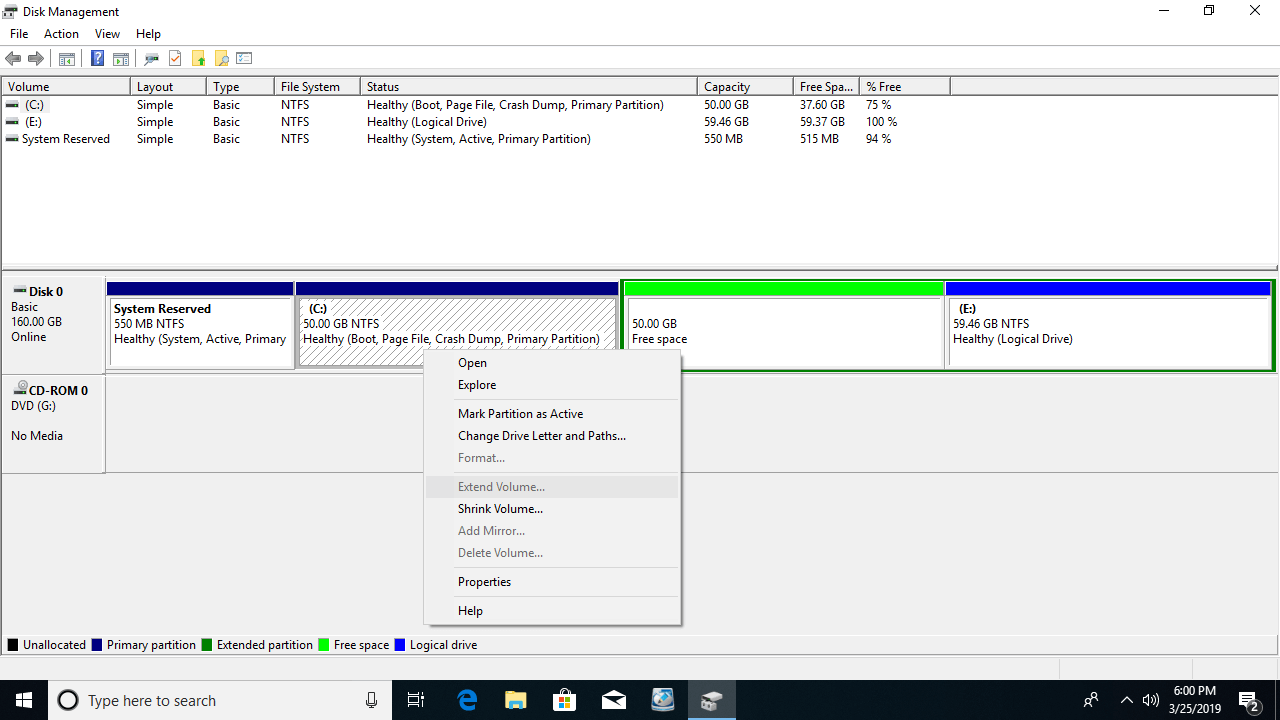
If your system disk is initialized as MBR, there could be both Primary and Logical partitions on this disk. Some people wonder if it is possible to enable "Extend Volume" for the C drive by deleting D. The answer is yes if your D drive is a Primary partition. If the contiguous D drive is a Logical partition, Disk Management is unable to extend the C drive in Windows 10/8/7, no matter whether you delete or shrink the D drive.
A Logical drive is part of the Extended partition; after deleting a Logical drive in Disk Management, you will get "Free" space instead of unallocated space. Although this space is contiguous and on the right of the C drive, "Extend Volume" is still disabled.
If you installed programs or Windows services in the D drive, do not delete it, even if it is a Primary partition.
What to Do When You Cannot Extend the C Drive in Windows 10/8/7
1. Move Unallocated Space Next to the C Drive
If you are unable to extend the C: drive in Windows 10/8/7 Disk Management because the unallocated space is non-adjacent, you just need to move partition D to the right and make the unallocated space contiguous to the C drive; then this problem can be solved.
Steps when you are unable to extend the C drive in Windows 10/8/7 after shrinking D:
- Download NIUBI Partition Editor, right-click the D: drive (the contiguous partition) and select "Resize/Move Volume"; drag the middle of the D drive to the right in the pop-up window, and then the unallocated space will be moved to the left.
- Right-click the C: drive and run "Resize/Move Volume" again; drag the right border to the right to merge this unallocated space.
- Click Apply on the top left to take effect.
Follow the steps in the video.
2. Resize Partition with NIUBI
If D is a Logical drive and you have deleted it in Disk Management, follow these steps to extend the C drive:
- Recreate the D drive with the Free space in Disk Management.
- Right-click this new volume in NIUBI Partition Editor and run "Resize/Move Volume"; drag the left border to the right in the pop-up window to create unallocated space on the left.
- Follow step 2 above to add the unallocated space to the C drive.
If you have deleted the D drive, recreate it in Disk Management and follow the same steps above.
Other Reasons Why You Are Unable to Extend a Volume in Windows 10/8/7
Reason 3: Only NTFS/RAW Are Supported
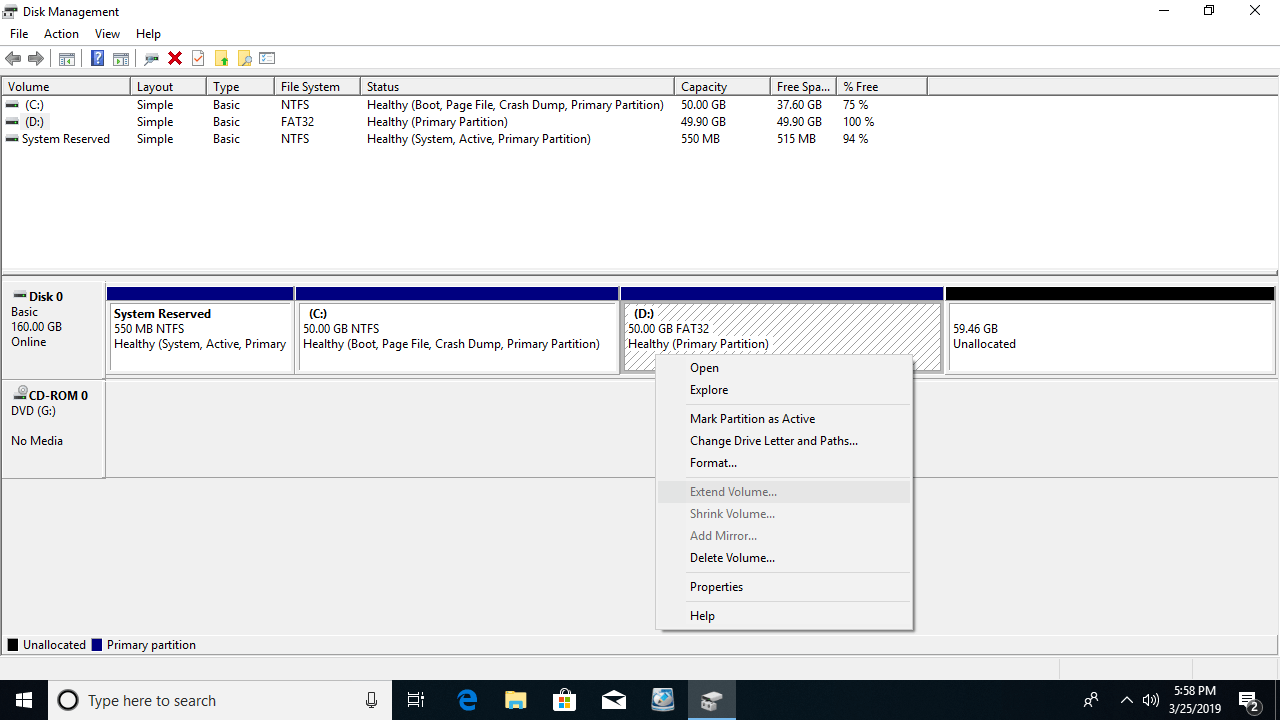
In Windows Disk Management, only NTFS and RAW (without any file system) partitions can be shrunk and extended. FAT32 and any other types of partitions are not supported. As an example, the D drive was formatted from NTFS to FAT32. As seen below, "Extend Volume" is disabled for the D drive, although there is contiguous unallocated space on the right.
Solution 3: Run "Resize/Move Volume" for the D drive in NIUBI; simply drag the right border to the right to merge this unallocated space. There is no difference when resizing an NTFS or a FAT32 partition.
Reason 4: 2TB Restriction on an MBR Disk
If you use a 2TB+ MBR disk, there is another possible reason why Disk Management is unable to extend a volume in Windows 10/8/7. If you initialize a 4TB hard disk as MBR, you can only use 2TB of space; the remaining space will be shown as unallocated. When you right-click this unallocated space, all options are grayed out.
As seen in the screenshot, drive F is NTFS and there is contiguous unallocated space on the right, but "Extend Volume" still does not work.
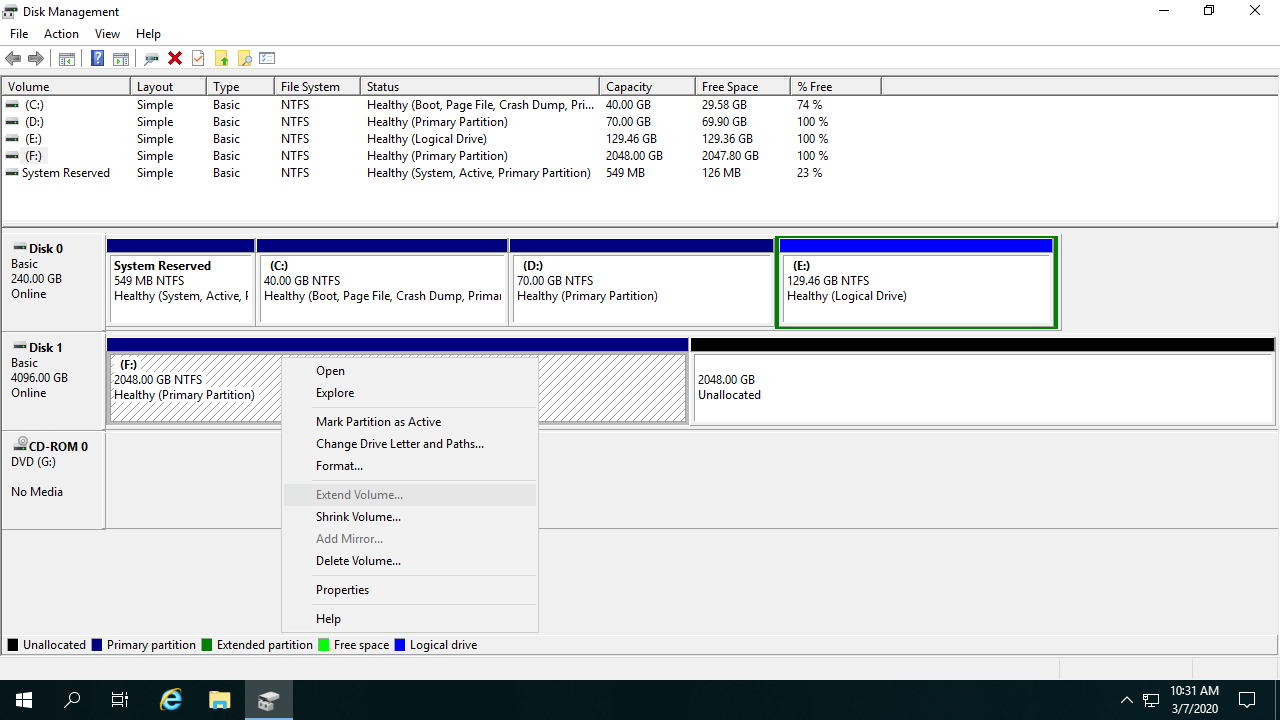
Solution 4: Right-click the front of this MBR disk and select "Convert to GPT Disk". After converting the MBR disk to GPT, there is no longer a 2TB restriction. You just need to follow the method above to extend the partition with the unallocated space.
In Summary
When you are unable to extend the C drive in Windows 10/8/7 via the Disk Management tool, find out the associated reason and follow the corresponding solution above. Besides resizing and moving partitions, NIUBI Partition Editor helps you perform many other operations such as merging, converting, copying, defragging, wiping, hiding, and scanning partitions. Compared with other tools, it features innovative 1-Second Rollback, Virtual Mode, and Cancel-at-Will technologies to protect your system and data.
 © 2009 - NIUBI Technology All Rights Reserved. |