
Unlike Mac and Linux computers, you need to perform many operations on disk partitions in a Windows computer. For example: create, delete, format, shrink, extend, move, convert, defrag, and clone disk partitions. To accomplish these tasks, you need a powerful and reliable disk management tool. This article introduces native Disk Management in Windows 10 and the best free disk manager for Windows 10/11 computers.

What Is "Disk Management" in Windows 10
Disk Management is a Microsoft Windows built-in utility first introduced in Windows XP. It has the same abilities as the Diskpart command but works with a graphical interface.
It displays all connected hard disks with a layout at the bottom; it also lists all single partitions at the top, followed by their type, file system, status, capacity, free space, usage percentage, etc.
It enables users to view and manage the disk drives installed in their computer and the partitions associated with those drives. Windows 7 improved its abilities by adding new Shrink and Extend Volume functions.
Windows 10 Disk Management is inherited from this version; all functions and interfaces remain the same, with no further improvement for so many years.
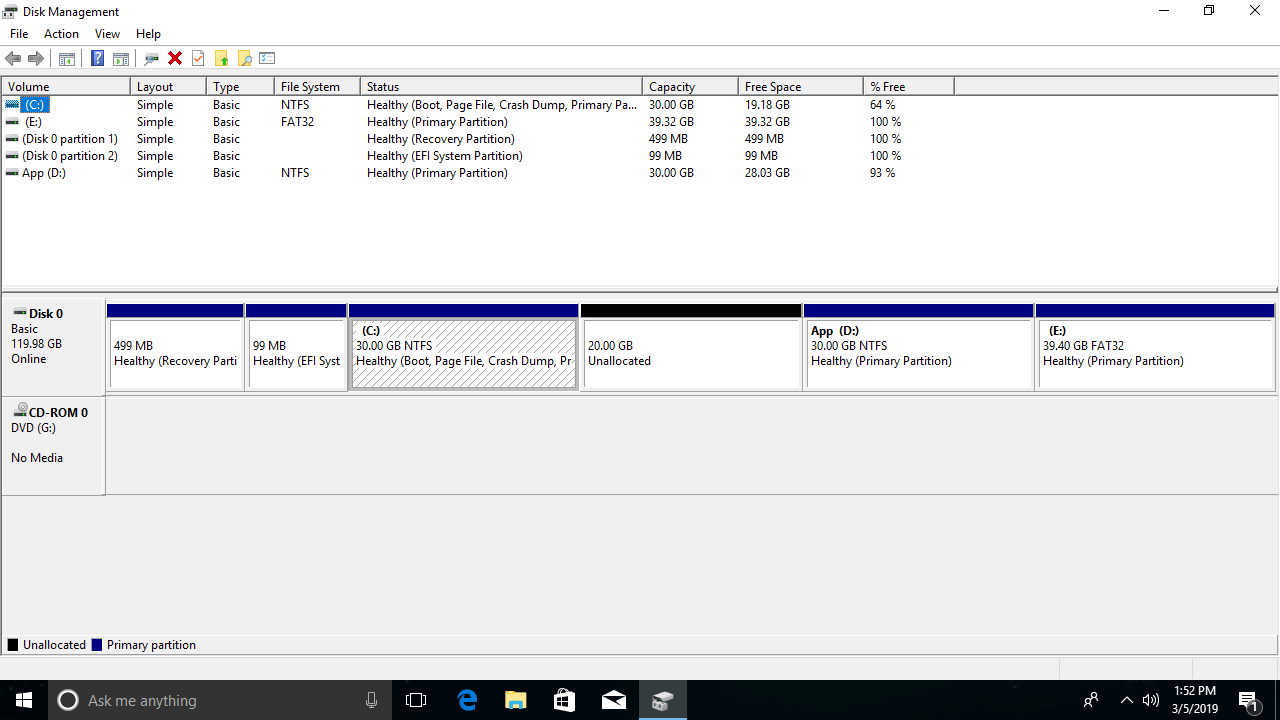
How to open Disk Management in a Windows 10 computer:
- Press Windows + X on the keyboard and click Disk Management in the list.
- Press Windows and R to open Run, type diskmgmt.msc, and press Enter. (Valid for all Windows versions)
What Does Disk Management Do for a Windows 10 Computer
Like other Windows native tools, Disk Management can perform some basic operations. However, it is not the best choice when compared with third-party disk partition software.
Below is a list of what Windows 10 Disk Management can do:
For a brand new hard disk:
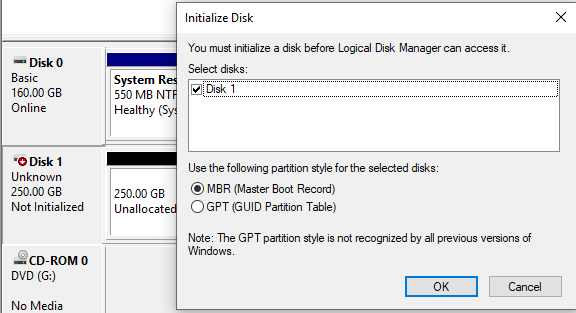
Online, offline, and initialize. A hard disk must be online and initialized before creating a new volume. When initializing a disk, you can select the partition style as MBR or GPT.
For unallocated space:
Create one or more new volumes.
For a disk with volumes:
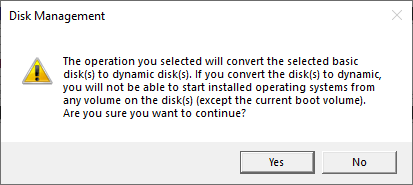
Convert a basic disk to a Dynamic disk.
For a disk without any volume:
Convert an MBR disk to GPT and vice versa; convert a basic disk to a Dynamic disk and vice versa.
- Disk Management can convert a basic disk to dynamic without losing data, but it cannot convert a dynamic disk back to basic without data loss.
- To convert a disk between MBR and GPT with Disk Management, you must delete all partitions on it.
For an allocated partition:
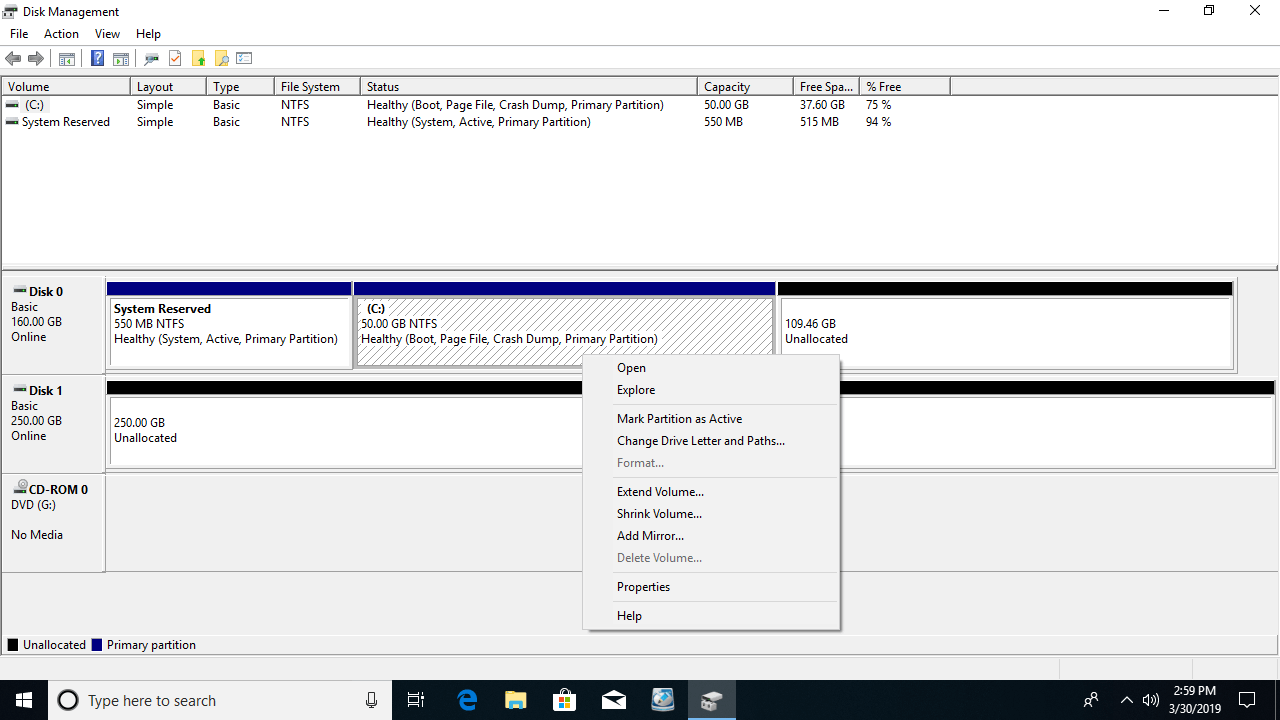
- Open the root directory with File Explorer.
- Mark a partition as Active.
- Change drive letters and paths.
- Format a partition.
- Shrink a volume and generate unallocated space on the right side.
- Extend a volume using the unallocated space behind it.
- Delete a partition.
- Add a mirror.
If you select Add Mirror, both disks will be converted to dynamic.
For dynamic disks:
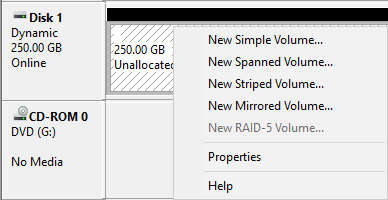
Disk Management can create Simple, Mirrored, Spanned, Striped, and RAID-5 volumes.
To create a RAID 5 volume, there must be at least 3 dynamic disks. There are only two in the test computer, so this option is grayed out.
Although Windows Disk Management has this ability, it is not recommended to use dynamic disk volumes because:
They use many system resources and degrade performance.
Because the prices of hard disks and other hardware devices are much lower, you had better build hardware RAID arrays. The benefits of a mirror, faster read and write speeds, fault tolerance, etc., are not achieved by the operating system but by a RAID controller.
Advantages of Windows 10 Disk Management
When compared with free partition software, Windows 10 Disk Management has the ability to create and manage dynamic disk volumes. However, as explained above, dynamic disk volumes do not make much sense nowadays.
Another "real" advantage is that the Shrink Volume function can shrink a partition without rebooting the computer. This is important for a server, but for personal computers, rebooting is not a problem.
Shortages of Disk Management
Windows 10 Disk Management can only perform basic operations to create, delete, and format partitions. It cannot move, merge, convert, clone, wipe partitions, or scan for bad sectors. Although it has advanced "Shrink Volume" and "Extend Volume" functions, it offers little help to adjust partition size.
- Only partitions formatted as NTFS or without a file system (RAW) can be shrunk and extended.
- Unallocated space can only be generated on the right side when shrinking a partition.
- Extend Volume can expand a drive only when there is adjacent unallocated space behind it.
- Unallocated space cannot be merged into the right or any non-adjacent partitions.
With free partition manager software such as NIUBI Partition Editor, you can resize partitions without so many limitations. You can perform advanced operations for a Windows 11/10/8/7/Vista/XP home computer easily for free.
Download this program, and you will see all storage devices in the main window. Single partitions are listed at the top with detailed parameters. All disks are displayed at the bottom with their partition layouts. Available operations for the highlighted disk or partition are listed on the left.
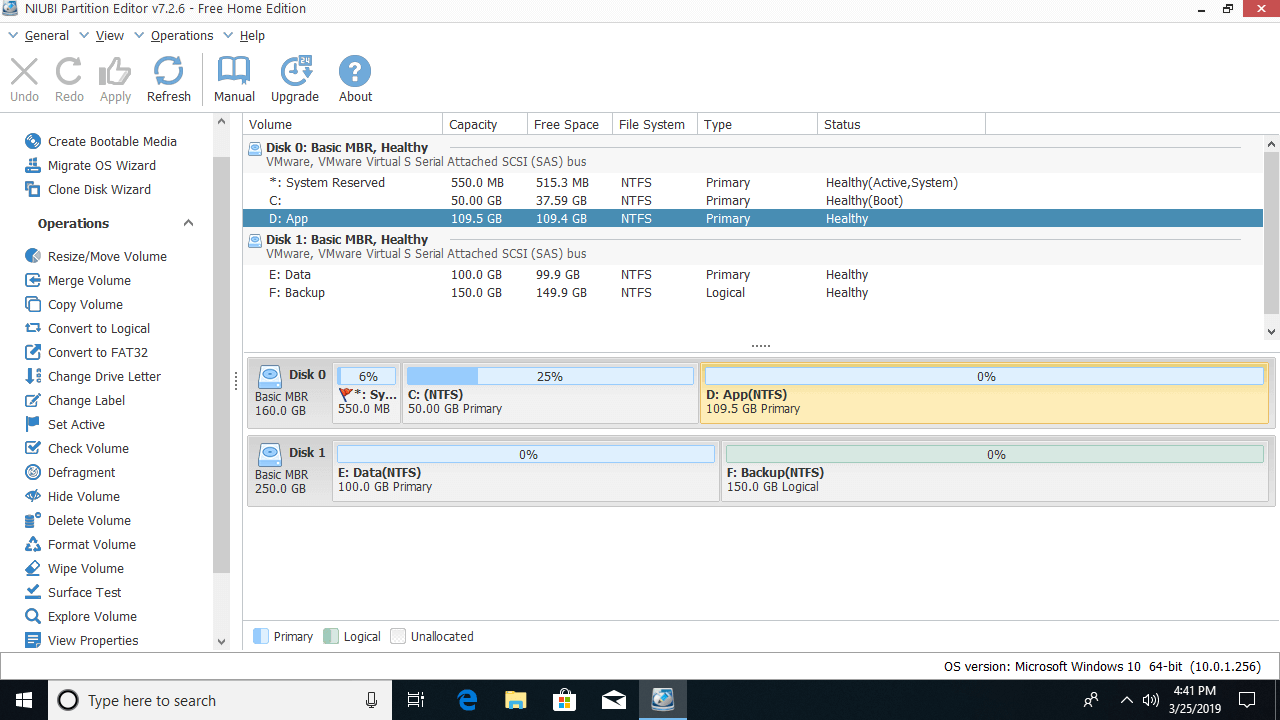
When compared with other disk management tools for a Windows 10 computer, NIUBI Partition Editor offers more advantages, such as:
- Its free edition is 100% free for home users without any bundled advertisements or plugins.
- Unique 1-Second Rollback technology - automatically reverts the disk partitions to their previous state instantly if it detects any error.
- Virtual Mode - avoids incorrect operations by listing all as pending for preview; real disk partitions will not be modified until you click Apply to confirm.
- Cancel-at-Will technology - cancels incorrect but ongoing operations at any stage before completion safely.
- Hot-Resize technology - shrinks and extends most partitions without rebooting the computer.
- Advanced file-moving algorithm - 30% to 300% faster when moving and resizing disk partitions.
 © 2009 - NIUBI Technology All Rights Reserved. |