
C drive out of space is a common issue on a Windows 10 laptop/desktop/tablet computer. For data volumes, you can easily transfer files to another location, but for the system partition C, you cannot do this. To solve this problem, some people wonder if it is possible to extend the system partition in Windows 10 without losing data. Nobody likes to recreate partitions and start from scratch. The answer is yes, but for many people, it is not an easy task to extend the system volume on a Windows 10 computer. This article introduces 4 ways to extend the system partition in Windows 10 with native tools and free partition software. Select the corresponding method according to your own disk partition structure.
1. Difference Between a System and Boot Partition
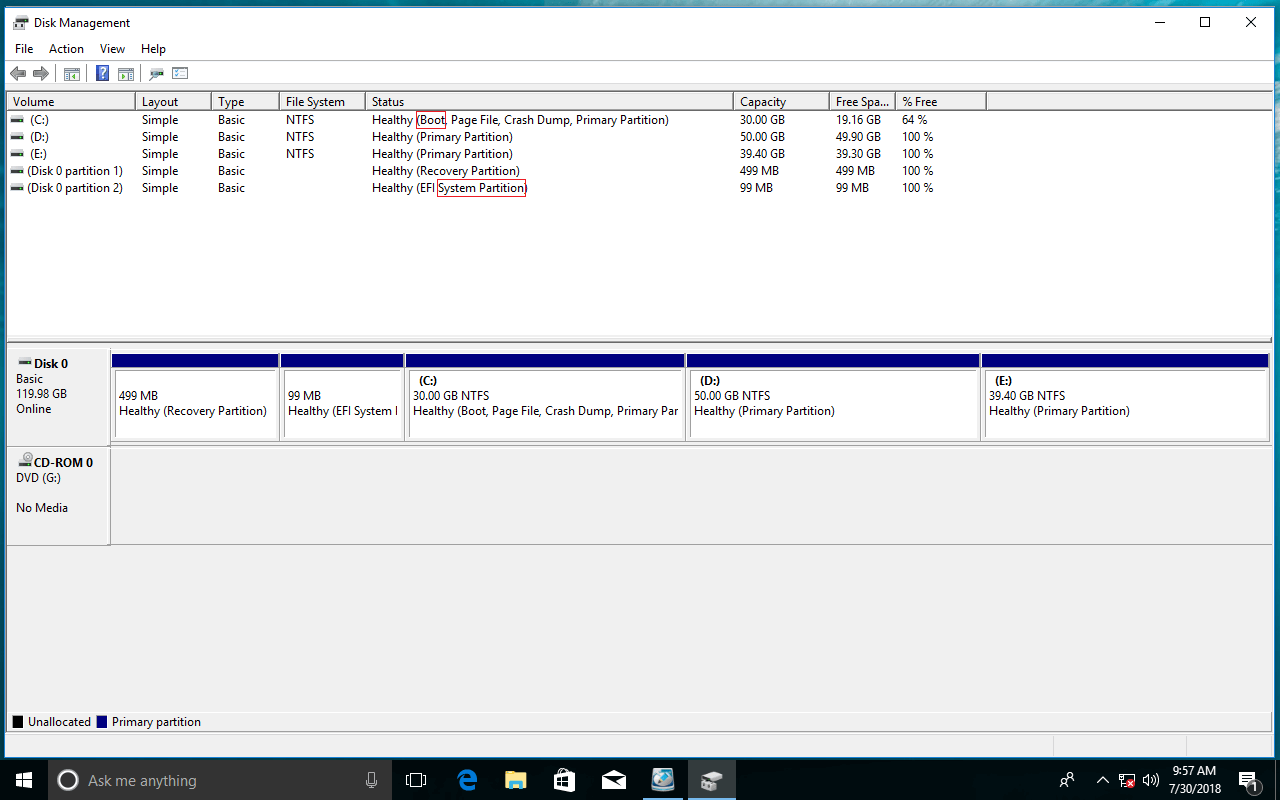
In many people's opinion, the system partition is the drive where the Operating System is located, but this is incorrect.
- The System partition is a primary partition that contains the files for booting Windows; these files include Ntldr, Boot.ini, Ntdetect.com, bootmgr, BCD, etc.
- The Boot partition is the partition where Windows is installed; it contains the operating system folder/directory.
Before Windows 7, the System and Boot partitions were the same one - the "C:" drive. However, starting with Windows 7, the newly added BitLocker requires an unencrypted partition, so the System partition is separated from the C drive.
Follow the steps if you want to extend the system reserved partition on an MBR disk in Windows 10. If you want to extend an EFI system partition on a GPT disk, only third-party software can help you. This article only talks about extending the system partition C in Windows 10, because this is what most Windows users want to do.
2. Extend the System Partition in Windows 10 via Disk Management
Similar to Windows 7, Windows 10 has a native Disk Management tool with "Shrink Volume" and "Extend Volume" functions to help adjust partition size without losing data (not 100%).
However, to extend the system partition on a Windows 10 computer, the native Disk Management tool is not the best choice, because it has the same restrictions as previous versions:
- Only an NTFS partition is supported; another common FAT32 partition cannot be shrunk or extended.
- The "Shrink Volume" function can only shrink a partition to the left and create unallocated space on the right.
- The "Extend Volume" function can only extend a partition when there is contiguous unallocated space on the right.
As seen in the screenshot, "Extend Volume" is disabled for both the C and E drives after shrinking D. This is because the unallocated space is non-adjacent to the C drive and is on the left of the E drive.
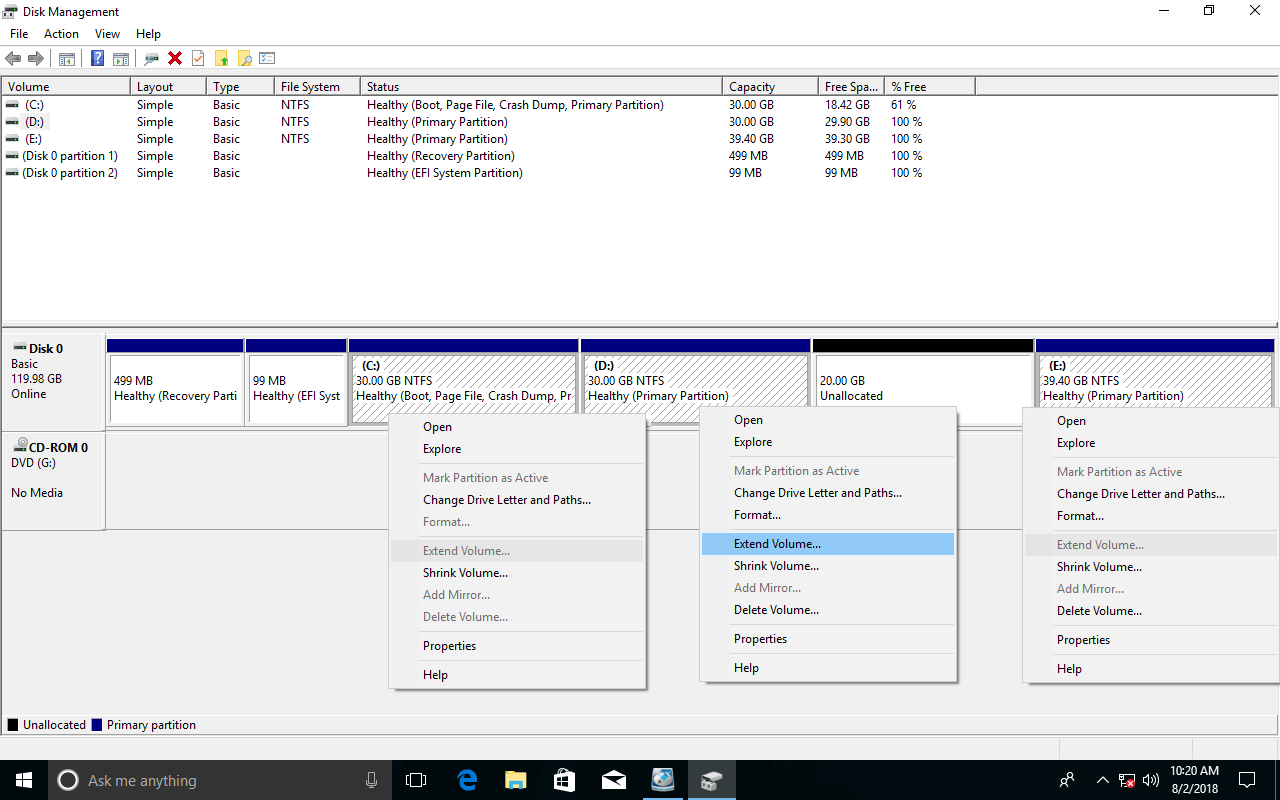
The only way to extend the system partition in Windows 10 with Disk Management is by deleting the D drive (the adjacent partition next to C). There will be adjacent unallocated space behind the C drive, so "Extend Volume" will be enabled. Note: do not delete the D drive if you installed programs in it.
Steps to extend the system partition in Windows 10 using the Disk Management tool:
- Transfer all files in the right contiguous partition (D:) to another location.
- Press the Windows and X keys on your keyboard and click Disk Management in the list.
- Right-click the adjacent D: drive and select Delete Volume.
- Right-click the system partition C: and select Extend Volume.
- Simply click Next to complete the pop-up Extend Volume Wizard.
If D is a Logical drive, you still cannot extend the system partition after deleting it.
3. How to Extend the System Drive with a Free Partition Editor (3 Ways)
To extend the system partition on a Windows 10 computer, third-party software is much more powerful. They can extend the system volume without deleting any partition. However, this does not mean any partitioning software can accomplish this task well.
There is a potential system and data damage risk when resizing partitions, because all parameters of the associated disk, partition, and files must be modified correctly. In addition, system boot-related files must be updated, too. Some unreliable software could cause a Windows boot failure or data loss.
Compared with other tools, NIUBI Partition Editor features innovative technologies to protect your system and data:
- Hot Clone - Clone disk partitions in Windows for backup, migration, and fast disk swapping.
- Virtual Mode - All operations are listed as pending for preview, and real disk partitions won't be modified until you click "Apply" to confirm.
- Cancel-at-Will - If you applied incorrect operations, you can safely cancel the ongoing operations at any stage before completion.
- 1 Second Rollback - If any error is detected while resizing partitions, it can immediately and automatically revert the disk partitions to their previous state.
For Windows 11/10/8/7/Vista/XP home computer users, NIUBI Partition Editor offers a free edition to help you. It is the same as the professional edition except for the lack of the 1-Second Rollback and bootable media builder.
Download this program, and you will see the main window with disk partition structure and other information.
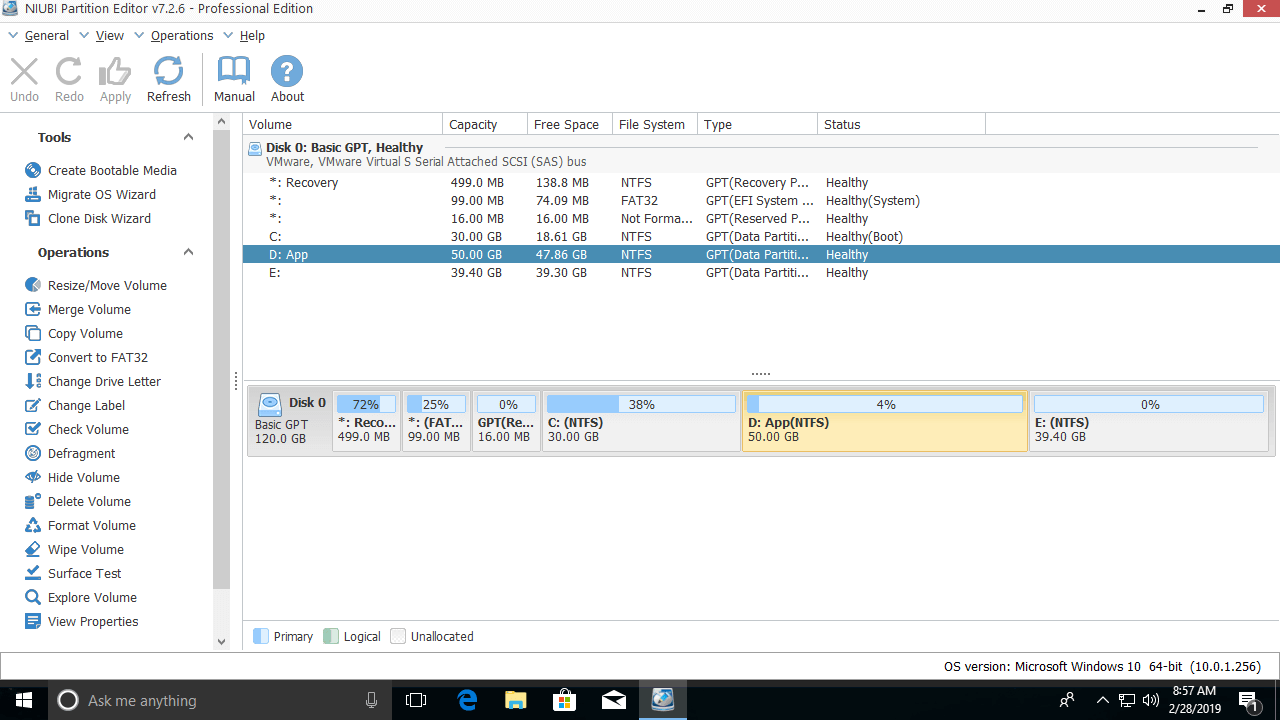
There are 3 ways to extend the system partition for a Windows 10 laptop/desktop/tablet; select the corresponding method according to your own disk partition layout.
① Extend the System Partition by Shrinking the Contiguous Drive
In most computers, there is another drive (D:) on the same disk. You can shrink it and create unallocated space on the left, and then merge it into the system C drive. In this way, the Operating System, programs, associated settings, and everything else remain exactly the same as before.
Steps to extend the system partition in Windows 10 without losing data:
Step 1: Right-click the D: drive and select "Resize/Move Volume"; drag the left border to the right in the pop-up window.
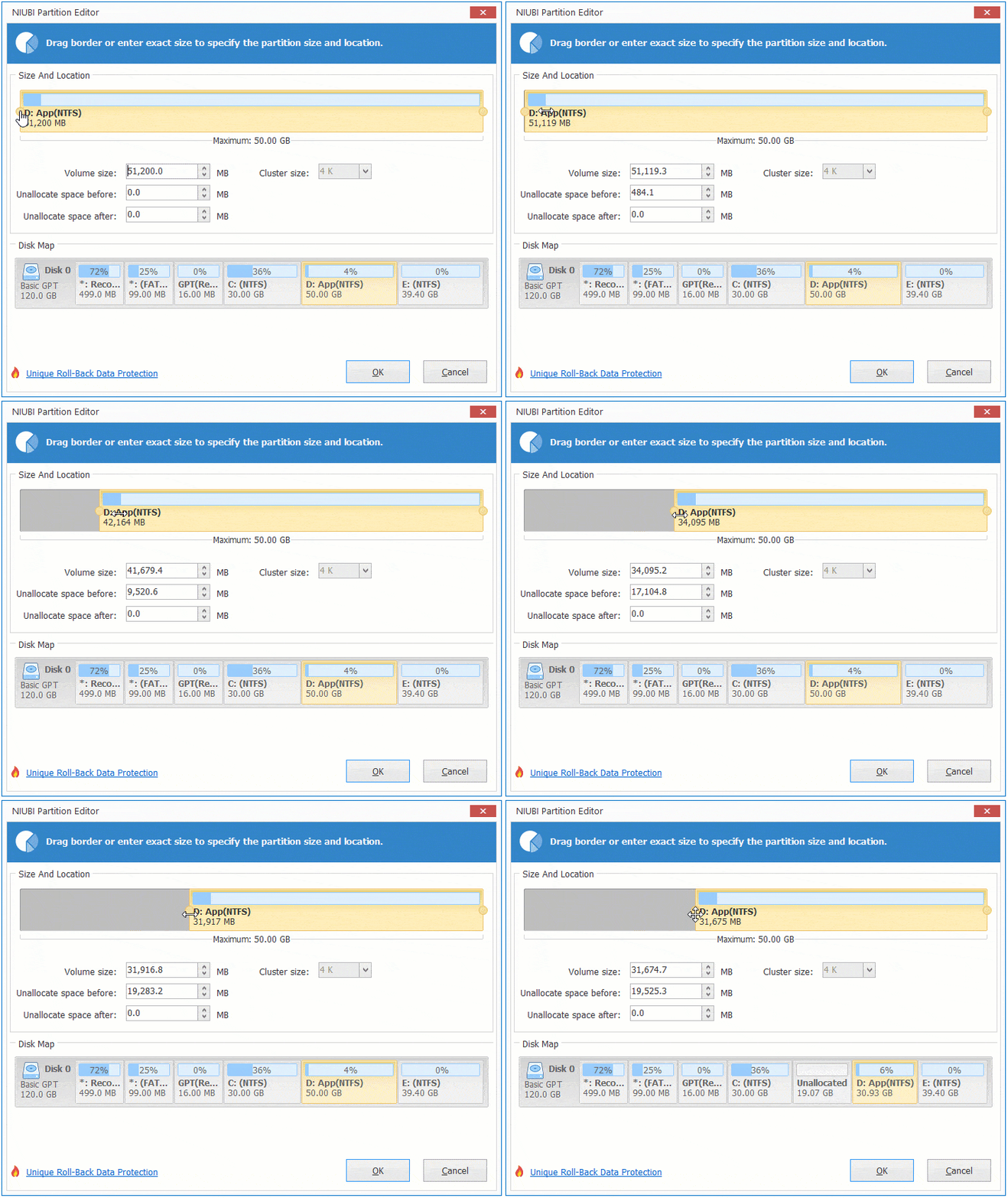
Then part of the free space will be converted to unallocated space on the left.
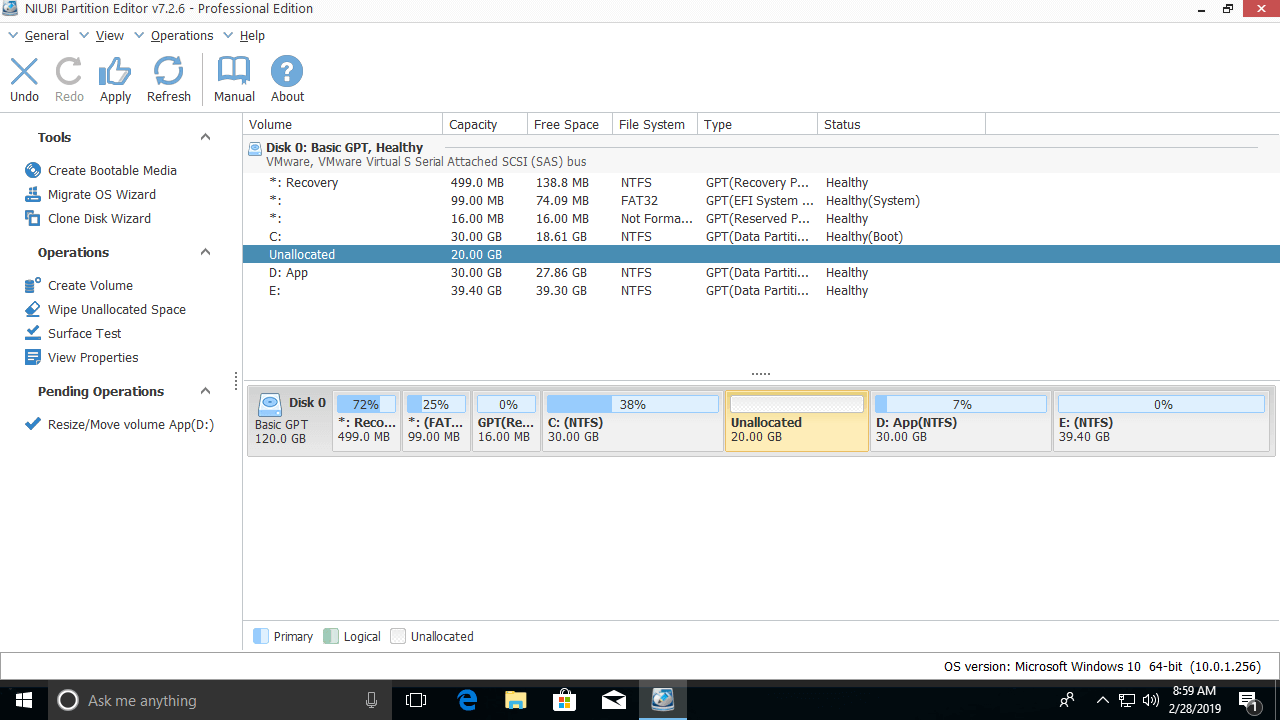
Step 2: Right-click the C: drive and select "Resize/Move Volume" again; drag the right border to the right to merge the unallocated space.
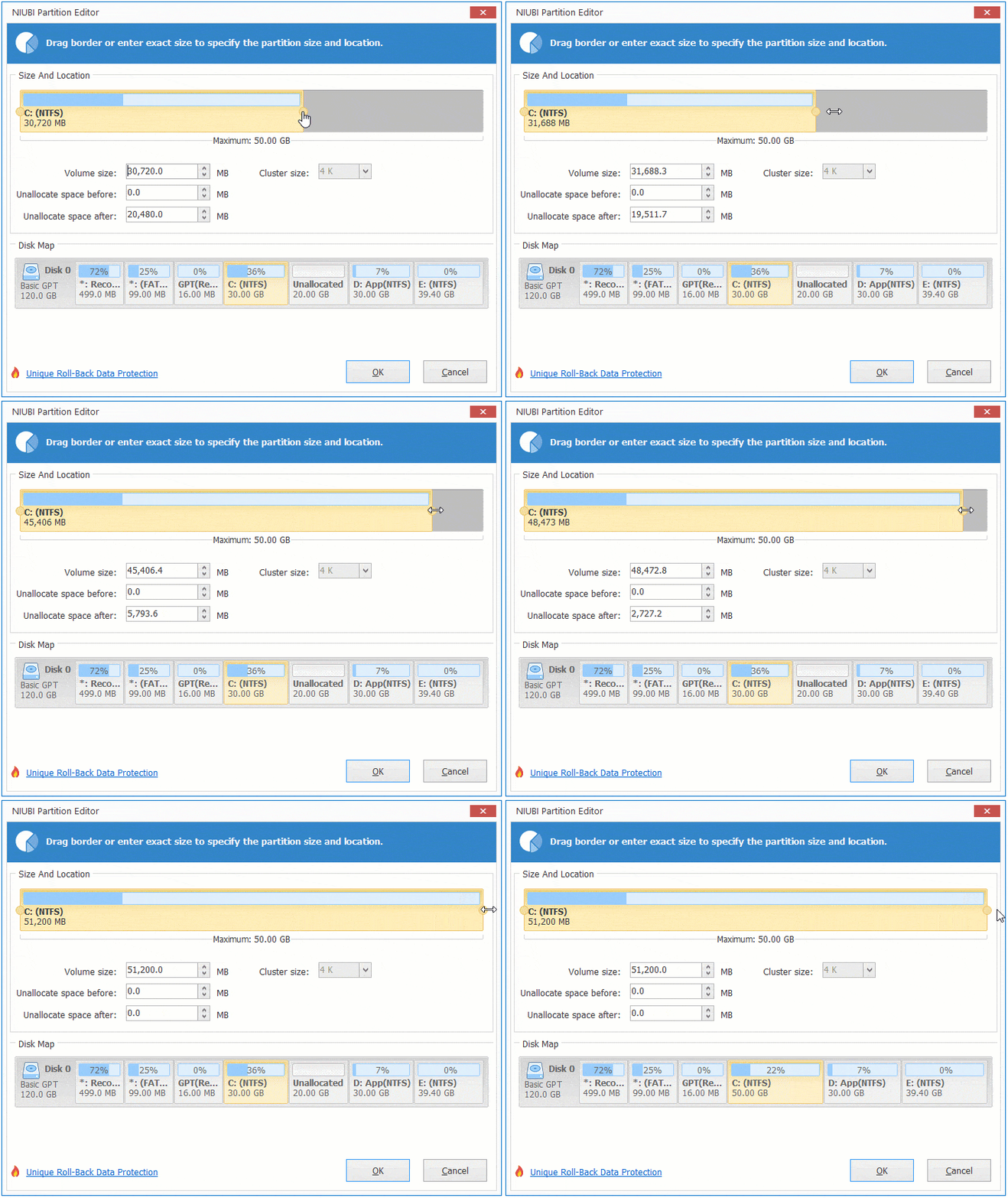
Then the system C drive is extended from 30GB to 50GB.
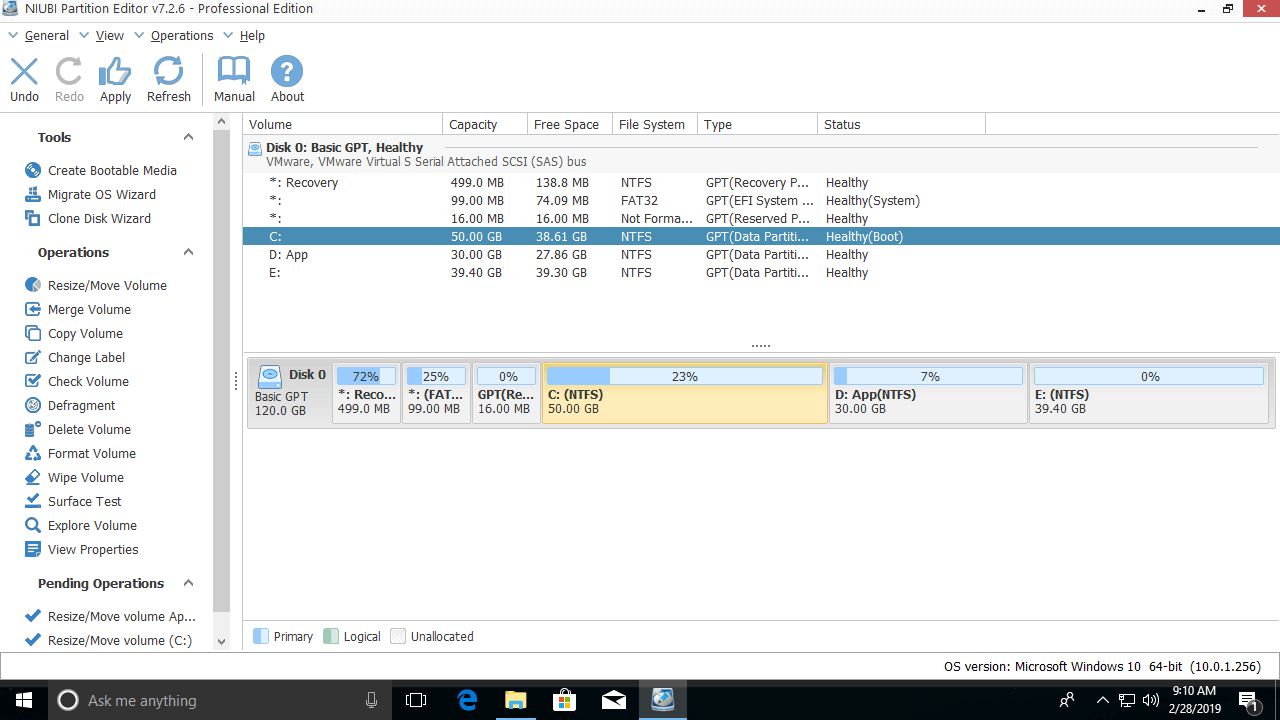
Step 3: Click Apply on the top left to execute. (All operations only work in virtual mode before this step).
② Extend the System Volume by Shrinking a Non-adjacent Drive
In some computers, there is not enough free space in the adjacent partition D. In that case, you can shrink a non-adjacent drive (here it is E:) to get unallocated space.
Similarly, right-click the E: drive and follow Step 1 above to create unallocated space on the left. Before adding the unallocated space to the C drive, there is an additional step to move partition D to the right and make the unallocated space contiguous to the C drive. To do this, right-click the D: drive and select "Resize/Move Volume"; drag the middle of the D drive to the right in the pop-up window.
How to extend the system partition in Windows 10 with another volume on the same disk:
③ Extend the System Drive with a Larger Disk
In some computers, there is no other data volume, or there is not enough free space on the same disk. In that case, no software can add space to the C drive from another separate disk. You can clone the disk to a larger one and extend the C drive with the extra disk space.
Besides shrinking volumes and extending the system partition in Windows 11/10/8/7/Vista/XP, NIUBI Partition Editor helps you perform many other operations such as merging, converting, defragging, wiping, hiding, creating, deleting, formatting, scanning partitions, and much more.
 © 2009 - NIUBI Technology All Rights Reserved. |