
Low disk space is a common issue in both Windows Server 2022 and 2025. When the C drive is getting full, the ideal solution is to extend it without spending a long time recreating partitions and restoring everything from backup. Although the native Disk Management utility includes an "Extend Volume" function to help extend partitions without losing data, many administrators report that they cannot extend the C drive via this tool because the "Extend Volume" option is greyed out. This article explains why Disk Management is unable to extend the C drive in Windows Server 2022/2025 and introduces how to resolve this problem easily.
Why Disk Management Cannot Extend the C Drive in Windows Server 2022/2025
First, it is important to note that Disk Management can only extend NTFS and ReFS partitions, and shrink NTFS partitions; other file systems (except RAW) are not supported. Since the system C drive is formatted as NTFS by default, file system compatibility is not the cause of this issue.
There are 3 reasons why Disk Management is unable to extend the C drive in Windows Server 2022/2025:
- No adjacent unallocated space on the right side.
- The adjacent partition is a Logical drive.
- The 2TB capacity restriction on MBR disks.
Below, these reasons are explained in detail.
1. No Adjacent Unallocated Space on the Right Side
To extend a partition in Windows Server 2022/2025 using either Disk Management or the DiskPart command-line tool, there must be contiguous unallocated space to the right of that partition. For example, if you shrink the D drive (which must be NTFS) using either of these built-in Windows tools, the resulting unallocated space will be on the right side of the D drive. Because this unallocated space is non-adjacent to the C drive, C: cannot be extended via Disk Management or DiskPart.
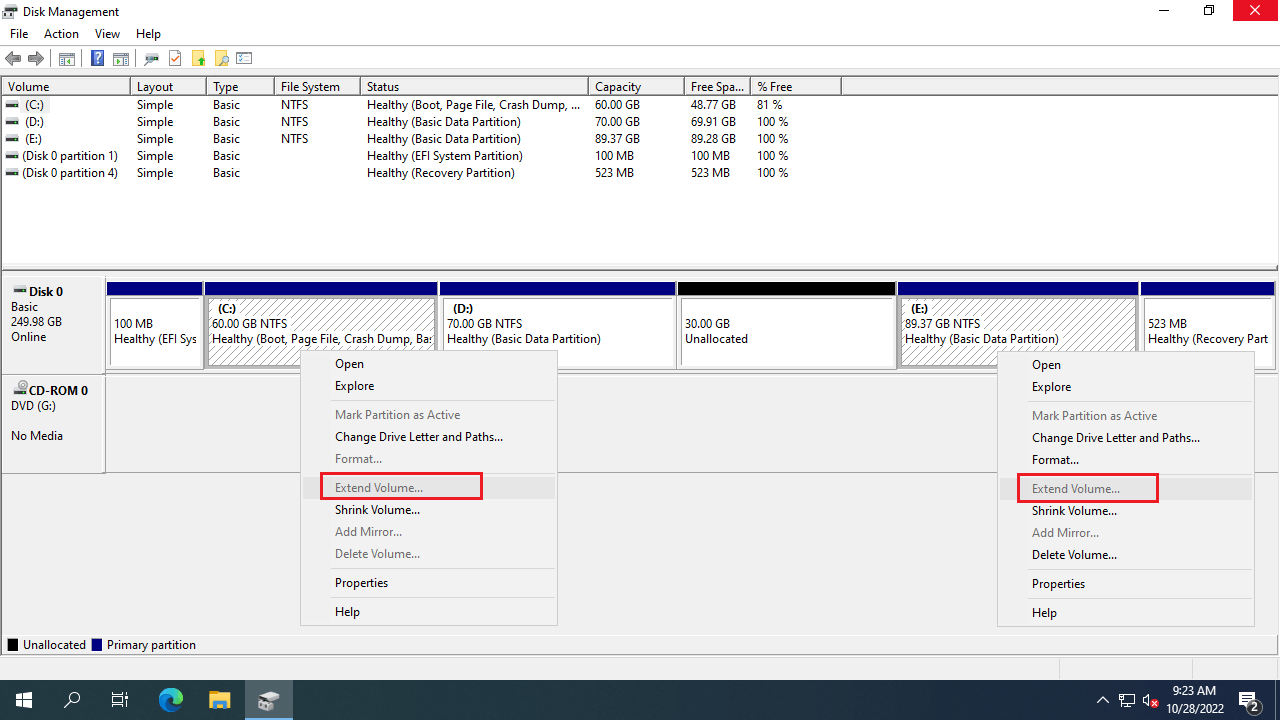
On some servers, there is a Recovery, EFI, or OEM partition located immediately to the right of the C drive. In such cases, it is impossible to create adjacent unallocated space using Windows native tools.
2. The Adjacent Partition Is a Logical Drive
Some administrators attempt to delete the adjacent D drive, yet they still find themselves unable to extend the C drive in Windows Server 2022/2025. If you are experiencing this exact problem, check whether the D drive is a Logical drive. In Windows Disk Management, "Free" space released from deleting a Logical drive cannot be extended into any Primary partition. Conversely, "Unallocated" space shrunk from a Primary partition cannot be extended into a Logical drive. Since the C drive is a Primary partition in almost all cases, Disk Management cannot extend it even after deleting the adjacent D drive if that drive was Logical.
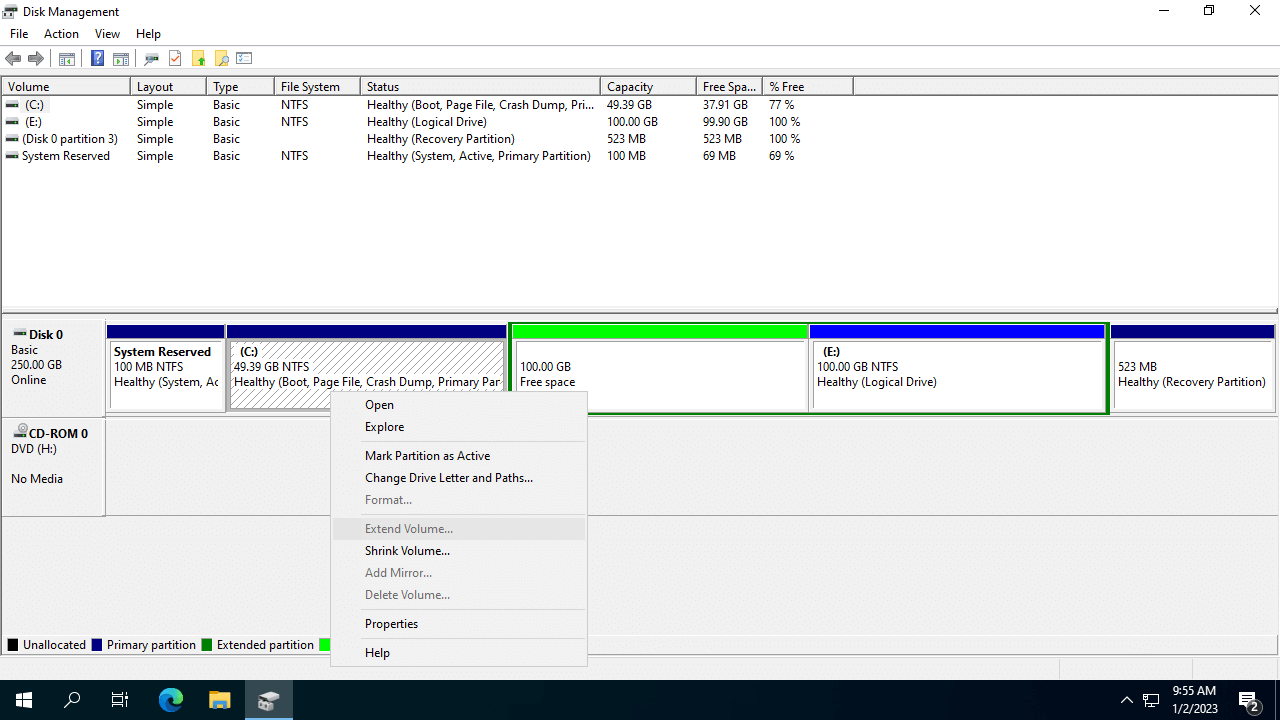
As demonstrated in the screenshot below, the adjacent D drive is a Logical drive, which turns into "Free" space after being deleted. Consequently, the "Extend Volume" option remains disabled for the C drive.
3. The 2TB Capacity Restriction on MBR Disks
If your system disk is an MBR disk, there is another possible reason why you cannot extend the C drive in Windows Server 2022/2025 using Disk Management. The maximum partitionable and addressable size on an MBR disk is 2TB. If you use a 3TB physical disk as an MBR system disk, the remaining 1TB of space will display as unallocated, but it cannot be extended into any existing volume or used to create a new volume. Fortunately, few users encounter this specific issue today, as it is very rare to deploy an operating system on an MBR disk larger than 2TB.
What to Do When Unable to Extend the C Drive in Windows Server 2022/2025
Method 1: Move the Adjacent Partition to the Right
If you have already shrunk the D drive and created unallocated space, you can run NIUBI Partition Editor to move the D drive to the right, which positions the unallocated space immediately next to the C drive.
Steps to follow when you cannot extend the C drive in Windows Server 2022/2025:
- Download and launch NIUBI Partition Editor. Right-click the D drive and select "Resize/Move Volume". In the pop-up window, drag the middle of the D drive toward the right, which will shift the unallocated space to the left.
- Right-click the C drive and select "Resize/Move Volume". Drag the right border to the right to merge the unallocated space.
- Click "Apply" in the top-left corner to execute the pending operations.
If there is a Recovery, EFI, OEM, or any other partition located between the C and D drives, you must continue moving those partitions to the right. You can only extend the C drive once you successfully move the unallocated space next to the C drive.
Watch the video below to see the exact implementation steps:
Method 2: Resize Partitions with NIUBI Partition Editor
If you have not yet created unallocated space, you can use NIUBI Partition Editor to shrink the adjacent partition. To do this, right-click the adjacent partition and select "Resize/Move Volume". In the pop-up window, drag the left border toward the right, which will create unallocated space on its left.
If you have already deleted a Logical partition (such as the D drive) and find yourself unable to extend the C drive in Disk Management, follow these steps:
- Right-click the "Free" space in Windows Disk Management and select "New Simple Volume...". Follow the wizard to complete the creation.
- Launch NIUBI Partition Editor, right-click this new partition, and select "Resize/Move Volume". Drag the left border toward the right to generate unallocated space on its left.
- Right-click the C drive to extend it using this newly created adjacent unallocated space.
Method 3: Convert MBR to GPT
If you are unable to extend the C drive in Windows Server beyond 2TB due to MBR limitations, you need to convert MBR to GPT. Windows Server 2022 and 2025 include a built-in MBR2GPT command-line tool to help you convert the system disk from MBR to GPT without losing data. If you need to convert a data-only disk to GPT, NIUBI Partition Editor can accomplish this effortlessly.
NIUBI Partition Editor can shrink, move, extend, and convert disk partitions in Windows Server 2022/2025 and legacy versions from Server 2003 to 2019. Additionally, it provides a comprehensive suite of disk management tools to optimize your storage infrastructure.
 © 2009 - NIUBI Technology All Rights Reserved. |