
Low disk space on the C drive is a common issue across all Windows servers. When it occurs, the ideal solution is to extend the C drive by reallocating free space from another partition, as no one wants to waste time starting from scratch. In addition to the system partition, volumes dedicated to databases, Exchange, and backups frequently run out of space. While Windows Server 2022/2025 retains the built-in "Extend Volume" function within the native Disk Management tool, this utility has significant limitations. Consequently, many administrators report that the Extend Volume option is greyed out. This article explains why this issue occurs and provides easy solutions to resolve it.
Why "Extend Volume" is Greyed Out in Windows Server 2022/2025
There are 5 common reasons why the "Extend Volume" option is greyed out in Windows Server 2022/2025 Disk Management. Below, these reasons are explained in detail.
1. No Unallocated Space on the Disk
While partitions on a disk can be resized, the total capacity of a physical disk is fixed. Before extending a volume, there must be "unallocated" space on the same disk. You can obtain this unallocated space by either shrinking or deleting an existing partition. If you have not created unallocated space on the disk beforehand, the Extend Volume option will remain unavailable.
2. Unallocated Space Is Non-Adjacent or on the Left
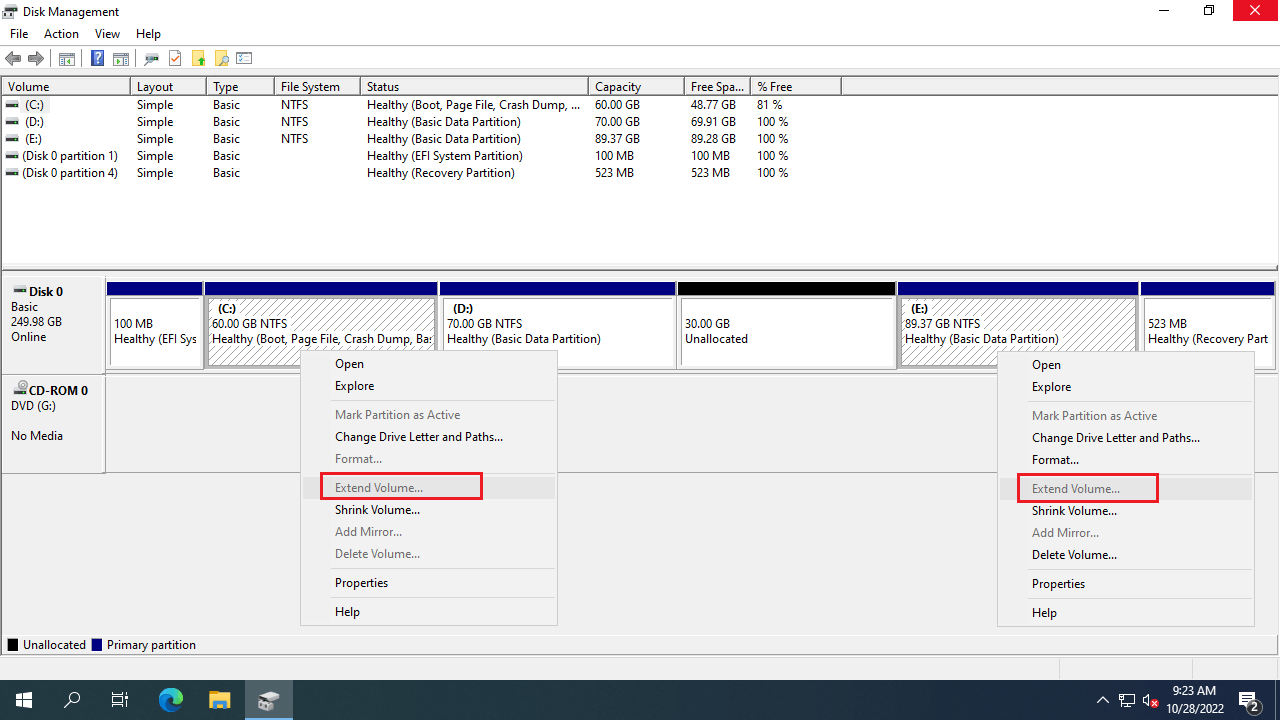
To extend a volume using Disk Management, the unallocated space must be adjacent to and on the right side of that partition. This limitation exists because Disk Management cannot modify the starting position of a volume, which is also why unallocated space only appears on the right when shrinking a partition. For example, if you shrink the D: drive, the unallocated space is generated on its right side. Consequently, this unallocated space is non-adjacent to the C: drive, making it impossible to extend C:. This is the primary reason why the 'Extend Volume' option is greyed out in Windows Server 2022/2025 Disk Management.
3. The Partition Is Formatted as FAT32
Disk Management in Windows Server 2022/2025 only supports extending NTFS and ReFS partitions, and shrinking NTFS partitions. If the volume you want to extend is FAT32, the Extend Volume option will remain greyed out, even if there is adjacent unallocated space on its right.
4. Partition Types Are Different (Primary vs. Logical)
If you plan to delete a partition to extend the left-adjacent one using Disk Management, both partitions must be of the same type — either Primary partitions or Logical drives. Since the C drive is always a Primary partition on both MBR and GPT disks, the D drive must also be a Primary partition if you want to delete it to expand the C drive.
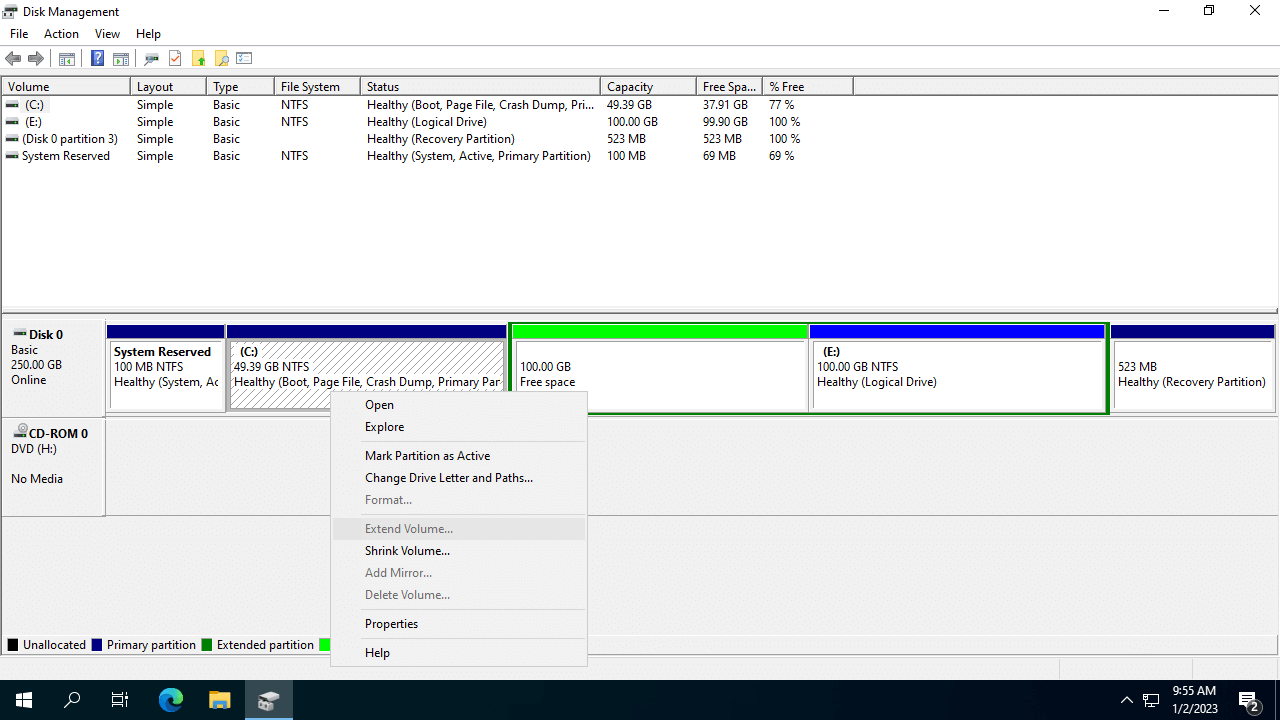
This issue only occurs on MBR disks, as all partitions on a GPT disk are automatically created as Primary partitions. However, deleting a partition is highly discouraged — especially if it contains installed programs or essential Windows services.
5. The 2TB Restriction on MBR Disks
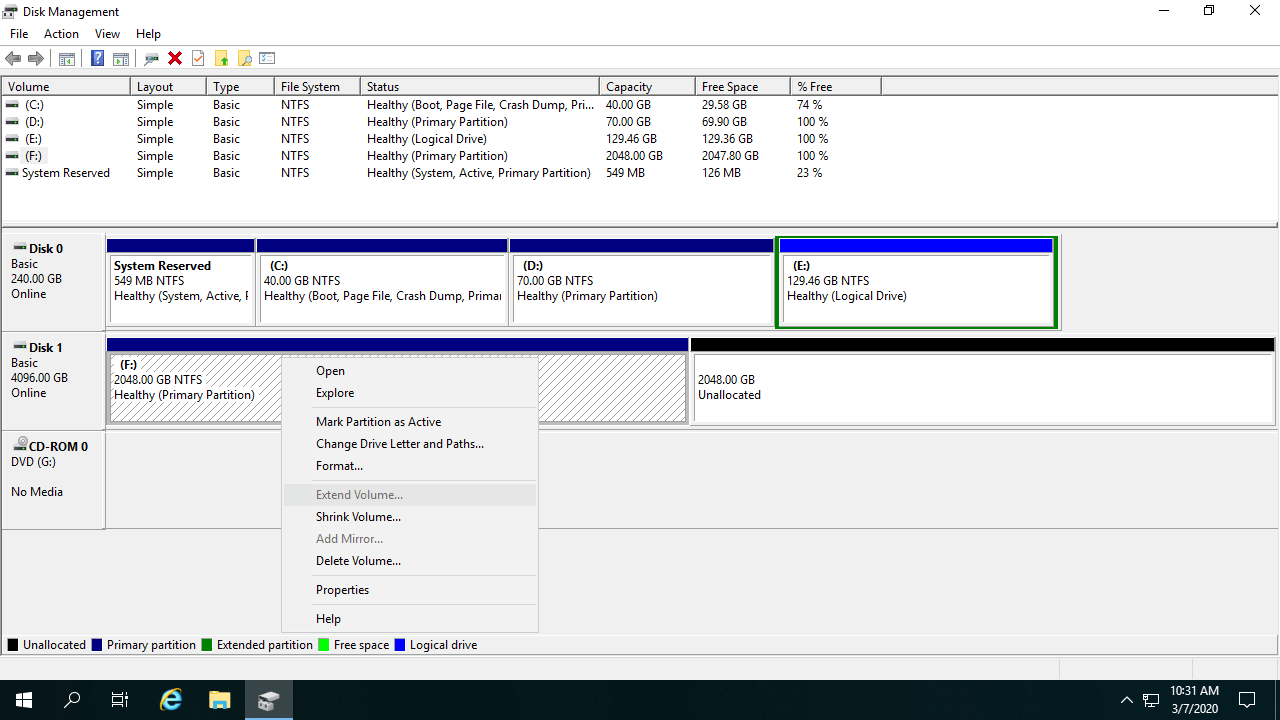
MBR disks have another major limitation: they can only address and utilize a maximum of 2TB of physical space. This means that if an existing partition has already reached 2TB, or if you are trying to extend a partition into unallocated space that lies beyond the 2TB mark on a larger disk, the "Extend Volume" option will be greyed out in Windows Server 2022/2025 Disk Management, even if there is adjacent unallocated space on its right.
What to Do When the Extend Volume Option Is Greyed Out
Although there are several reasons why the "Extend Volume" option may be greyed out in Windows Server 2022/2025, you only need one powerful tool to solve them all. Below are the corresponding solutions for each scenario.
Method 1: Shrink Partitions to Create Unallocated Space
If there is no unallocated space on your disk, you can shrink any NTFS or FAT32 partition using NIUBI Partition Editor. Unlike native tools, this software can create unallocated space on either the left or right side of a partition. Furthermore, if you shrink a non-adjacent partition, this tool can easily move the unallocated space to make it adjacent to the volume you want to extend.
Download NIUBI Partition Editor and follow the steps in the video below to shrink, move, and extend your partitions:
Method 2: Move Unallocated Space to Be Adjacent
As explained above, non-adjacent unallocated space is the most common reason why the "Extend Volume" option is disabled in Windows Server 2022/2025 Disk Management. To resolve this issue, simply run NIUBI Partition Editor and move the unallocated space so that it is adjacent to the partition you want to extend. Follow the steps in the video below:
Method 3: Resize FAT32 or Mixed Type Partitions
For NIUBI Partition Editor, shrinking, moving, or extending NTFS and FAT32 partitions is equally effortless. If you encounter a situation where Windows cannot shrink or extend a FAT32 partition, simply follow the method demonstrated in the first video above.
Additionally, even if the partitions you want to shrink and extend are of different types (such as Primary and Logical), NIUBI Partition Editor handles them seamlessly using the exact same steps.
Method 4: Convert MBR to GPT
If you are unable to extend a partition beyond 2TB or utilize the full capacity of your MBR disk, you can convert MBR to GPT to resolve this limitation easily.
In summary, when the "Extend Volume" option is greyed out in Windows Server 2022/2025 Disk Management, just follow the corresponding method above that fits your current disk partition configuration. Beyond shrinking, moving, extending, and converting disk partitions, NIUBI Partition Editor also helps you clone, defragment, hide, wipe, and optimize partitions, as well as scan for bad sectors.
 © 2009 - NIUBI Technology All Rights Reserved. |