
Whether your hard drive partitions are created by the OEM or by yourself when installing Windows, the size of each partition is allocated. Many people ask whether it is possible to repartition a hard drive without losing data when the C: drive is running out of space. The answer is yes, but you should run the right tool. This article introduces how to repartition a hard drive in a Windows 10/8/7 computer with a native tool and free partition software.
1. Repartition Hard Drive in Windows 10 Without Software
There is a native Disk Management tool in Windows 7/8/10; it has "Shrink Volume" and "Extend Volume" functions to help change partition size. However, it is not the best tool because of its many limitations.
Limitations to repartitioning a hard drive in Windows 10/8/7 with Disk Management:
- Only an NTFS partition is supported; FAT32 and any other types of partitions cannot be shrunk or extended.
- The "Shrink Volume" function can only shrink a partition to the left and create unallocated space on the right.
- If there are some unmovable files in a partition, the "Shrink Volume" function can only shrink a small amount of space.
- The "Extend Volume" function only works when there is adjacent unallocated space on the right side of the partition that you want to extend.
If you just want to shrink a large NTFS partition to create more volumes, you may try the Windows native Disk Management tool. But if you want to shrink a FAT32 partition, or if you cannot shrink a partition because of unmovable files or cannot extend a partition after shrinking another one, you need to run third-party software.
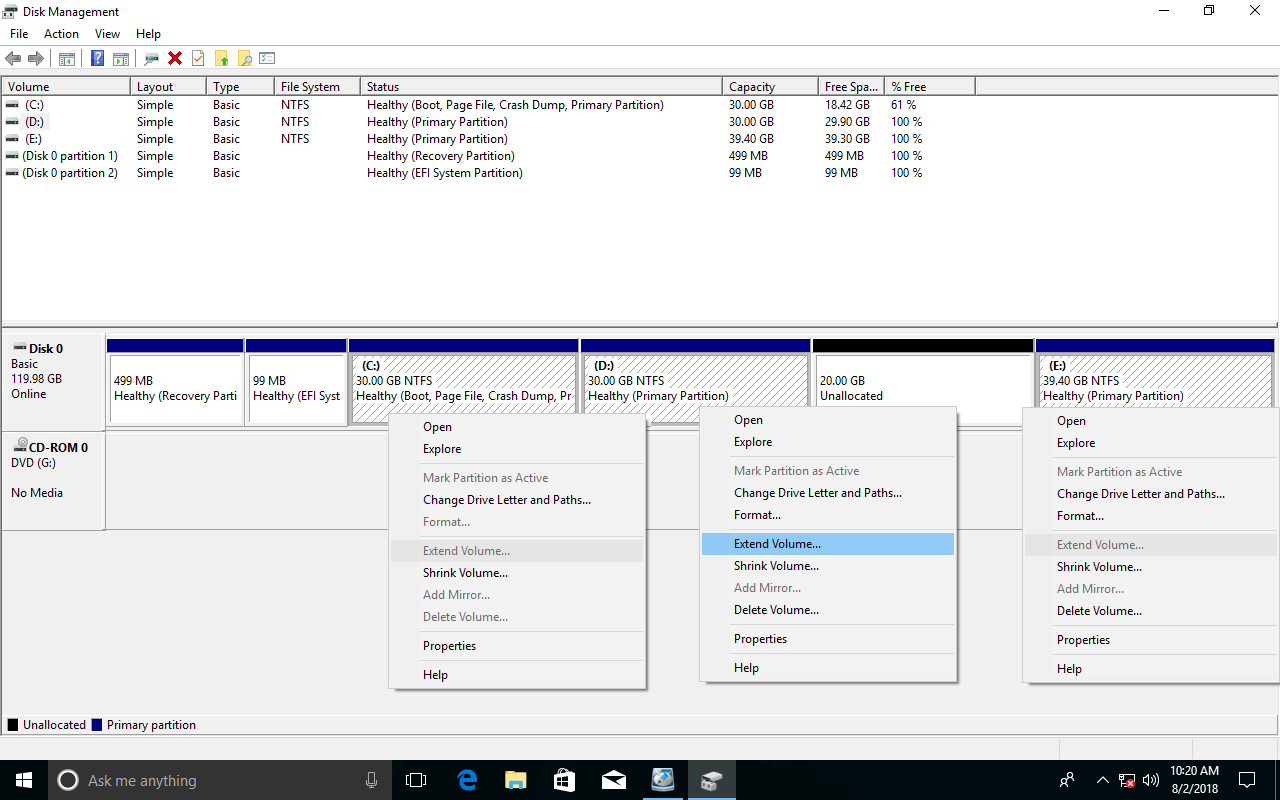
As seen in the screenshot, "Extend Volume" is greyed out for both the C: and E: drives after shrinking D, because the unallocated space shrunk from D is non-adjacent to C and is on the left of E.
Obviously, Windows native Disk Management is not a perfect tool to help you repartition a hard drive in Windows 10/8/7. If you still want to try this tool, follow the steps below:
2. Repartition Windows 10 Hard Disk with Free Software
Compared with Windows Disk Management, third-party software has more advantages when repartitioning a Windows 10 hard disk, for example:
- Supports resizing both NTFS and FAT32 partitions.
- Creates unallocated space on either the left or the right when shrinking a partition.
- Merges unallocated space into either contiguous partition in 1 step by dragging and dropping.
- Moves unallocated space and merges it into any non-adjacent partition on the same disk.
There is a data loss and system damage risk when repartitioning a hard drive on a Windows 10/8/7 laptop/desktop. In fact, even the Windows native Disk Management tool can sometimes corrupt partitions. Therefore, you had better make a backup in advance and run the safest partition tool.
Compared with other tools, NIUBI Partition Editor features powerful technologies to protect your system and data:
- Hot Clone - Clone disk partitions in Windows for backup, migration, and fast disk swapping.
- Virtual Mode - All operations are listed as pending for preview, and real disk partitions won't be modified until you click "Apply" to confirm.
- Cancel-at-Will - If you applied incorrect operations, you can safely cancel the ongoing operations at any stage before completion.
- 1 Second Rollback - If any error is detected while resizing partitions, it can immediately and automatically revert the disk partitions to their previous state.
NIUBI Partition Editor offers a free edition for Windows 11/10/8/7/Vista/XP home users. It is the same as the commercial edition except for the lack of the 1-Second Rollback technology and bootable media builder.
Download this program, and you will see all storage devices with their partition layout and other information.
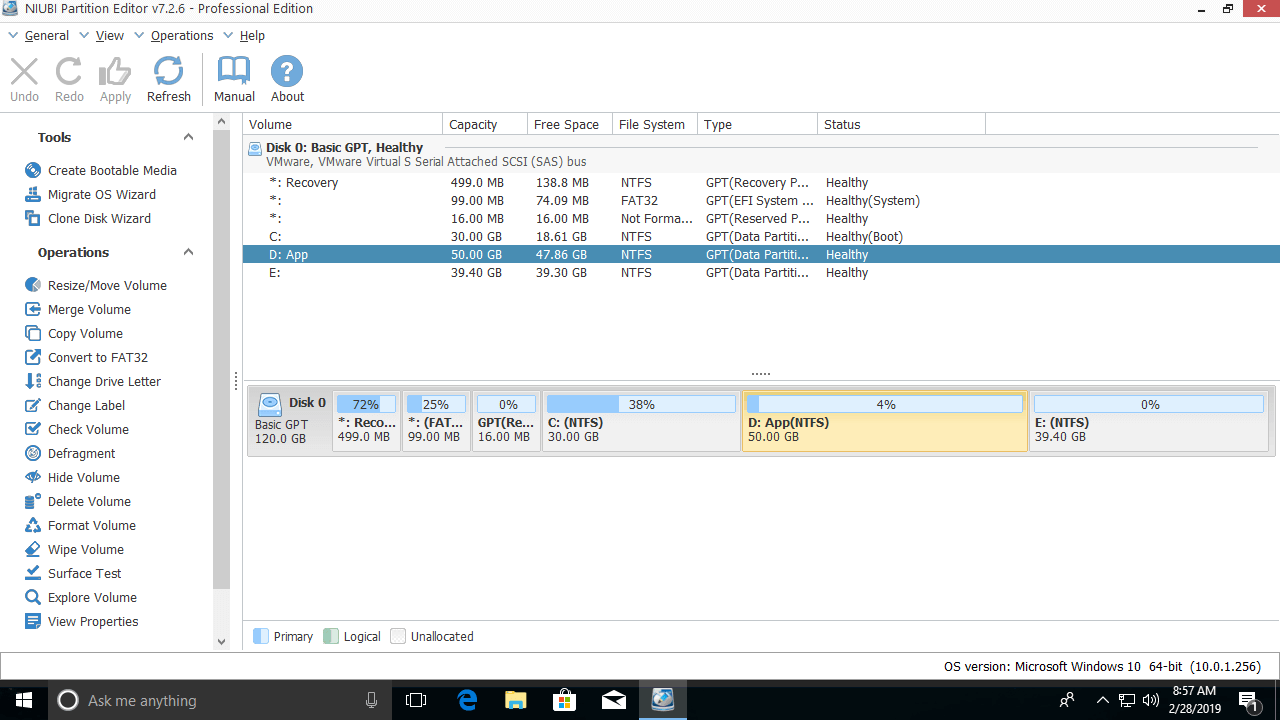
How to Repartition a Hard Drive in Windows 10/8/7 with NIUBI:
Right-click a partition such as D: and select "Resize/Move Volume"; you have two options in the pop-up window.
① If you drag the left border to the right in the pop-up window,
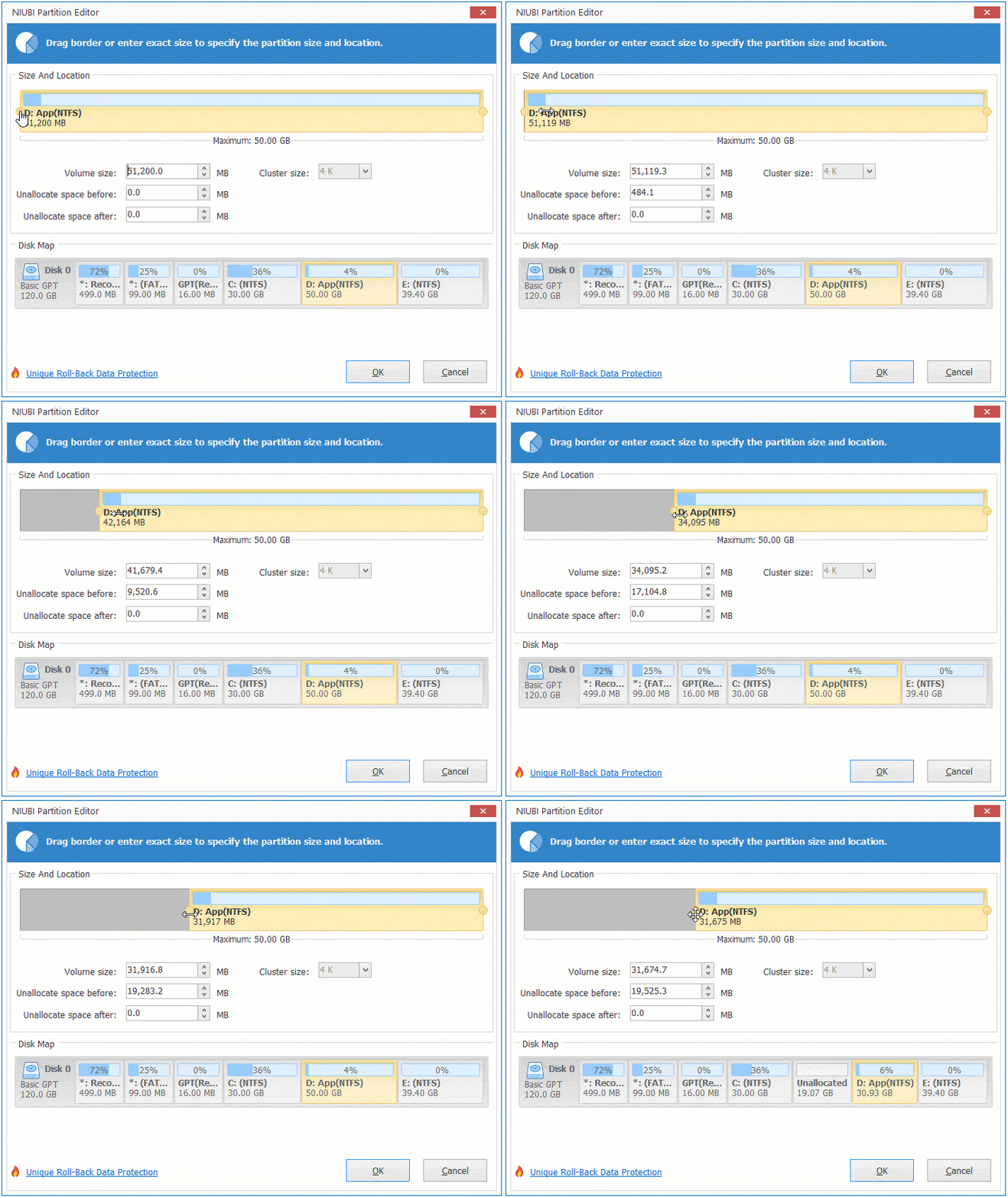
Then partition D is resized and unallocated space is created on the left.
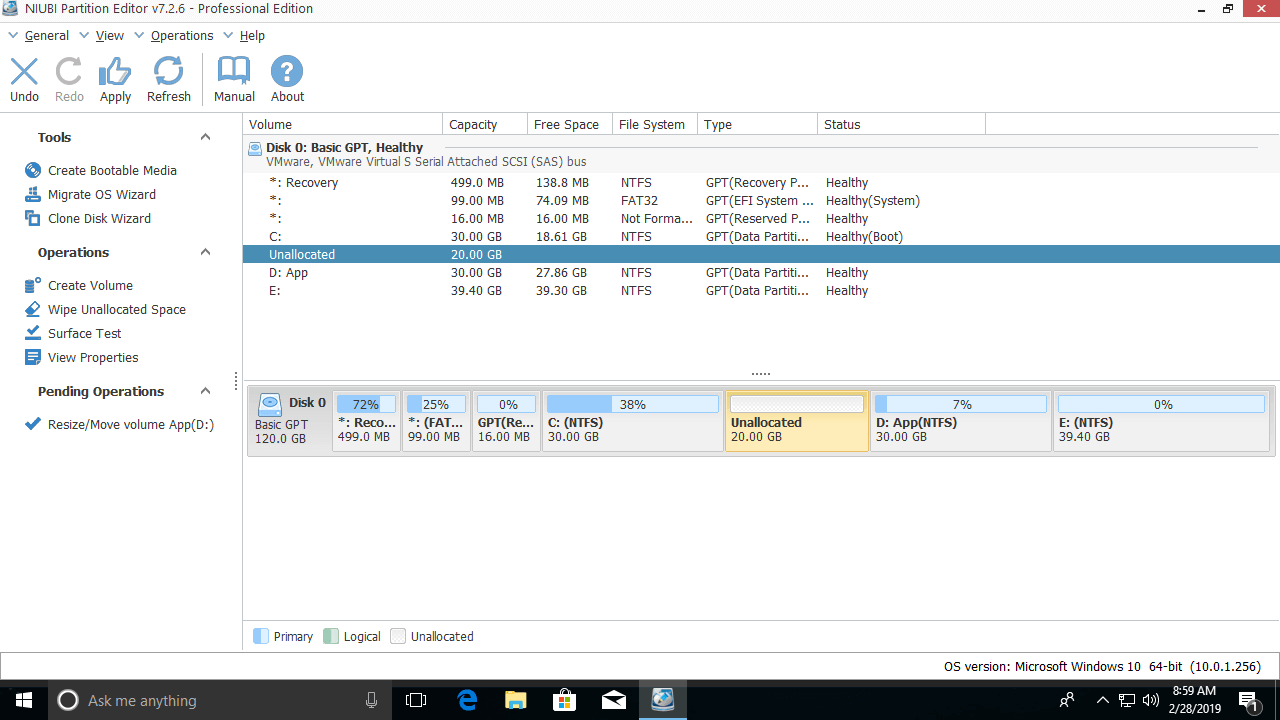
② If you drag the right border to the left in the pop-up window,
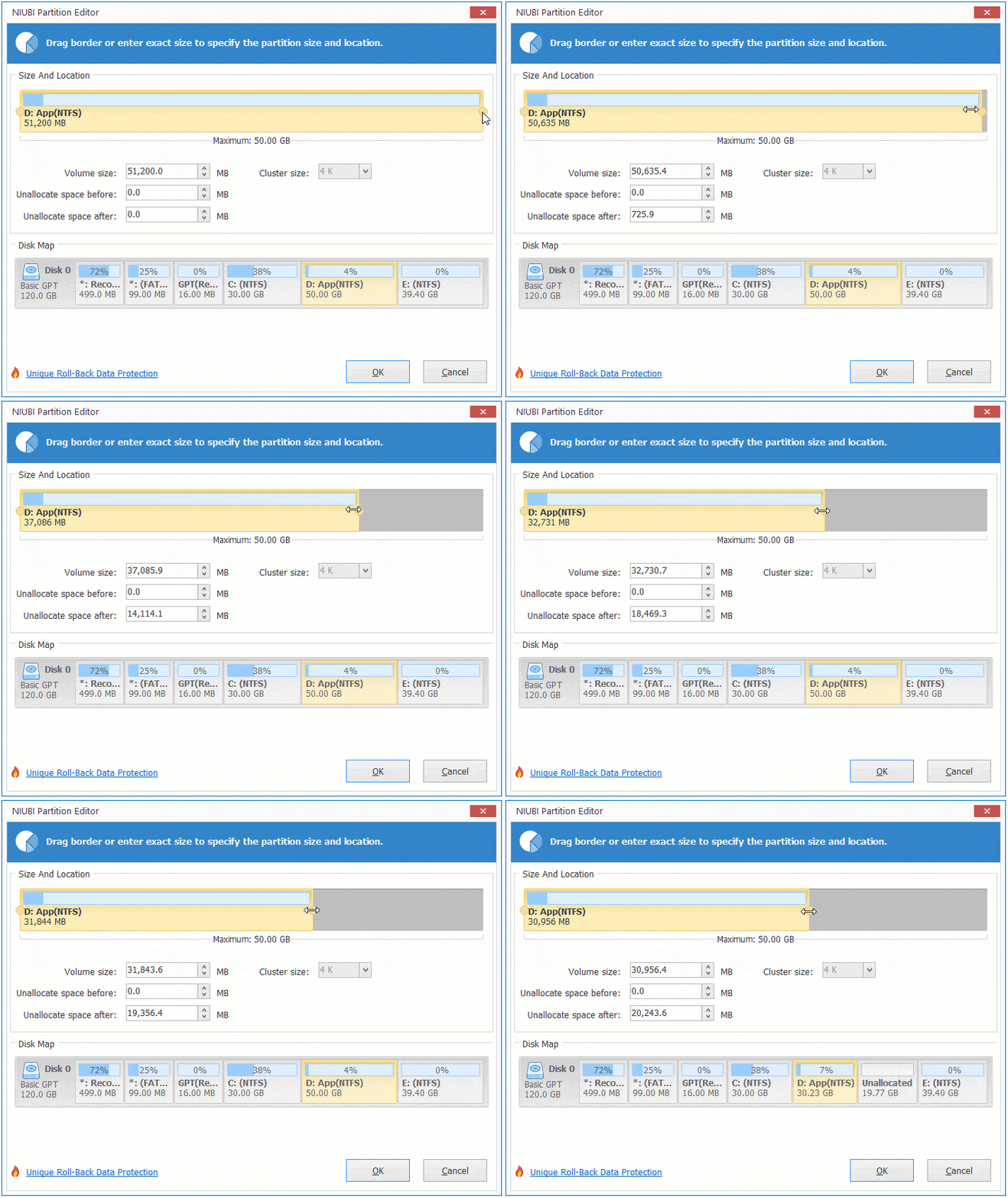
Then unallocated space will be created on the right of the D drive.

- If you want to extend the C drive partition, follow Option 1 above to create unallocated space on the left of D. Then right-click the C: drive and select "Resize/Move Volume" again; drag the right border to the right to merge this unallocated space.
- If you want to extend partition E, follow Option 2 above to create unallocated space on the right of the D drive. Then right-click E: and select "Resize/Move Volume" again; drag the left border to the left to merge the unallocated space.
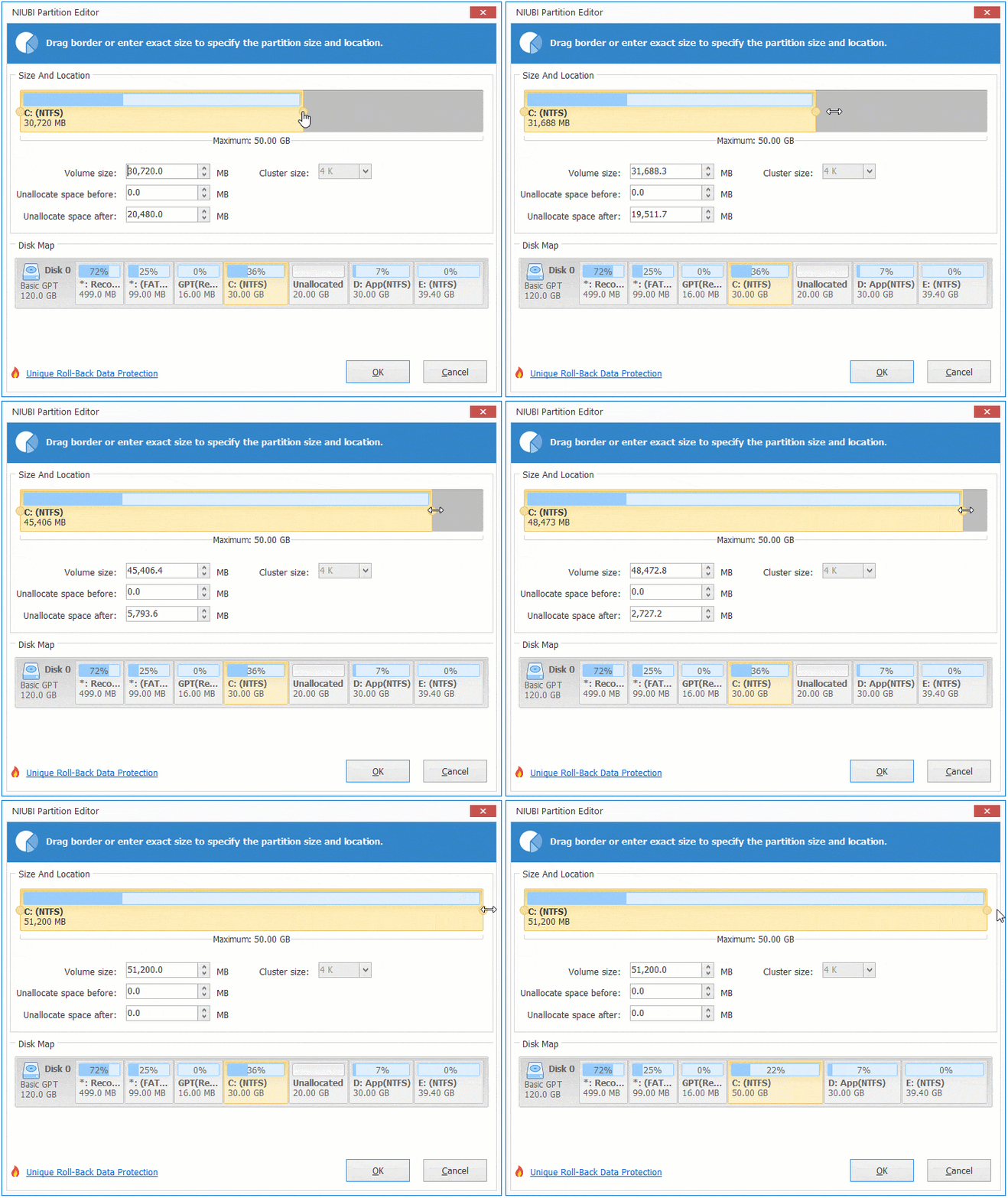
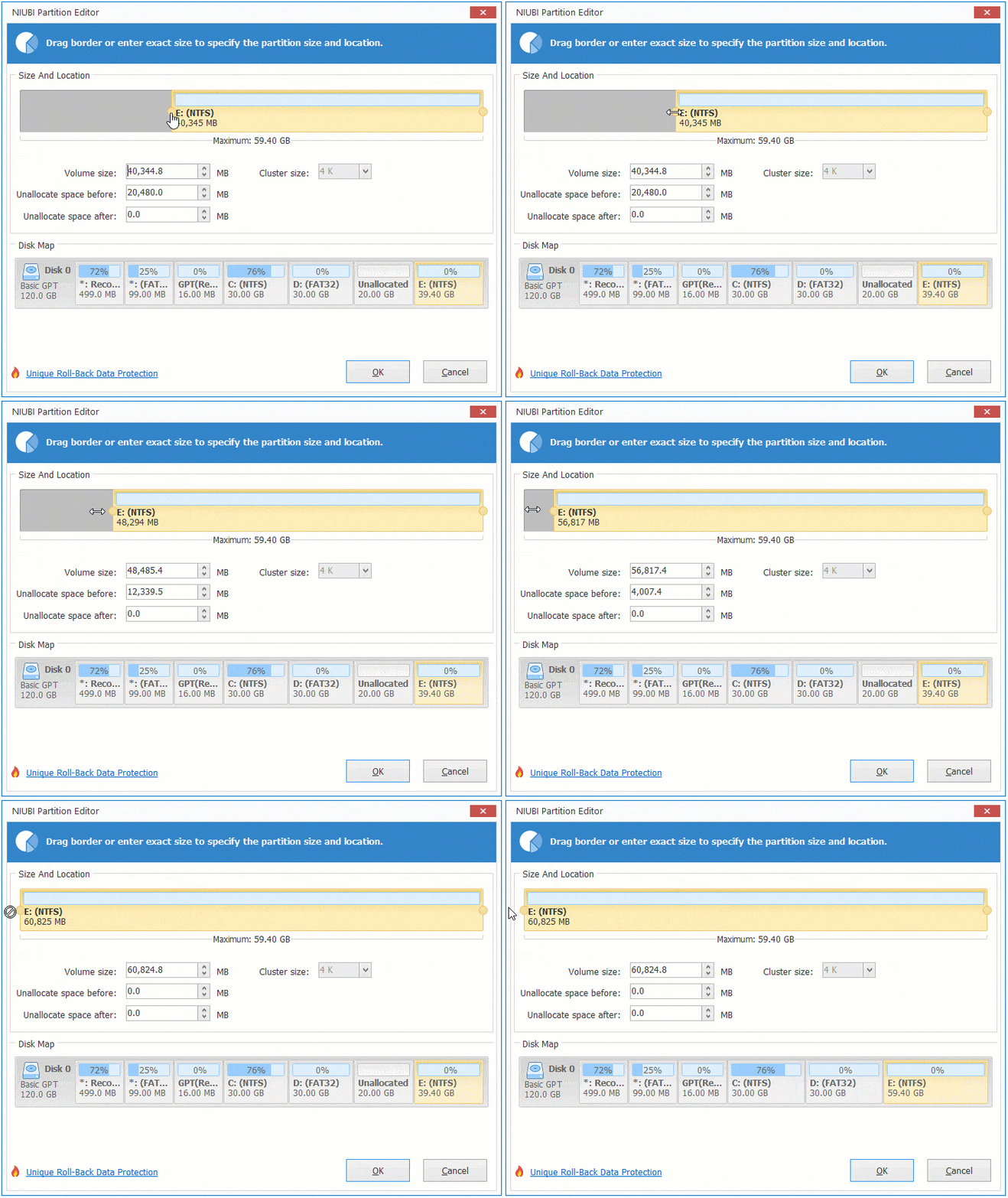
Follow the steps if you want to extend a non-adjacent partition.
3. Repartition Windows 10 Hard Drive with a Larger Disk
If you want to extend a partition but there is no other partition with free space on the same disk, you must repartition with another disk. No software can extend a partition by adding space from a different disk, because the size of a physical disk is fixed. A 500GB disk cannot be decreased to 250GB or increased to 1TB.
To solve this problem, you can copy the disk to a larger one and repartition the drives with the extra disk space. Note that if you use a Solid State Drive (SSD) as the system disk, you had better copy it to another, larger SSD. The read and write speed of an SSD is much faster than a traditional mechanical disk, so it is helpful for improving computer performance. If you want to repartition an SSD in Windows 10/8/7, follow the same steps above. Besides helping you repartition a hard drive in Windows 11/10/8/7/Vista/XP, NIUBI Partition Editor helps you perform many other operations such as merging, copying, converting, defragging, hiding, wiping partitions, scanning for bad sectors, and much more.
 © 2009 - NIUBI Technology All Rights Reserved. |