
"Unallocated" space is a kind of disk space that is not allocated to any partition. Besides creating a new volume, unallocated space can be used to extend another partition. To get unallocated space, you may either delete or shrink a partition. Compared with deleting a partition, you will not lose data by shrinking a partition.
When the system C: drive is running out of space, many people want to shrink the D drive to get unallocated space and add it to the C drive. If you did shrink the D drive with Disk Management, you know that this Windows native tool cannot merge unallocated space into the C drive. This article introduces how to merge unallocated space in a Windows 10/8/7 computer with free partition software.
Why Disk Management Cannot Merge Unallocated Space
There are 2 types of native tools in Windows 10/8/7 - Diskpart and Disk Management. Diskpart is a command line tool, while Disk Management has a graphic interface. Although they work in different ways, they have the same shortages when merging unallocated space into a partition in Windows 10/8/7:
- They can only merge unallocated space into an NTFS partition; FAT32 and any other types of partitions are not supported.
- They can only merge unallocated space into the contiguous partition on the left.
- They cannot merge unallocated space into a non-adjacent partition or into the contiguous partition on the right.
Many people successfully shrunk the D drive to get unallocated space via Disk Management, but they cannot merge the unallocated space into the C drive in Windows 10/8/7. Why? Because the native tools can only create unallocated space on the right when shrinking D (and other partitions). This unallocated space is non-adjacent to the C drive and is on the left of the E drive. Therefore, "Extend Volume" is greyed out for both partitions.
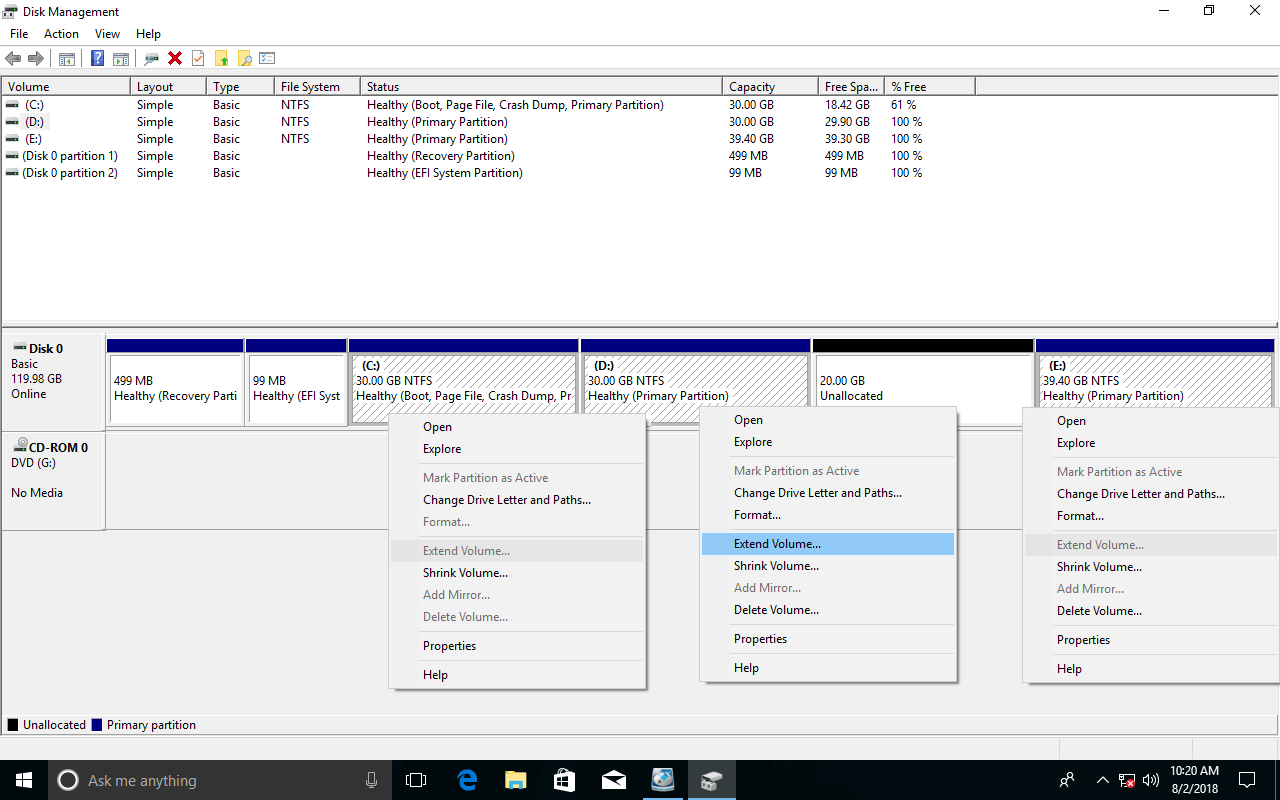
If you want to merge unallocated space into the C drive in Windows 10/8/7 without using any software, you must delete the D: drive to get contiguous unallocated space. If you want to merge unallocated space into the E drive (the adjacent partition on the right), Disk Management (and Diskpart) cannot help you.
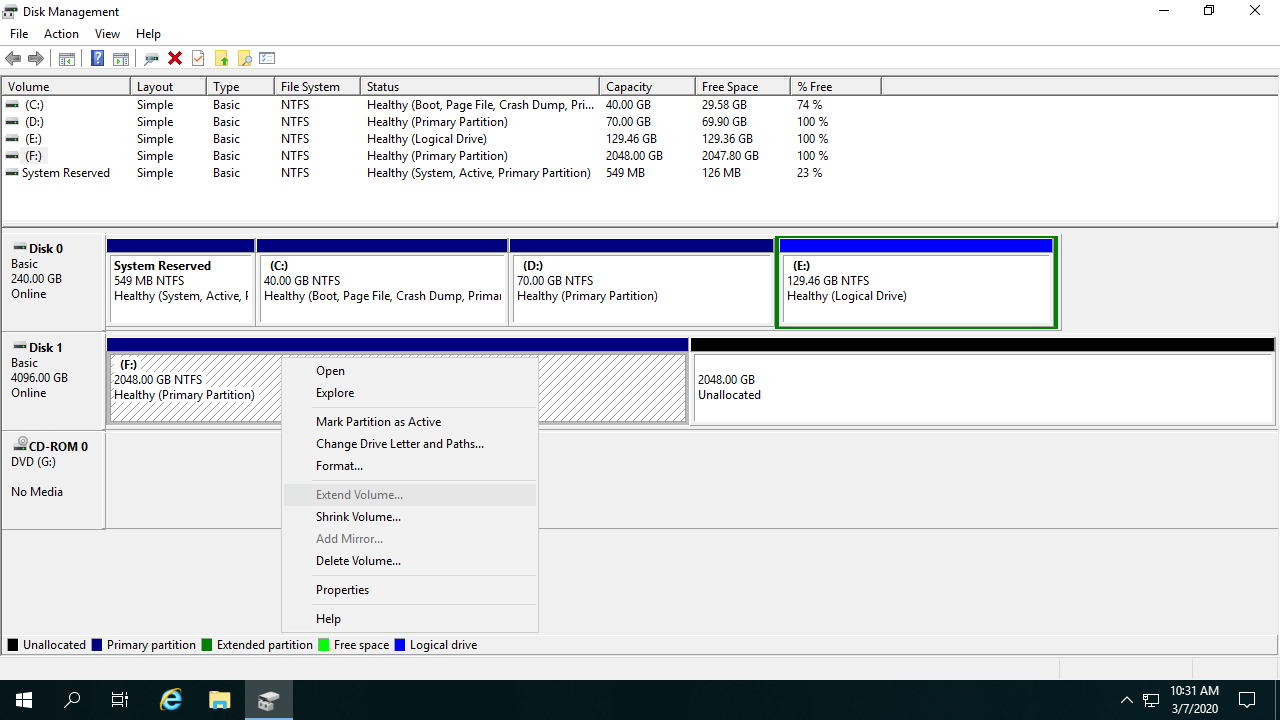
Note: do not delete the D drive if you installed programs in it. If D is a Logical drive, Disk Management is unable to extend the C drive even after deleting D.
Another probable reason why you cannot merge unallocated space into a partition in Windows 10/8/7 is related to the MBR disk limitation. On an MBR disk, you can only create a maximum 2TB partition. If you want to merge more unallocated space into it, you must convert the MBR disk to GPT in advance.
Merge Unallocated Space in Windows 10/8/7 with Free Software
To merge unallocated space into a partition on a Windows 10/8/7 computer, you had better run third-party software. There are many choices, but among them all, NIUBI Partition Editor is much better, because it has 1-Second Rollback, Virtual Mode, Cancel-at-will, and Hot-Clone technologies to protect your system and data. It offers a free edition for Windows 11/10/8/7/Vista/XP home computer users. To move and merge unallocated space, you just need to drag and drop on the disk map.
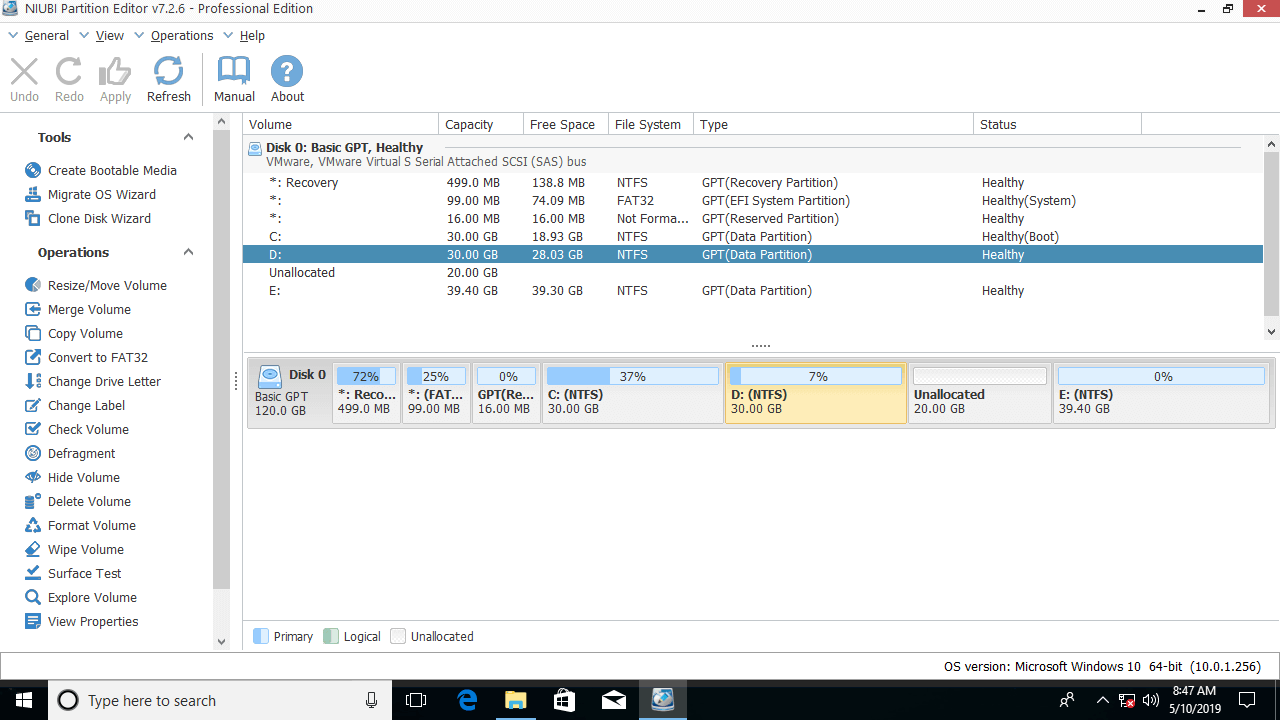
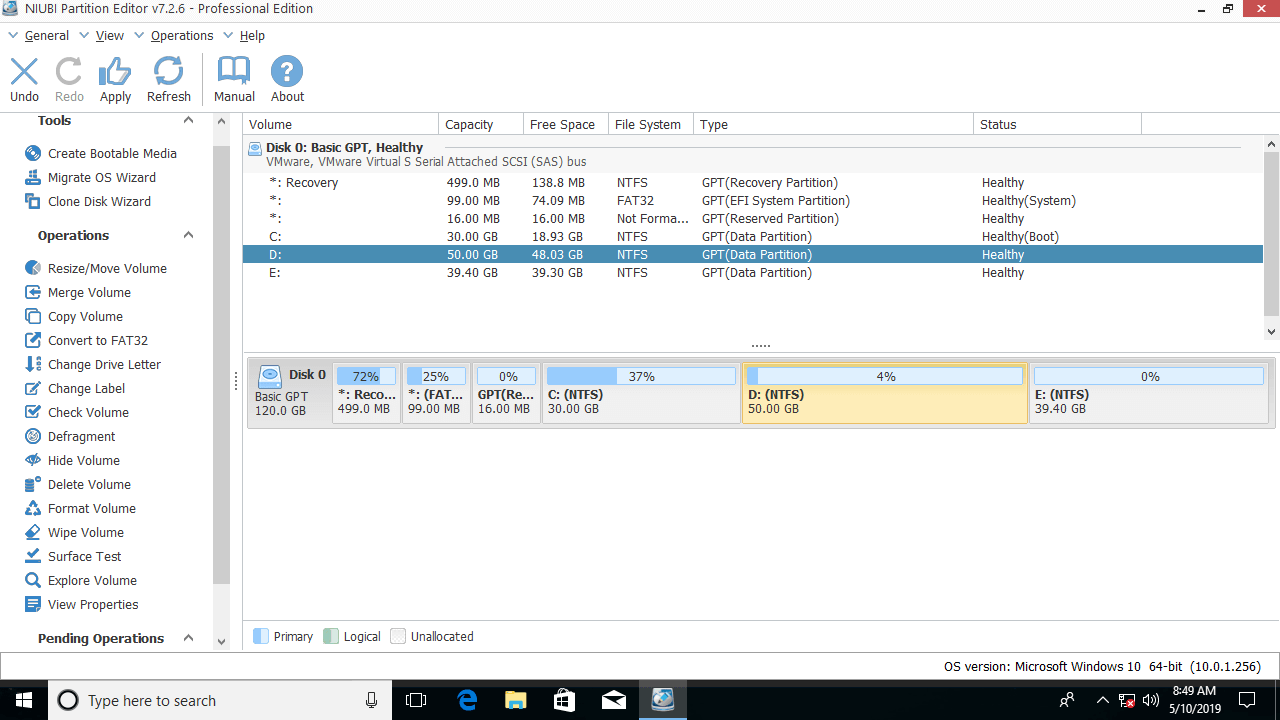
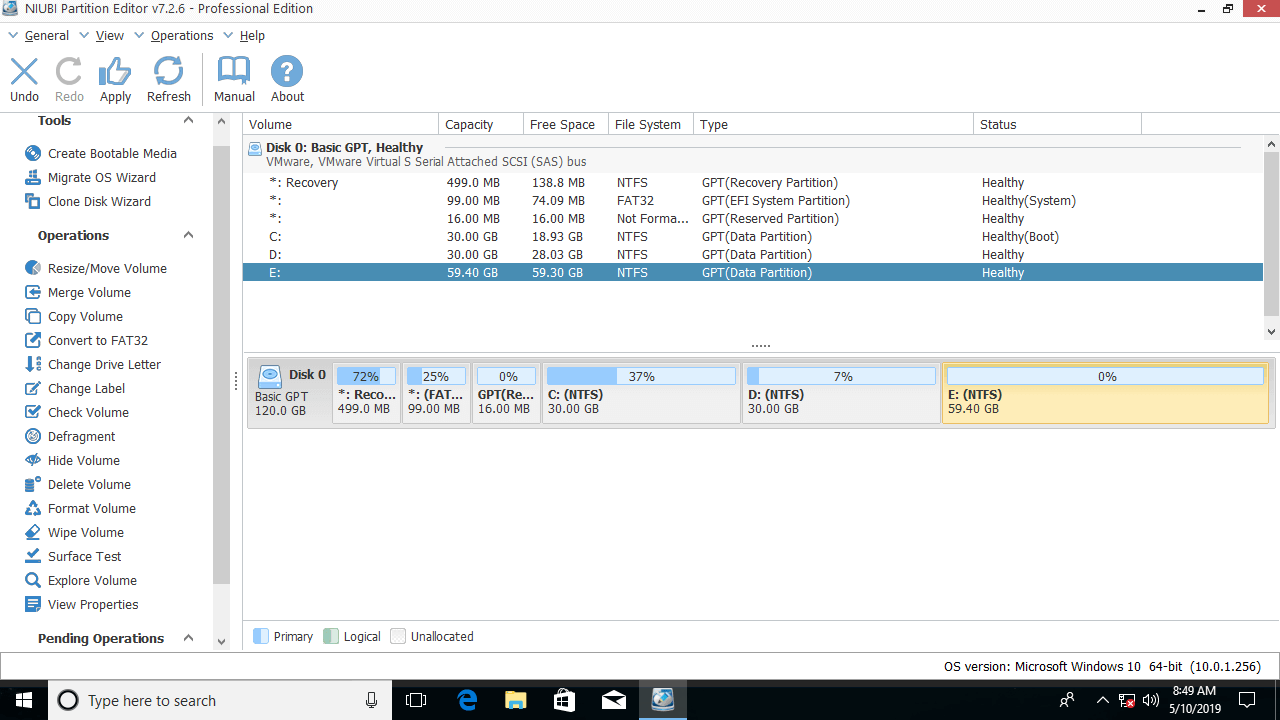
Download this program and you'll see the main window with disk partition structure and other information.
1. How to Merge Unallocated Space into the C Drive (Non-adjacent)
If you have shrunk the D drive in Disk Management, unallocated space was created on the right of D. To merge this unallocated space into the C drive, you must move the unallocated space to the left in advance, and then merge it into the C drive.
Steps to merge unallocated space into the C drive in Windows 10/8/7 with NIUBI:
- Right-click the D: drive and select "Resize/Move Volume"; drag the middle of the D drive to the right in the pop-up window. Then the unallocated space will be moved to the left side.
- Right-click the C: drive and select "Resize/Move Volume" again; drag the right border to the right to merge this unallocated space into the C: drive.
- Click Apply on the top left to confirm and execute. (To avoid mistakes, all operations you perform will be listed as pending on the bottom left. Real disk partitions will not be modified until you click Apply to confirm.)
Follow the steps in the video:
If you use any type of hardware RAID array, or run Windows 10 as a guest virtual machine in VMware or Hyper-V, simply follow the same steps in the video; there is no difference. In some computers, the contiguous drive is E. In that case, replace D with E in the steps above.
2. How to Merge Unallocated Space into the D/E Drive (Adjacent)
To merge unallocated space in Windows 10/8/7 into a contiguous partition, it is very easy with NIUBI Partition Editor. There is only one step, by following the methods below.
① Merge unallocated space into the D drive (left adjacent partition):
Right-click the D: drive and select Resize/Move Volume; drag the right border to the right in the pop-up window.
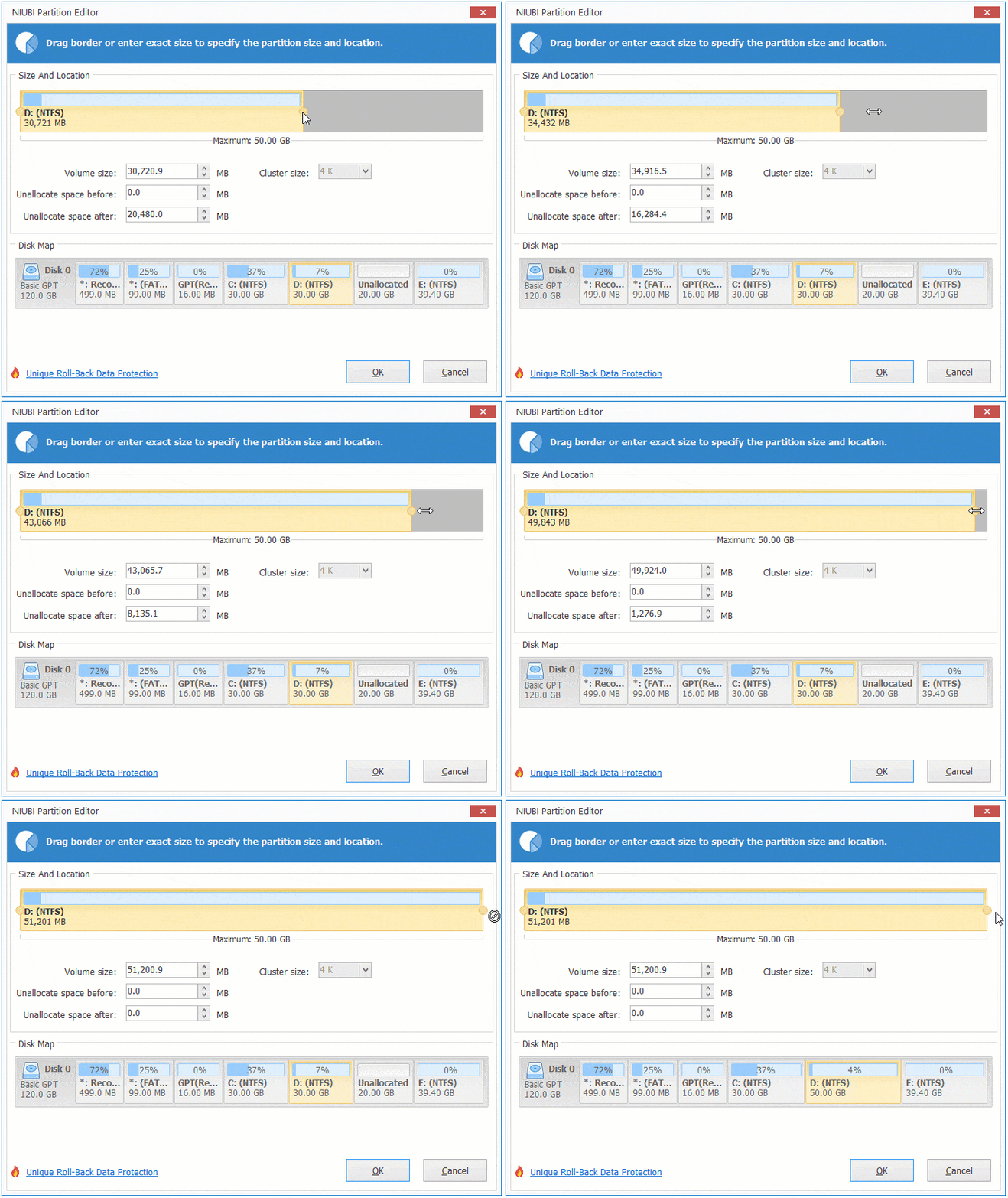
Then the unallocated space is merged into the D drive.
② Merge unallocated space into the E drive (right adjacent partition):
Right-click the E: drive and select Resize/Move Volume; drag the left border to the left in the pop-up window.
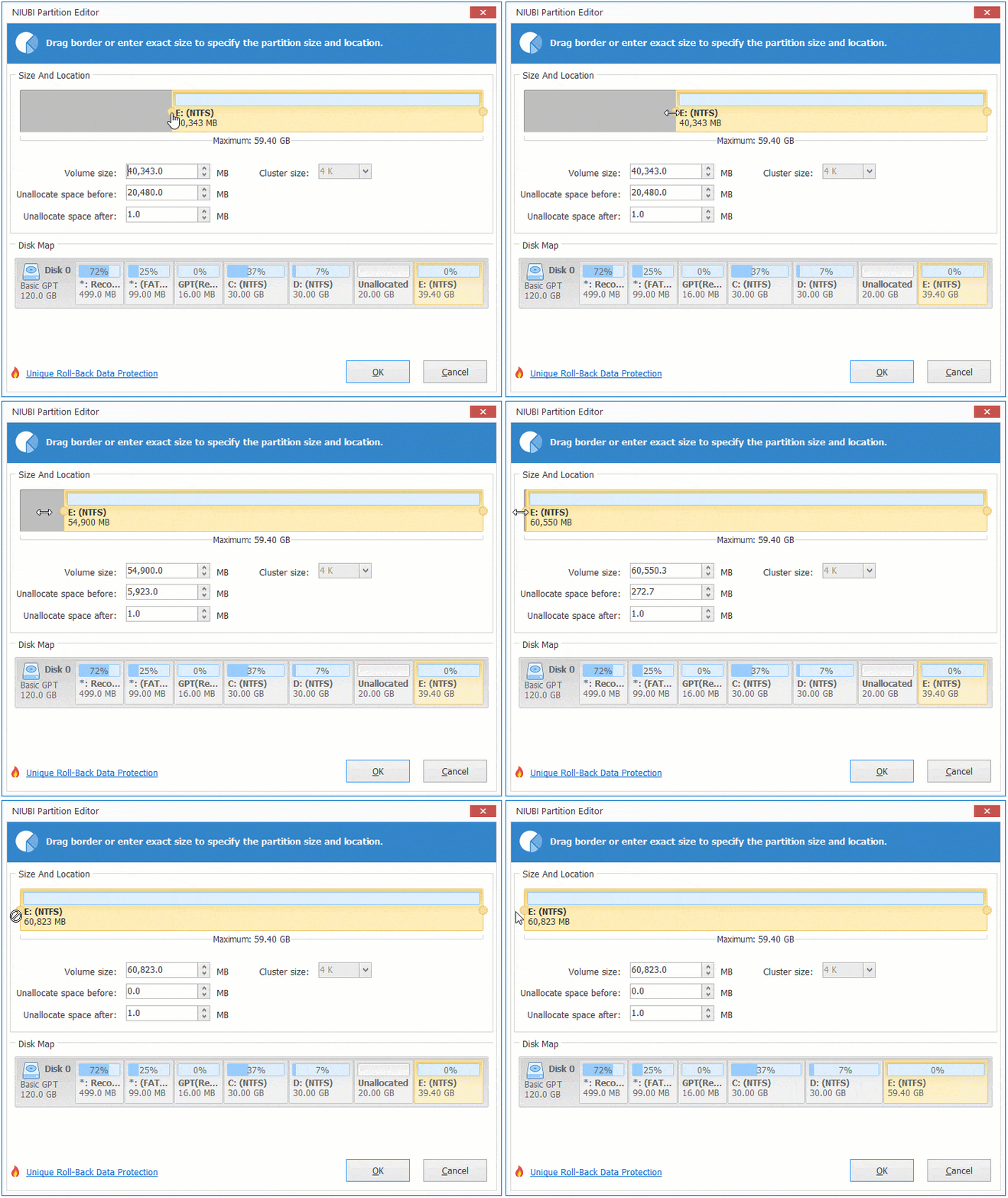
Then the unallocated space is merged into the E drive.
If you want to add unallocated space to a 2TB partition, follow the step to convert MBR disk to GPT and then follow the method above.
3. Merge Unallocated Space to Another Disk
In some computers, there is no data volume on the system disk, or there is not enough free space on the same disk. Some people wonder whether it is possible to add unallocated space to the C drive from a different disk. The answer is no, because the size of a physical disk is fixed. You can resize a partition, but you cannot shrink or expand a physical disk (except for a virtual disk).
To solve this problem, there are two options with NIUBI Partition Editor:
- Move a partition to another disk, delete it to get unallocated space, and then merge it into the C drive.
- Copy the entire disk to a larger one and extend the partition with the additional disk space.
If you use a virtual machine, it is much easier. You can expand the original virtual disk by following the steps in VMware or Hyper-V. After expanding the disk, the additional space is shown as unallocated at the end of the disk. Then, follow the steps above to move and merge the unallocated space into the C drive or another partition.
Besides moving and merging unallocated space in Windows 11/10/8/7/Vista/XP, NIUBI Partition Editor helps you perform many other operations such as copying, converting, defragging, wiping, hiding partitions, scanning for bad sectors, optimizing file systems, and much more.
 © 2009 - NIUBI Technology All Rights Reserved. |